
Thredium can send Telegram messages about tasks, errors, account bans and balance top-ups, as well as activity summaries at chosen times. The messages come from your own bot: you create it in Telegram and add its key in "Settings → Alerts". Everything is sent straight from your computer.
Connecting the bot
Create a bot
- In Telegram open @BotFather and send the /newbot command.
- Give the bot a name and a username — BotFather sends an API key (token) like
123456:ABC…. - Open your bot and press "Start": a bot cannot write to someone who has never written to it.
API key and admin IDs
- Telegram API key — paste the BotFather token. The key is stored only on your computer. Leave the field empty to keep the saved key, or paste a new one to replace it.
- Telegram admin IDs — numeric IDs of the people who receive the messages, separated by commas, up to 25. It is the Telegram account ID, not the username. Bots such as @userinfobot show it.
Check the delivery
Press "Send test message" — the bot sends a check message to every ID. The result appears under the button. "Save credentials after a successful test" saves the key and IDs if the test passes. "Delete key" deletes the saved token.
The state line shows whether sending works and when the last delivery was; the counters show how many messages are queued, sent, failed and dropped.
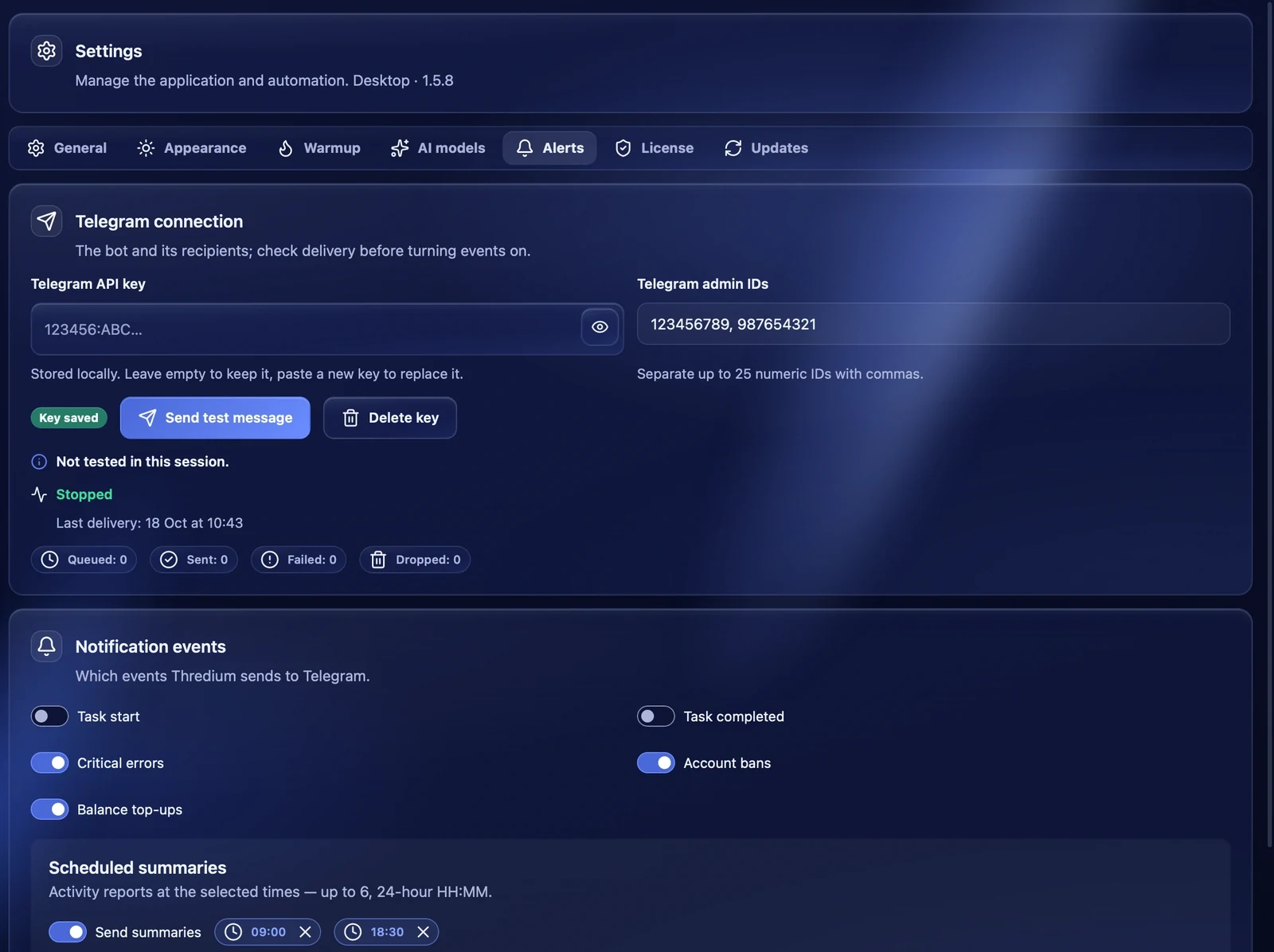
Notification events
Tick what to send messages about:
- Task start — a task has started;
- Task completed — the task's result;
- Critical errors — for example, a task stopped, a proxy was switched off or a scheduled run was missed;
- Account bans — an account got banned;
- Balance top-ups — the marketplace balance was topped up.
Scheduled summaries
Turn on "Send summaries" — at the chosen times the bot sends an activity report. Up to 6 times can be set in the HH:MM format: enter a time and press "Add time". Remove a time with its cross.
After the changes press "Save" at the bottom of the tab.
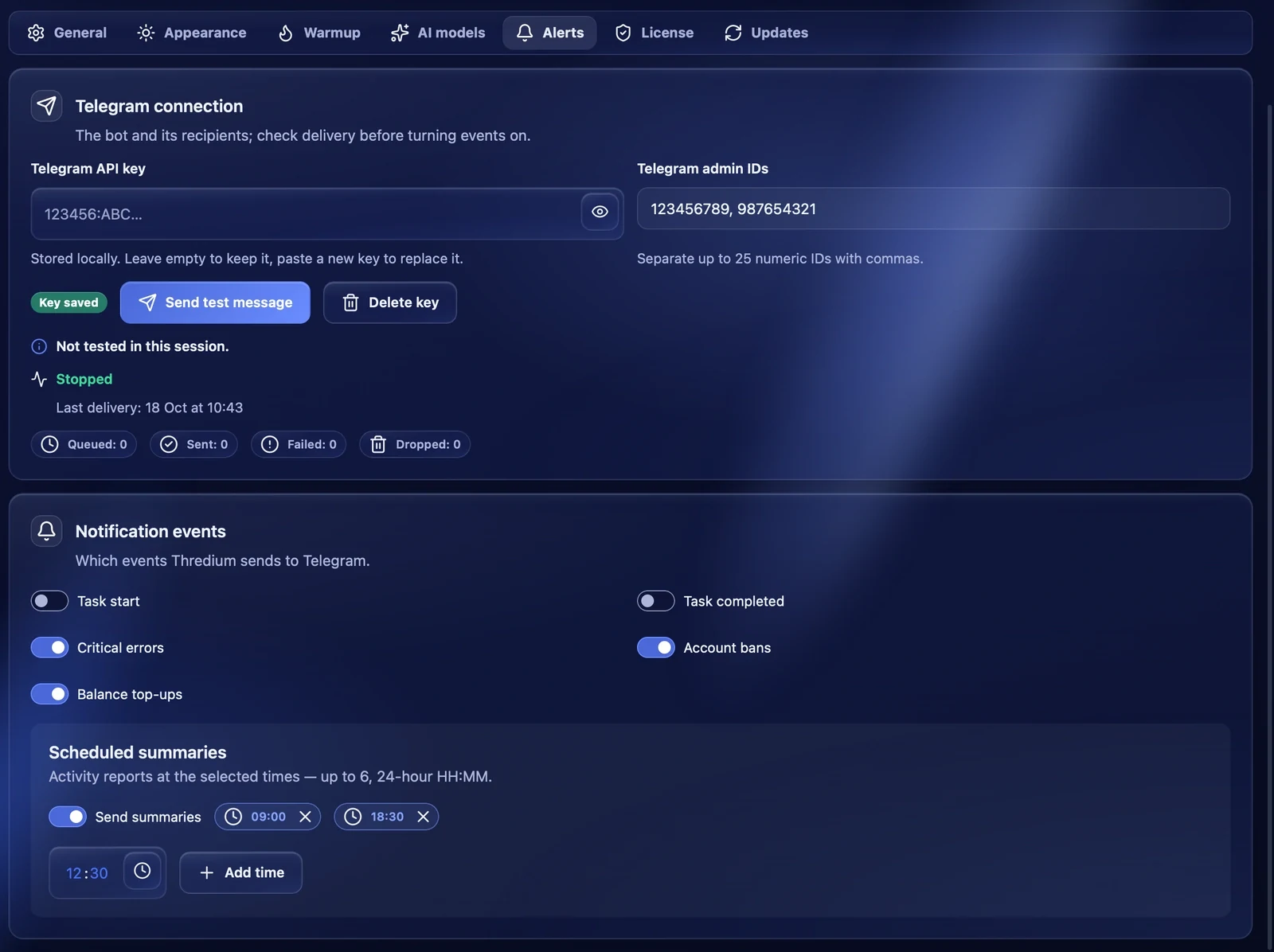
Recommendations
- Turn on at least "Critical errors" and "Account bans" to hear about problems at once.
- If you work as a team, add the IDs of everyone who looks after the accounts — each gets the messages.
- If the test message did not arrive, check that you pressed "Start" in the bot and that the ID is numeric.