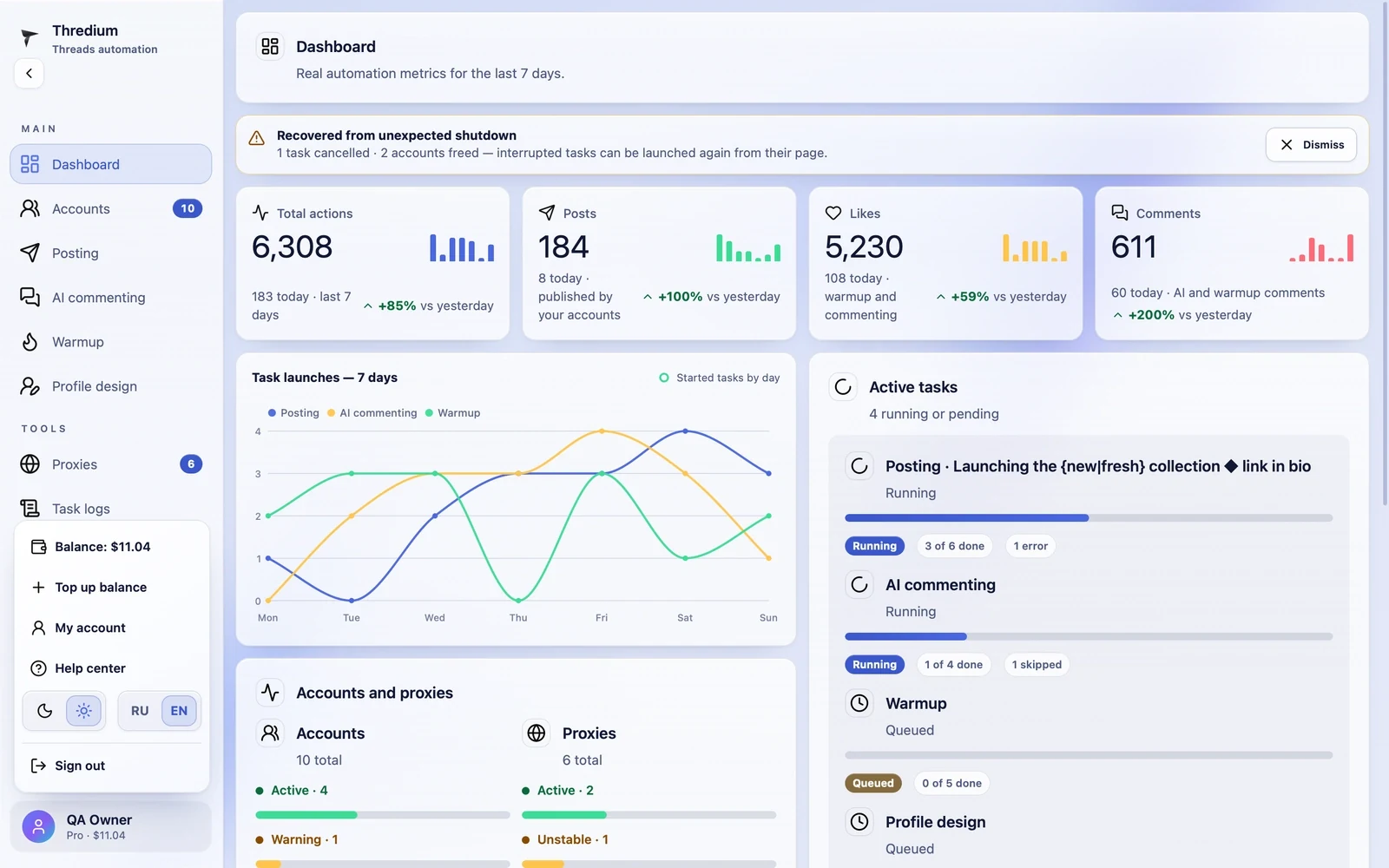
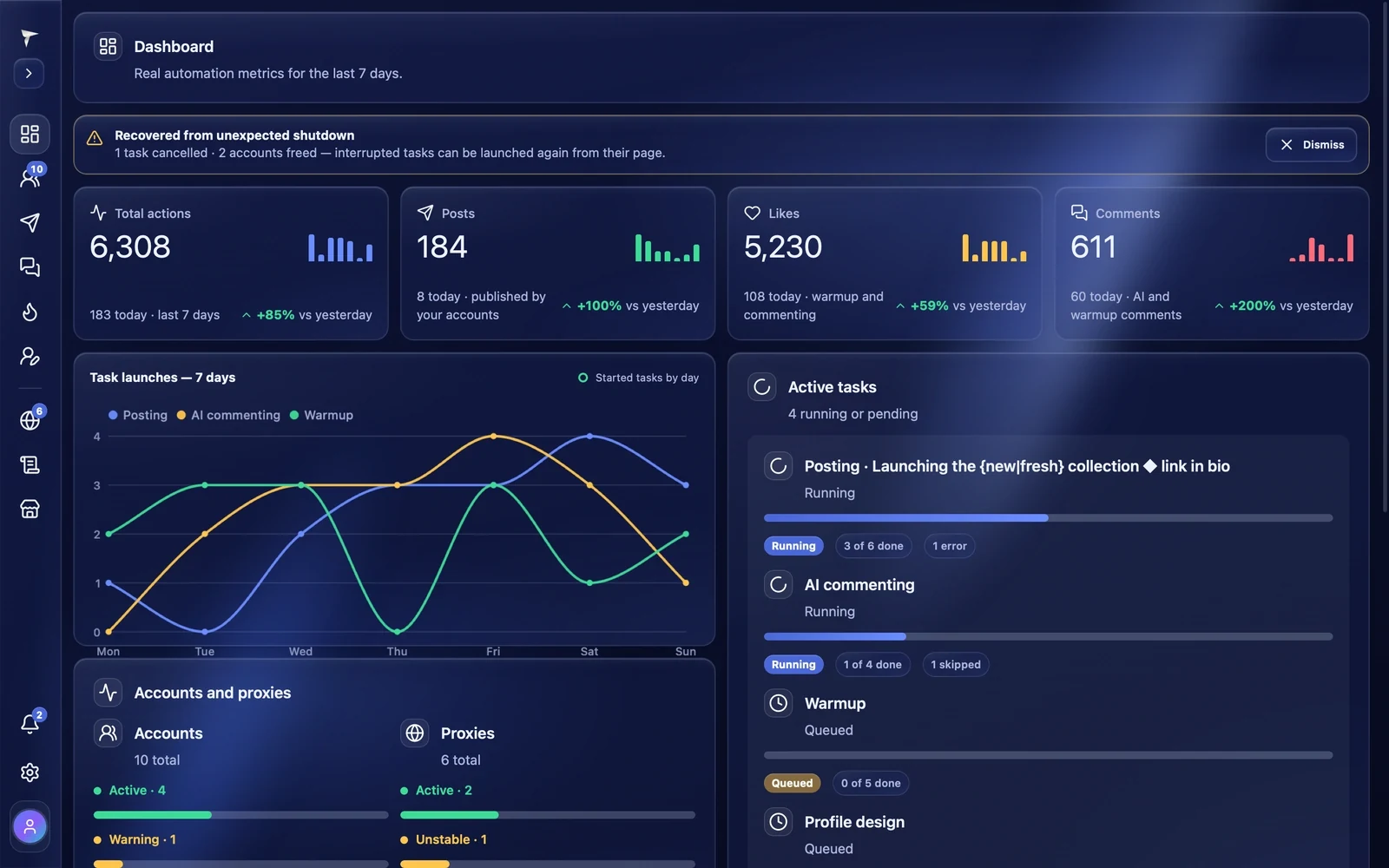
The Thredium window has a sidebar on the left and the work area on the right. The sidebar holds all sections, notifications, settings and your profile. The "Dashboard" opens first — a summary of the work over the last 7 days.
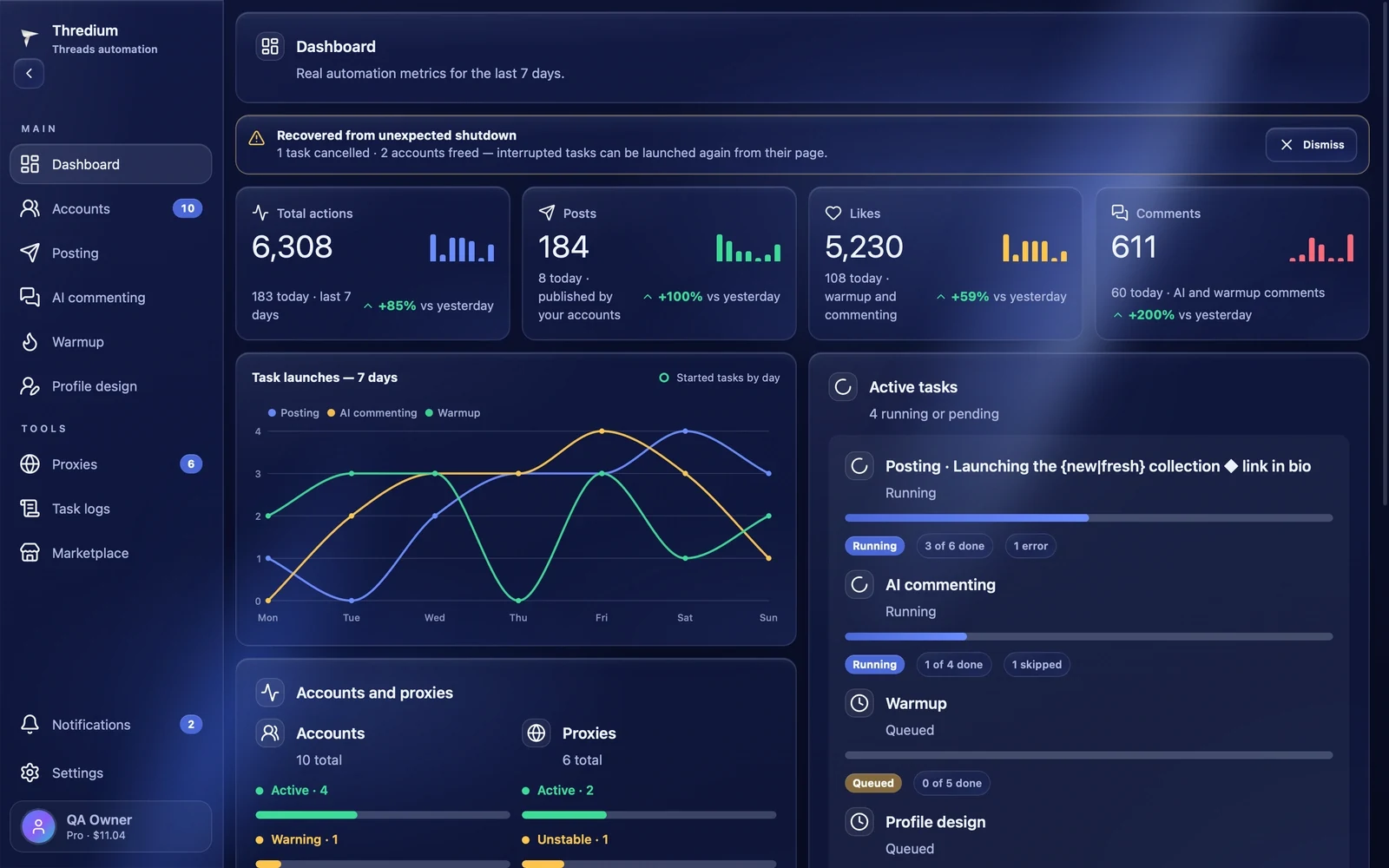
Sidebar
The sections are in two groups:
- Main — "Dashboard", "Accounts", "Posting", "AI commenting", "Warmup", "Profile design";
- Tools — "Proxies", "Task logs", "Marketplace".
At the bottom are "Notifications" and "Settings". The numbers next to the items show how many accounts and proxies are added and how many notifications are unread.
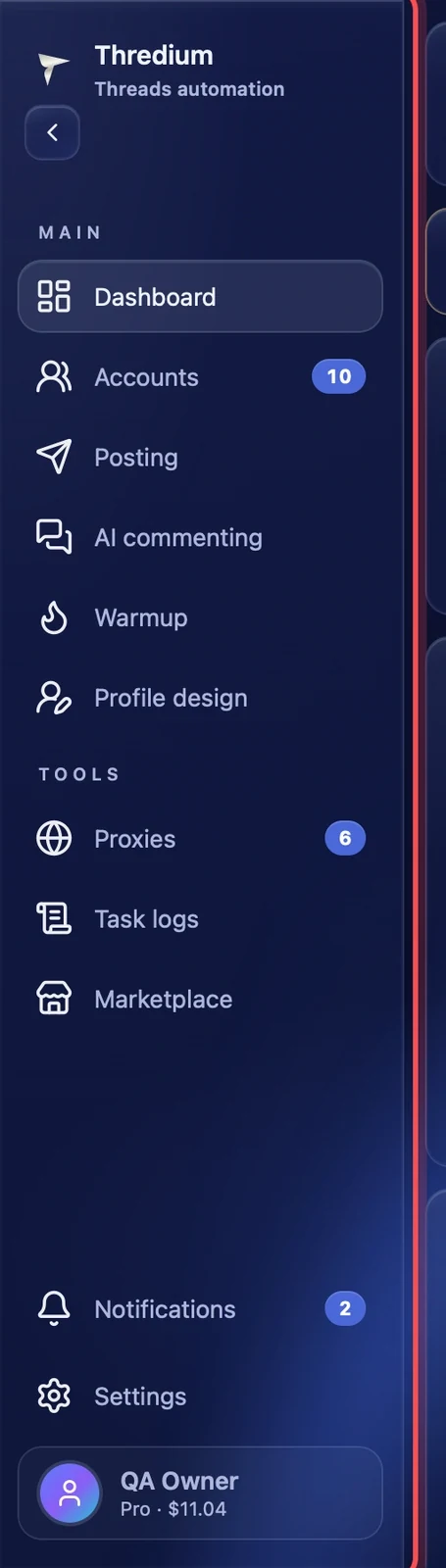
Collapsing the sidebar
The arrow button under the logo collapses the sidebar to icons to give the work area more room. Press it again to expand. The app remembers the choice. Until you make it, the sidebar is collapsed in a narrow window.
Profile
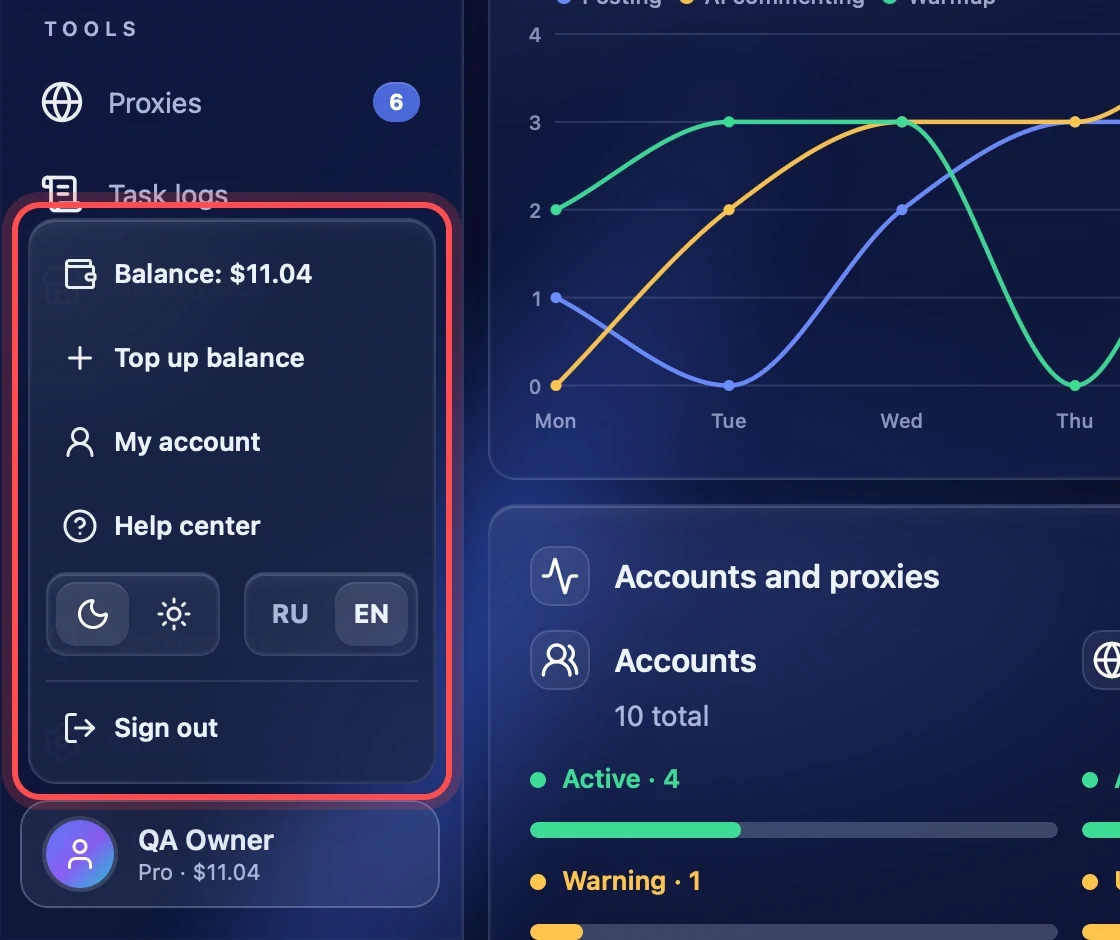
At the bottom of the sidebar is your profile: name, plan and marketplace balance, for example "Pro · $11.04". Press the profile to open its menu:
- Balance and Top up balance — the balance for marketplace purchases;
- My account — profile, licenses, devices and security of your Thredium account;
- Help center — this documentation right in the app;
- the theme — dark or light — and the interface language RU / EN;
- Sign out — sign out of the account.
Dashboard
The dashboard shows what is happening with all accounts:
- Total actions, Posts, Likes, Comments — how much was done in 7 days, today and compared with yesterday;
- Task launches — 7 days — a chart of how many posting, AI commenting and warmup tasks started each day;
- Active tasks — tasks that run or wait in the queue, with their progress;
- Accounts and proxies — how many accounts are active and need attention, how many proxies work and how many are unstable;
- Accounts that need attention — accounts with errors or verification to check.
If the app was closed unexpectedly — for example the computer switched off in the middle of a task — a "Recovered from unexpected shutdown" banner appears at the top: how many tasks were cancelled and how many accounts were freed. Interrupted tasks can be started again from their pages.
Notifications
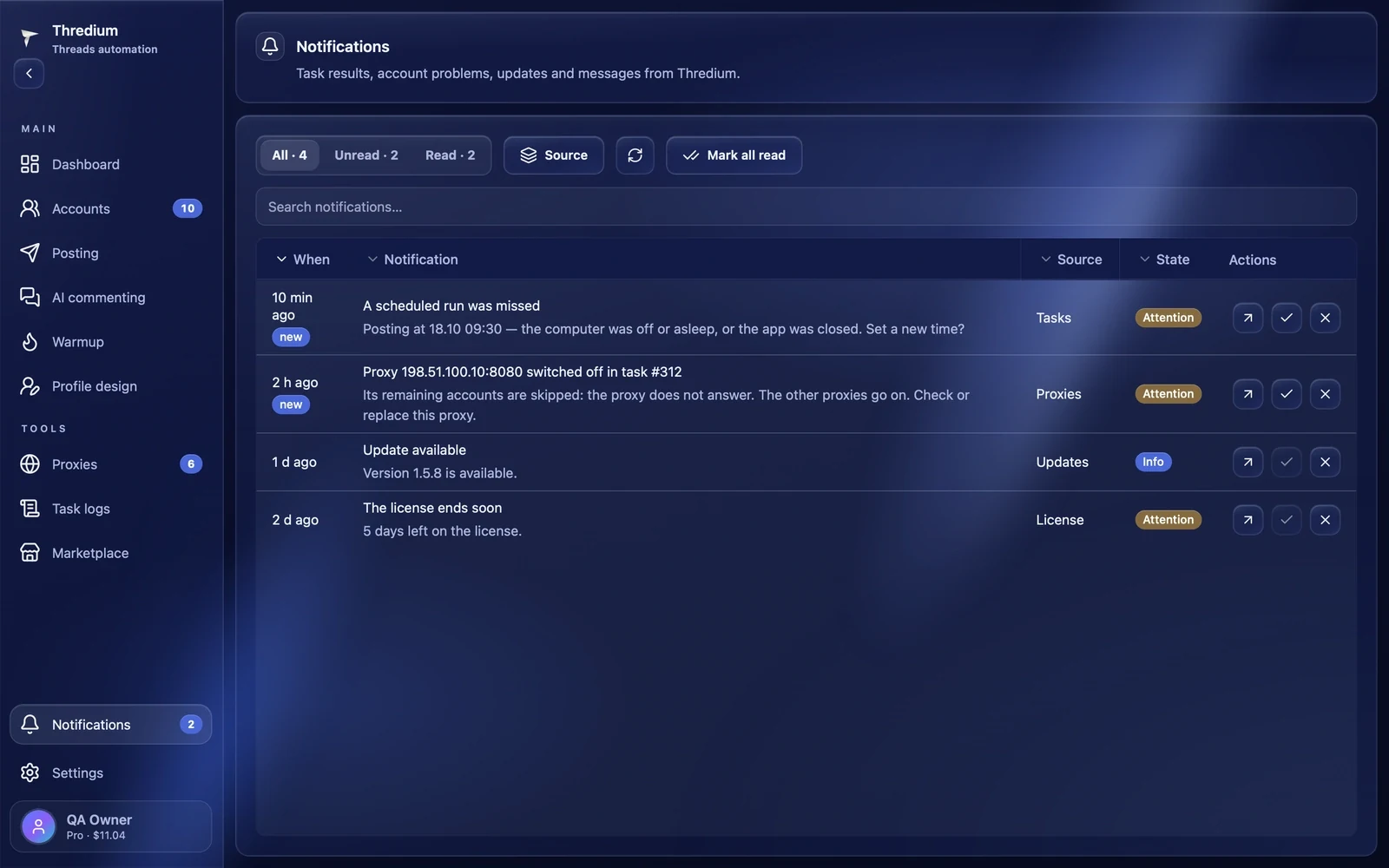
The "Notifications" section collects task results, account and proxy problems, updates, license messages and messages from Thredium. New notifications are marked "new".
- The "All / Unread / Read" filter and the "Source" button — tasks, accounts, proxies, license, updates, system, Thredium.
- Search through the notification texts.
- "Mark all read" marks every notification read.
- The buttons in a row: go where an action is needed, mark as read, dismiss. A dismissed notification comes back with "Undo" in the pop-up message.
The same notifications can come to Telegram — see "Telegram notifications".
Theme and language
The theme and language can be changed in the profile menu or in "Settings". This is the light theme: