The module designs Threads profiles on several accounts at once: name, username, interests, visibility, bio, photo and links. Each account opens Threads in its own browser with its own proxy and changes its profile itself. Fill in only what has to change: empty fields leave the account's data as it is.
Before you start
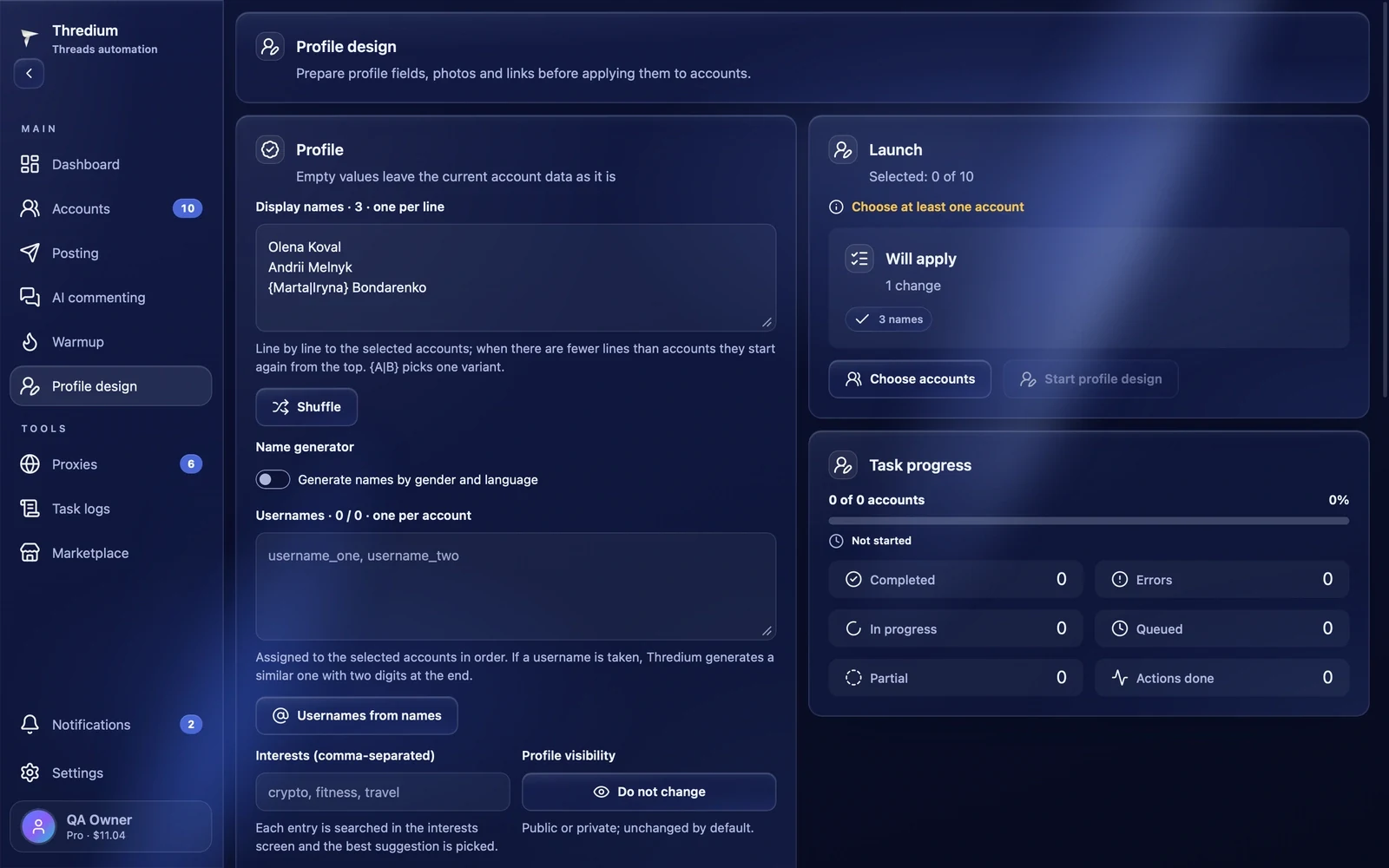
The "Start profile design" button becomes active when:
- at least one account is added and signed in — the "Accounts" section;
- at least one profile field is filled, or a photo or link is added;
- the browser setup is finished, if the app asks for it — "Settings".
If something is missing or a field has an error, the "Launch" block says what in yellow, for example "Fix the usernames — some repeat".
Profile
Display names
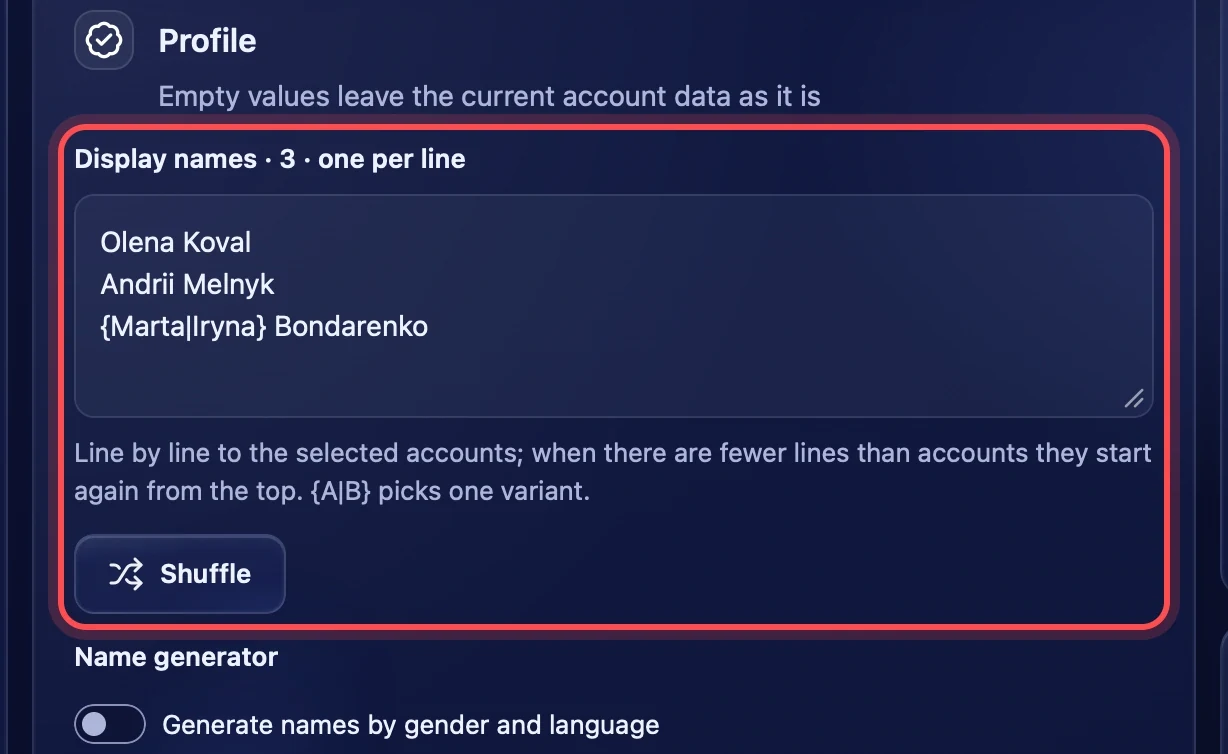
Enter names one per line. The first line goes to the first chosen account, the second to the second and so on. If there are fewer lines than accounts, they go round again and the names repeat. A line may contain variants in braces: {Marta|Iryna} Bondarenko — one is picked for the account. A line holds up to 64 characters.
"Shuffle" changes the order of the lines. If there are as many names as usernames, they are shuffled together, and each username stays with its name.
Name generator
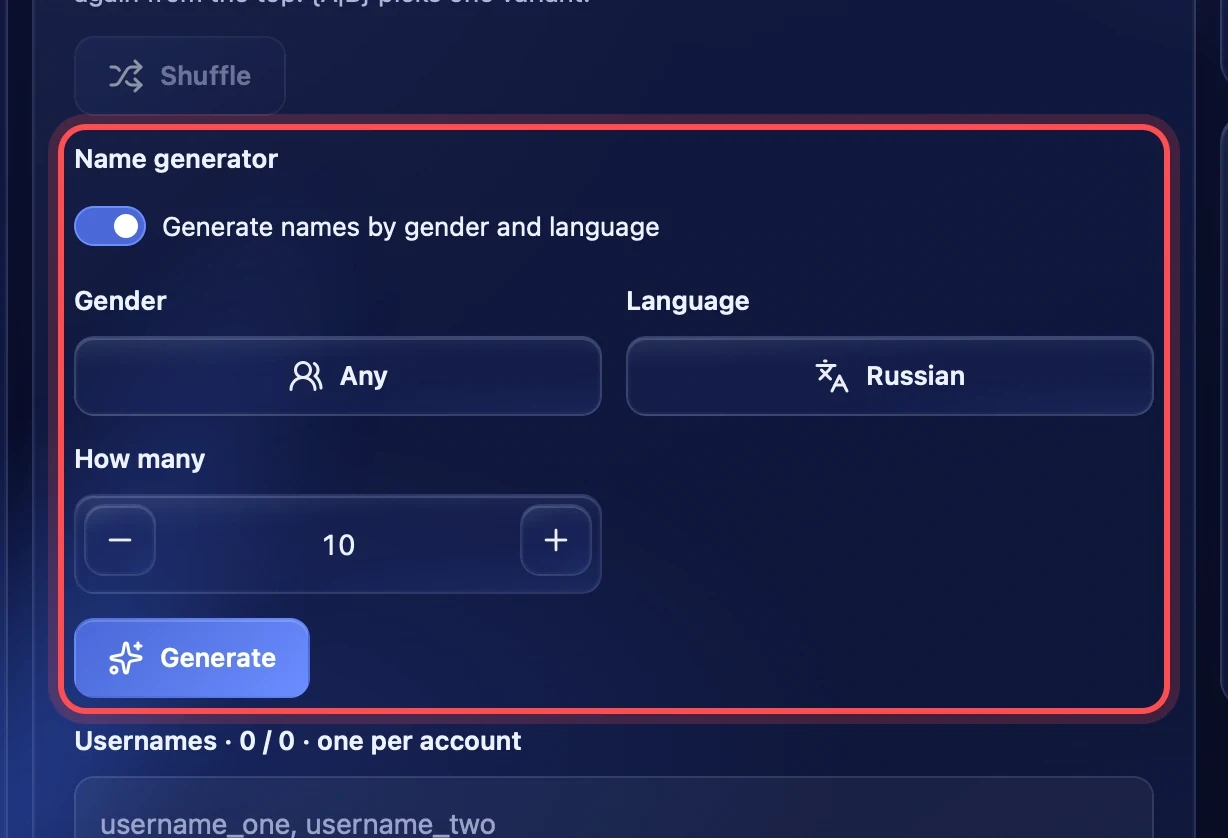
Turn on "Generate names by gender and language" if you have no names. Choose the gender — "Any", "Male" or "Female", the language — "Russian", "English" or "Mixed" — and how many names you need, up to 1000. By default, as many as accounts are chosen. "Generate" adds the names to the end of the list, without repeats.
Usernames
Enter usernames one per line or separated by commas; the @ sign is optional. They are assigned to the chosen accounts in order, so exactly one username per account is needed. The field title shows how many usernames are entered and how many accounts are chosen, for example "3 / 3".
- Latin letters, digits, dots and underscores, up to 30 characters.
- Repeats are not allowed, even if they differ only in case.
- If a username is already taken in Threads, the app picks a similar one with two digits at the end.
"Usernames from names" makes usernames from the list of names in Latin letters — for example "elena.koval". If the username list was already filled in, it is replaced, and the notification has an "Undo" button.
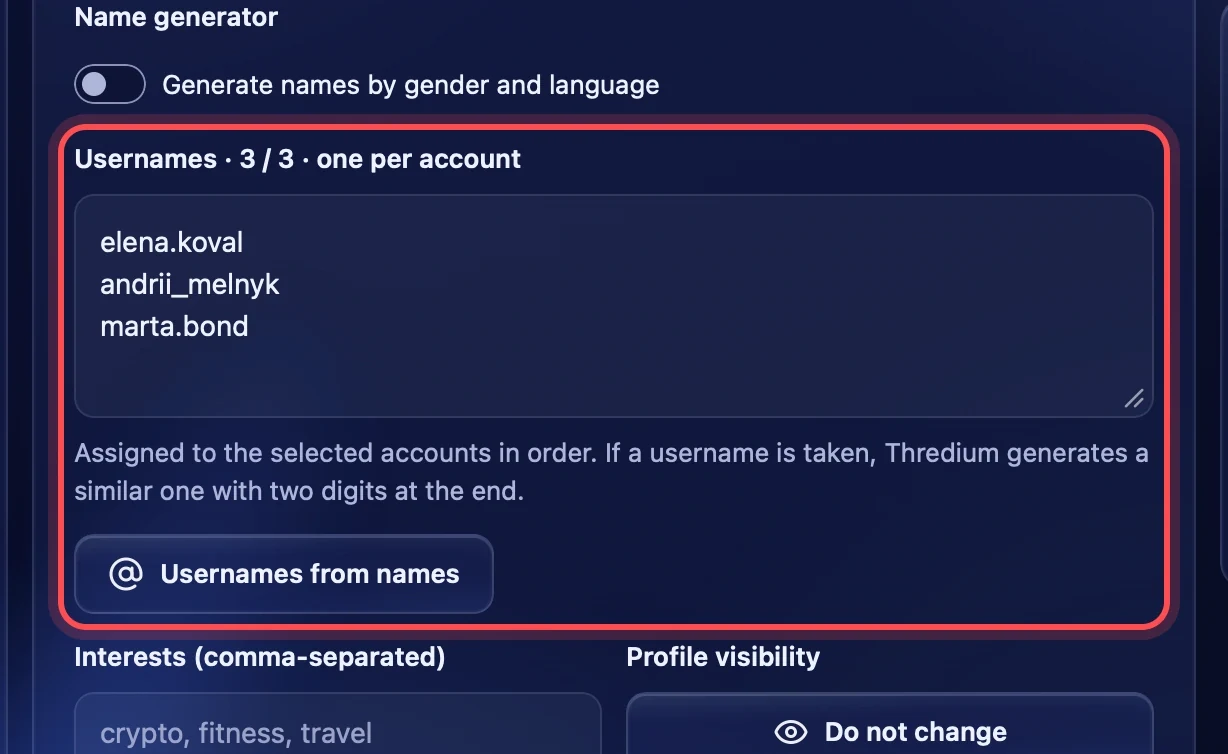
Interests and profile visibility
Interests — topics separated by commas, for example "coffee, travel". Each topic is searched on the Threads interests screen, and the best suggestion is picked.
Profile visibility — "Public" or "Private". "Do not change" by default.
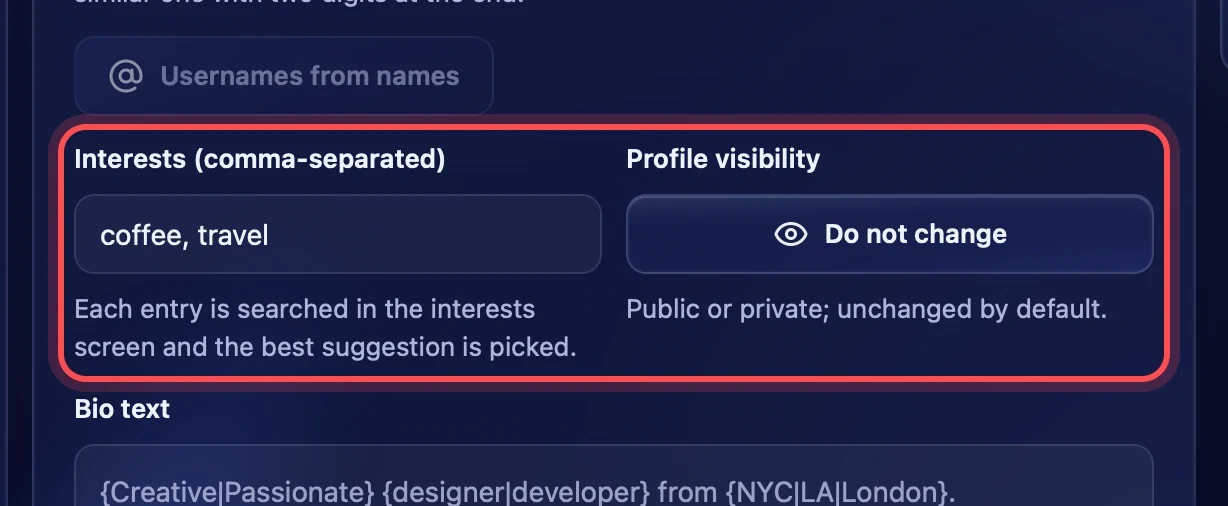
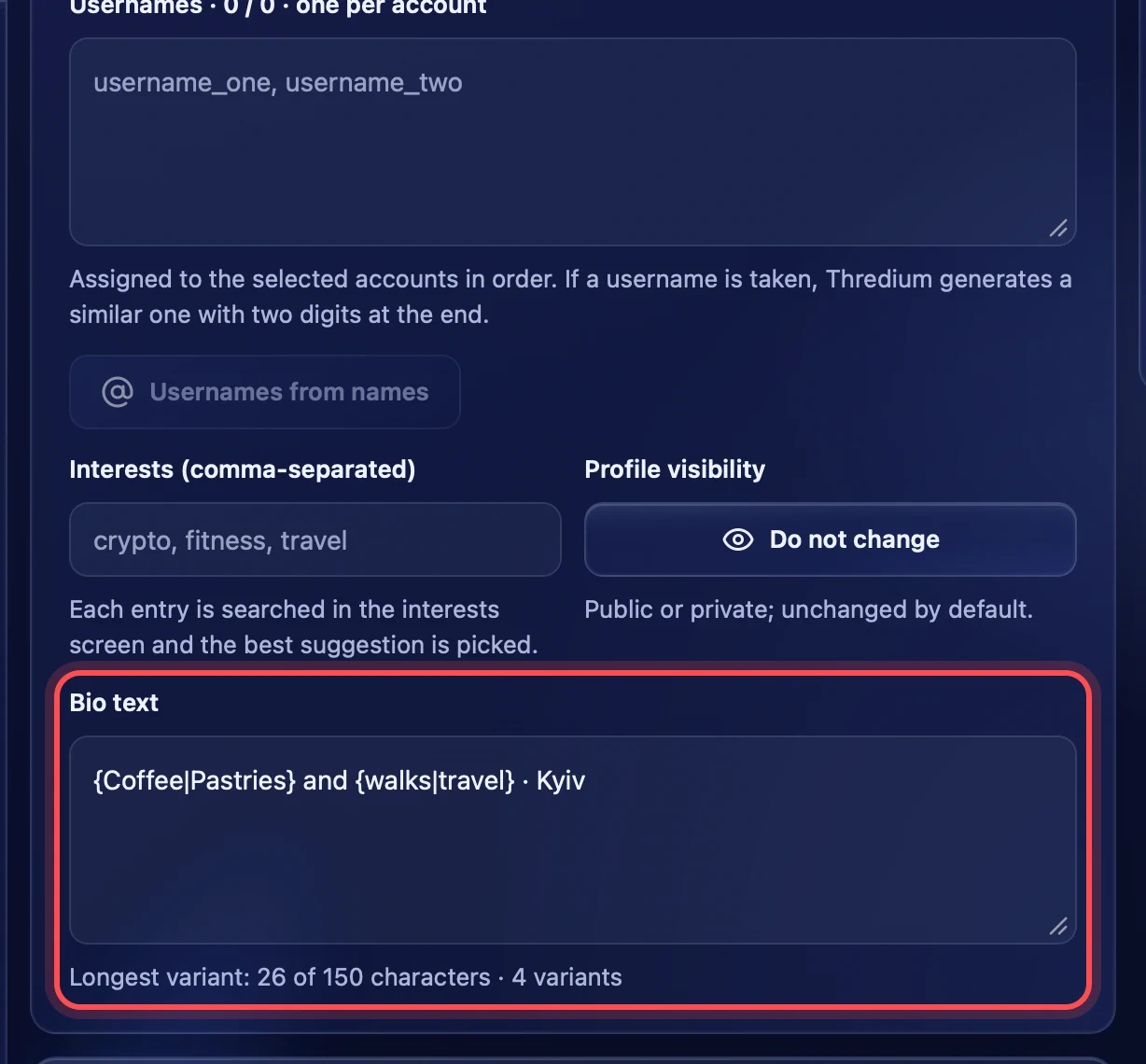
Bio text
A Threads bio holds up to 150 characters. The text may contain variants in braces: {Coffee|Pastries} and {walks|travel} — each account gets its own random version. Under the field you see how many characters the longest variant has and how many variants there are. If the longest variant does not fit into 150 characters, the task does not start until you shorten the text.
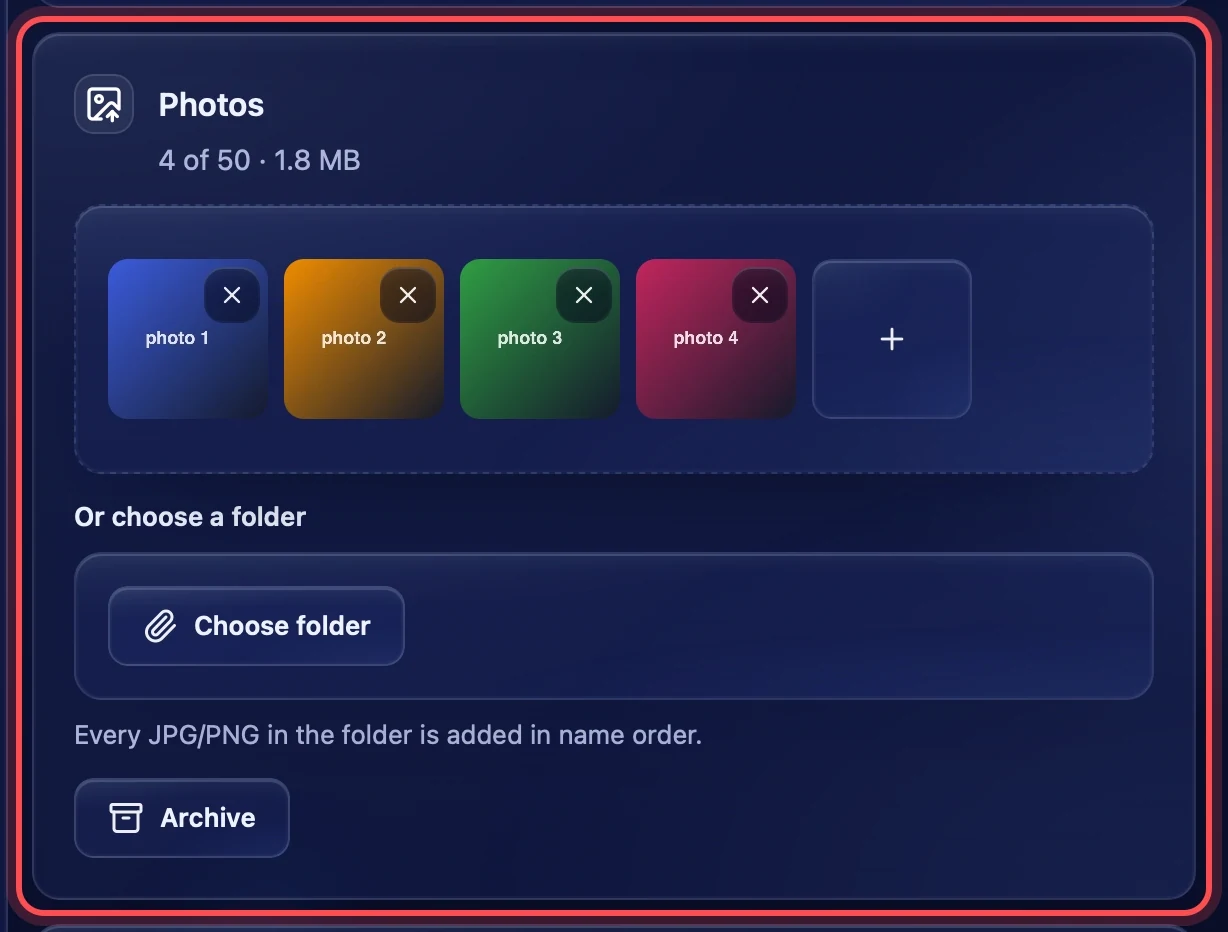
Photos
Drag photos into the "Photos" block, press "Add profile photos" or choose a folder — then every JPG and PNG in it is added in name order. "Archive" takes photos you have used before.
- Formats: JPG and PNG.
- Up to 50 photos, up to 50 MB in total.
- The app makes photos over 5 MB smaller itself, to 2048 px on the long side — the picture stays sharp.
- The same file is not added twice.
The photos are shared evenly between the chosen accounts. For every account the app makes a unique copy of the photo, so that Threads finds it harder to link the accounts by the same picture.
Profile links
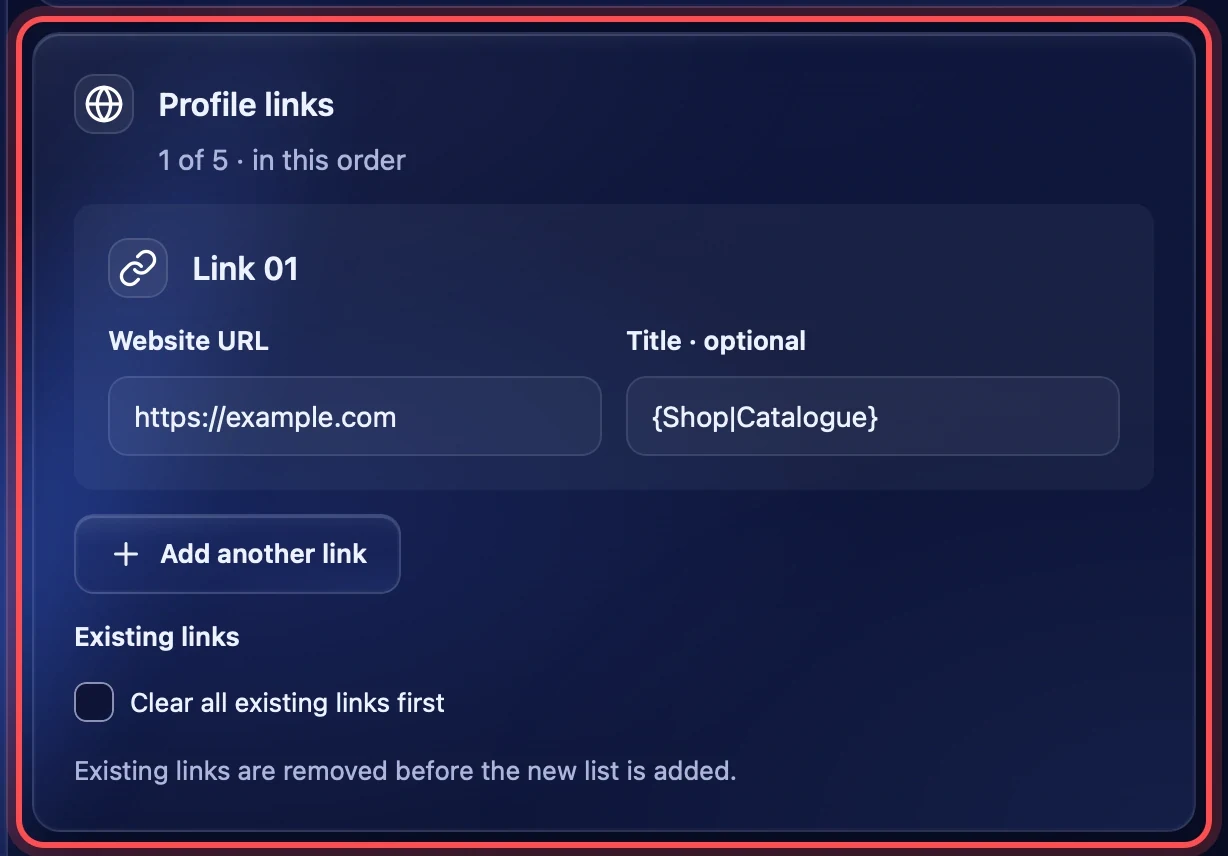
Up to 5 links can be added — they appear on the profile in this order. Each link has a URL and, optionally, a title. The title may contain variants too: {Shop|Catalogue}. "Add another link" adds a line, "Remove link" removes it.
"Clear all existing links first" removes the links the profile already has before adding the new ones.
Launch
Choosing accounts
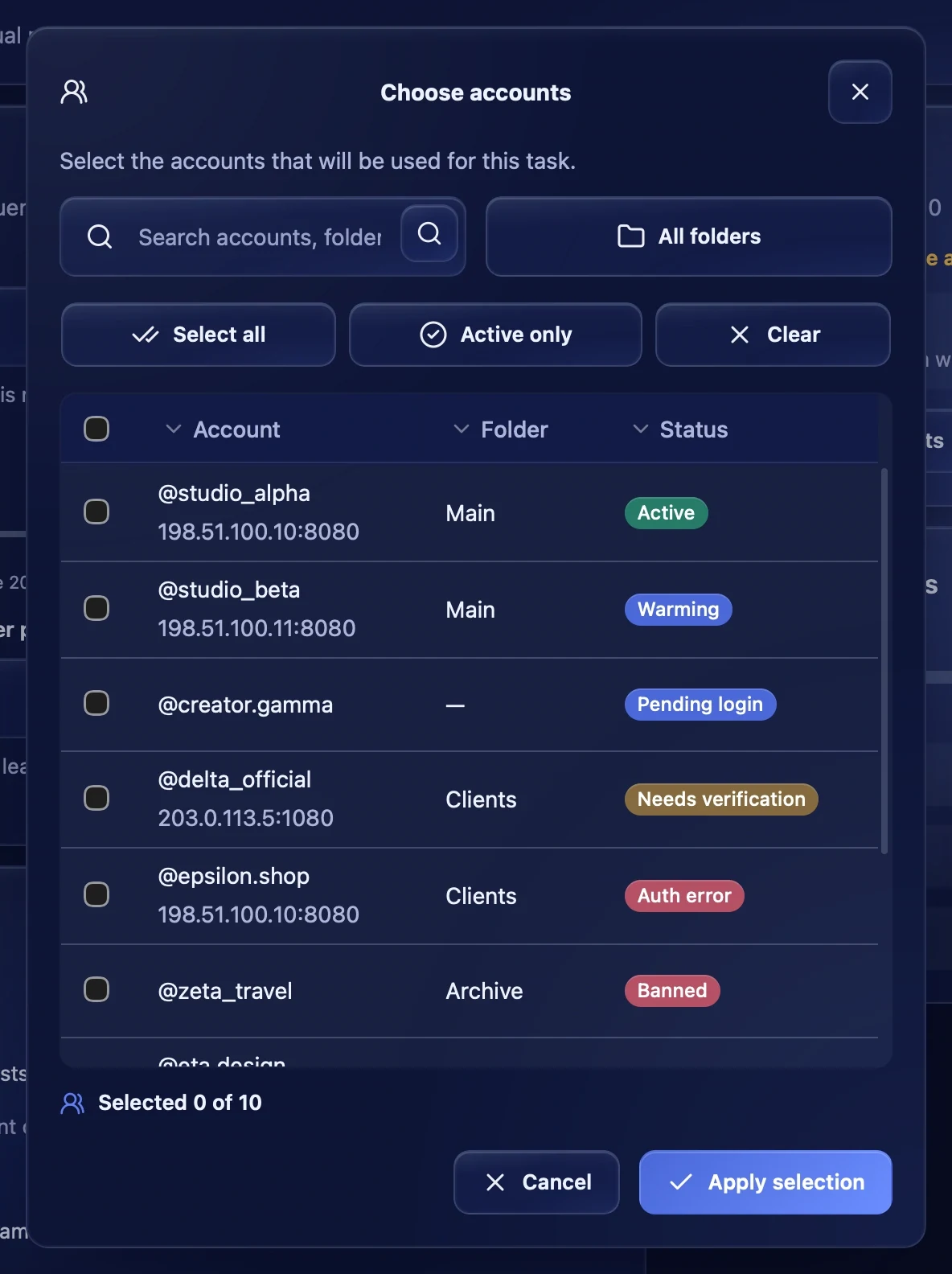
Press "Choose accounts". In the window you can search by account, pick a folder, tick all or only active ones. The table shows each account's status: it is best to run only accounts with the "Active" status.
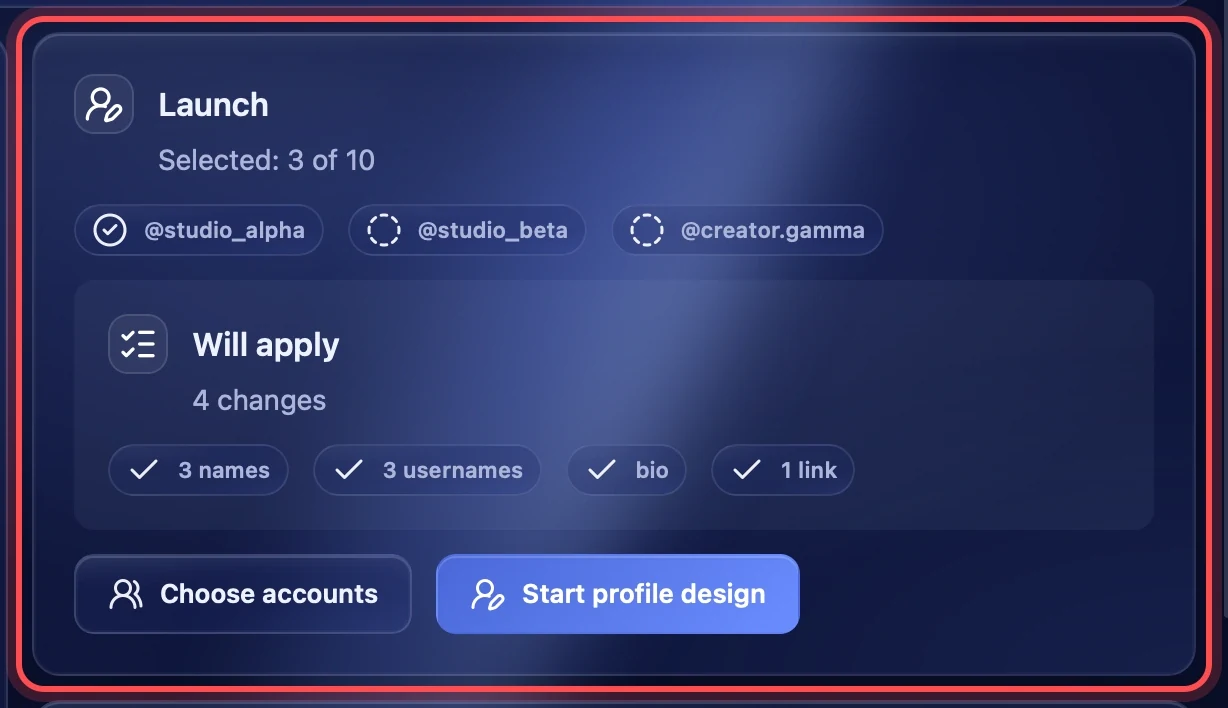
The order of the accounts matters: names and usernames are handed out by it. You see this order in the "Launch" block, in the line of chosen accounts.
Will apply and launch
The "Launch" block shows the chosen accounts and the "Will apply" list: what exactly will change — for example "3 names", "3 usernames", "bio", "1 link". "Start profile design" starts the task; while it runs, the "Stop task" button takes its place.
Task progress
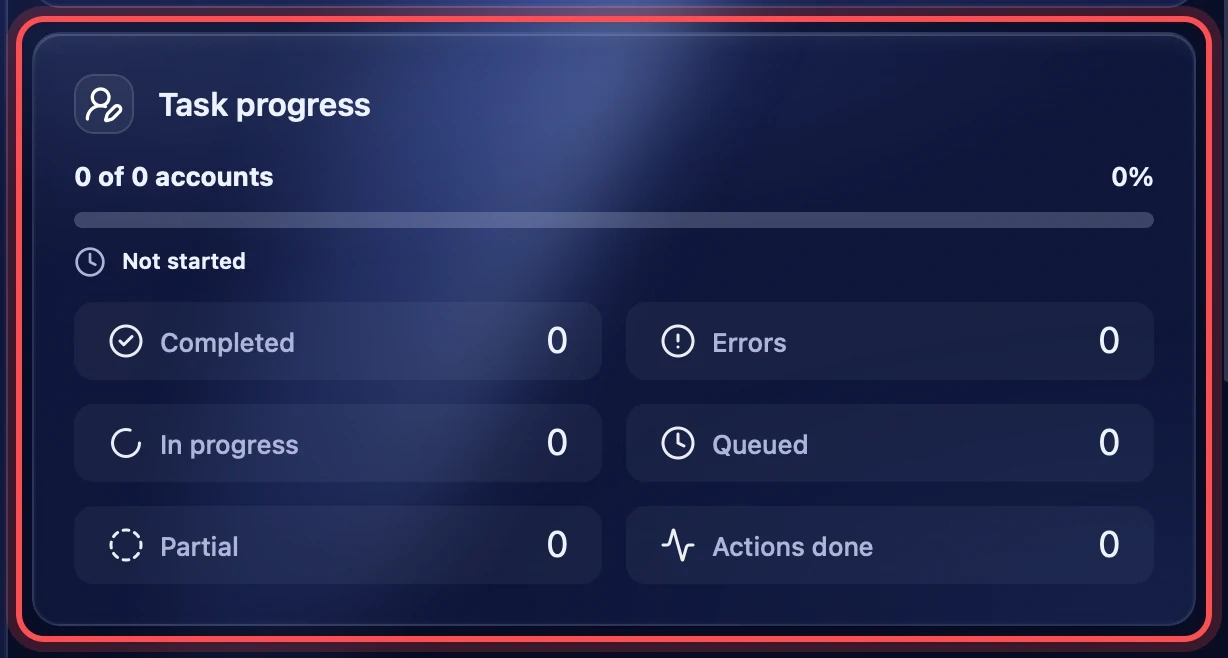
While the task runs, the "Task progress" block shows how many accounts have finished and the counters: "Completed", "Errors", "In progress", "Queued", "Partial" and "Actions done".
After each account the app checks the profile from the outside — the way other people see it. If the changes are not visible from the outside, the account gets the "Partial" status. The detailed course for each account and the final report are in "Task logs".
Recommendations
- Do not change everything at once on a new account: warm it up for a few days first — the "Warmup" section.
- Make names, bios and photos differ between accounts: identical profiles are easy to link together.
- Check the order before starting: the first line of names and usernames goes to the first account in the "Launch" block.
- Do not run profile design on accounts with the "Needs verification" or "Auth error" status: sign in to them again first.