
Before an account can post, warm up or comment, it has to be signed in. The app signs in itself with the login, password and 2FA secret. If Threads asks for an extra check, you can sign in by hand. An account gets the "Active" status only when Threads has confirmed a live session.
Sign-in check
How to start it
A sign-in check starts in three ways:
- with the shield button in the account's row or "Check" in the "⋯" menu;
- with "Check selected" when several accounts are ticked;
- with "Log in to new accounts after import" when adding accounts.
For each account the app opens a browser with its proxy, signs in to Threads and checks that the session is real. If Threads asks for a 2FA code, the app enters it itself from the saved secret. The session cookies are saved, so the account does not have to sign in again next time.
The check result
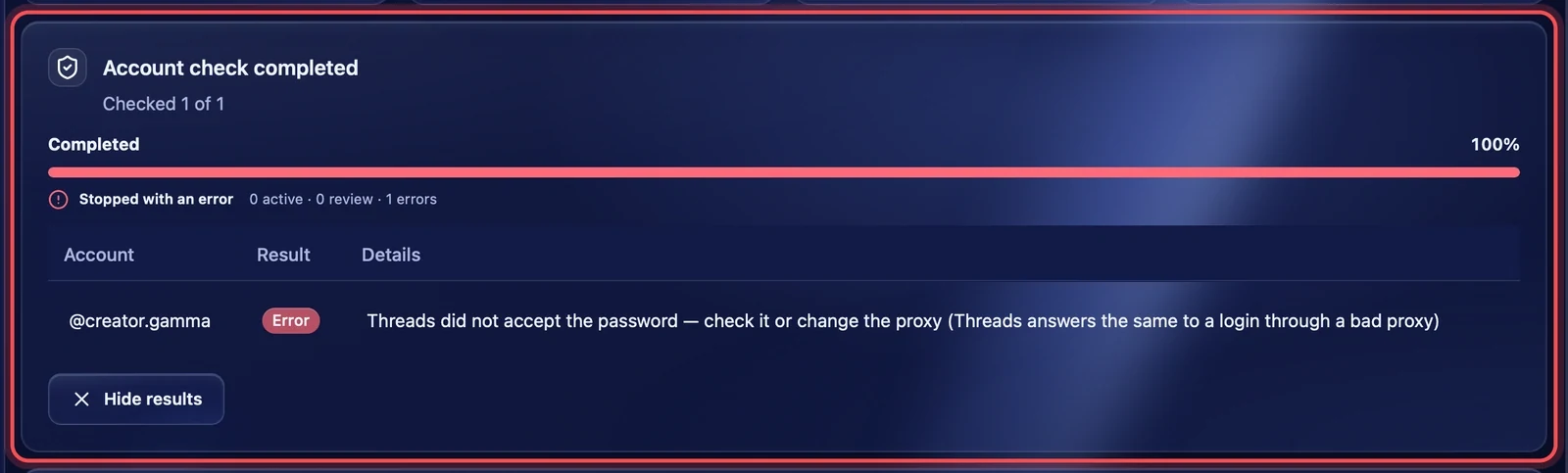
A "Checking accounts" block with a progress bar and an "active · review · errors" counter appears above the table. Below it, the result for each account:
- Active — the session is confirmed, the account has the "Active" status;
- Review — needs your attention: for example, Threads asked for an extra check;
- Error — the sign-in failed. The "Details" column gives the reason.
While the check runs, "Stop check" stops it. When it ends, "Hide results" removes the block.
Manual login
If Threads asks for a confirmation the app cannot pass by itself — for example a code from an email — sign in by hand:
- In the account's row press "⋯" → "Manual login".
- A browser window with this account's proxy opens. If the app has just started, it checks its files first — the window opens by itself in a few seconds.
- Sign in to Threads and pass the check.
- Close the window. The app saves the cookies and checks the session.
If the sign-in is confirmed, a "Manual login confirmed" notification appears and the status becomes "Active". If you close the window without signing in, the app says "Closed without a confirmed Threads session."
The 2FA code for a manual login can be copied with the key button in the 2FA column.
Account statuses
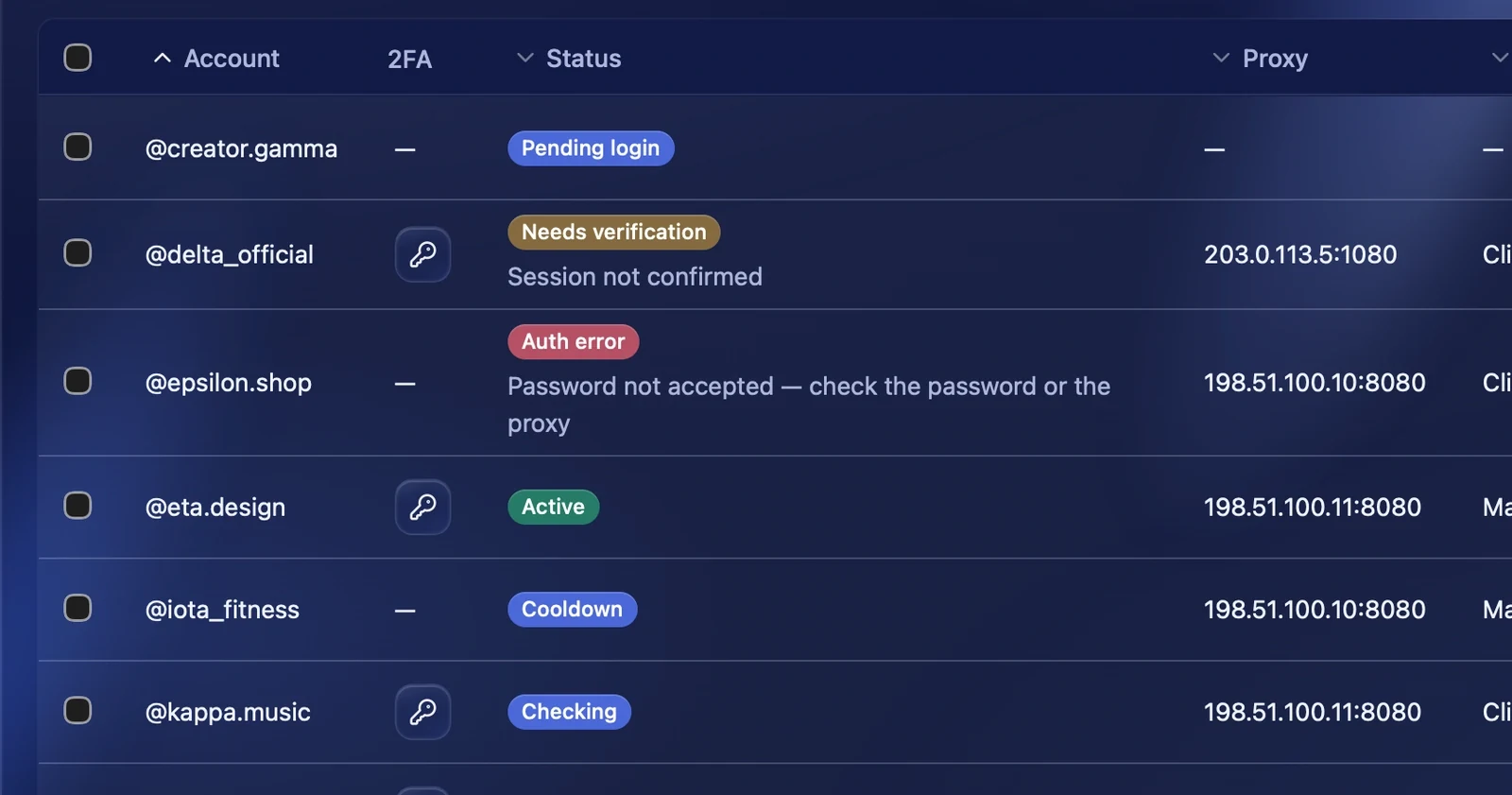
The status is in the "Status" column. If something is wrong, the reason is written under it.
Active
- Active — Threads has confirmed the session. The account is ready for tasks.
Pending
- Pending login — the account is added but nobody has signed in yet. Run a check.
- Checking — a sign-in or a check is going on now.
- Warming — the account is warming up now.
- Cooldown — the account is temporarily not used in tasks.
- Needs verification — Threads asked for an extra check. Sign in by hand.
Errors
- Auth error — Threads did not let the account in. See the reason under the status.
- Proxy error — the account's proxy does not work or was deleted. Check the proxy or assign another.
- Banned — the account is blocked in Threads.
Error reasons
The most common reasons written under the status and in the check results:
- Password not accepted — check the password or the proxy. Threads answers the same to a wrong password and to a sign-in through a bad proxy. If the password is surely right, change the proxy.
- Wrong 2FA code. Check the 2FA secret in the "Edit" window.
- Threads temporarily limited login attempts or Meta asked to wait — login postponed. Wait and run the check again later.
- Threads requires an additional check. Sign in by hand.
- Account is locked or disabled. The account is blocked in Threads.
- Assigned proxy is unavailable or Proxy connection failed. Check the proxy in the "Proxies" section.
- The proxy exits through an unsupported RTL region — replace it. The proxy exits through a country with a right-to-left script. Replace the proxy.
- Proxy country unknown — browser not opened. The account status did not change. Check the proxy and try again.
- Proxy deleted — assign a new one. The account will not work from your computer's IP until it gets another proxy. With a new proxy the earlier status comes back.
- Account is busy in another task. Wait for the task to finish.
- Browser launch failed or Camoufox closed. Check this account again. If it repeats, restart Thredium.
- Browser setup required. Finish the browser setup in "Settings".
- Login was not confirmed or 2FA was not confirmed. The button was pressed but the result was not confirmed. Check only this account again.
- Network connection is unavailable. Check the computer's internet connection.
Recommendations
- Before the first task, check all new accounts and run tasks only on "Active" ones.
- If many accounts on one proxy got "Password not accepted" at once, the proxy is most likely to blame, not the passwords.
- Do not check the same accounts too often: Threads notices frequent sign-ins.