
The "Accounts" section holds all your Threads accounts: posting, warmup, AI commenting and profile design work with them. Here accounts are added, sorted into folders, checked, edited and exported. Everything is stored on your computer, and passwords, 2FA secrets and cookies are encrypted.
Summary
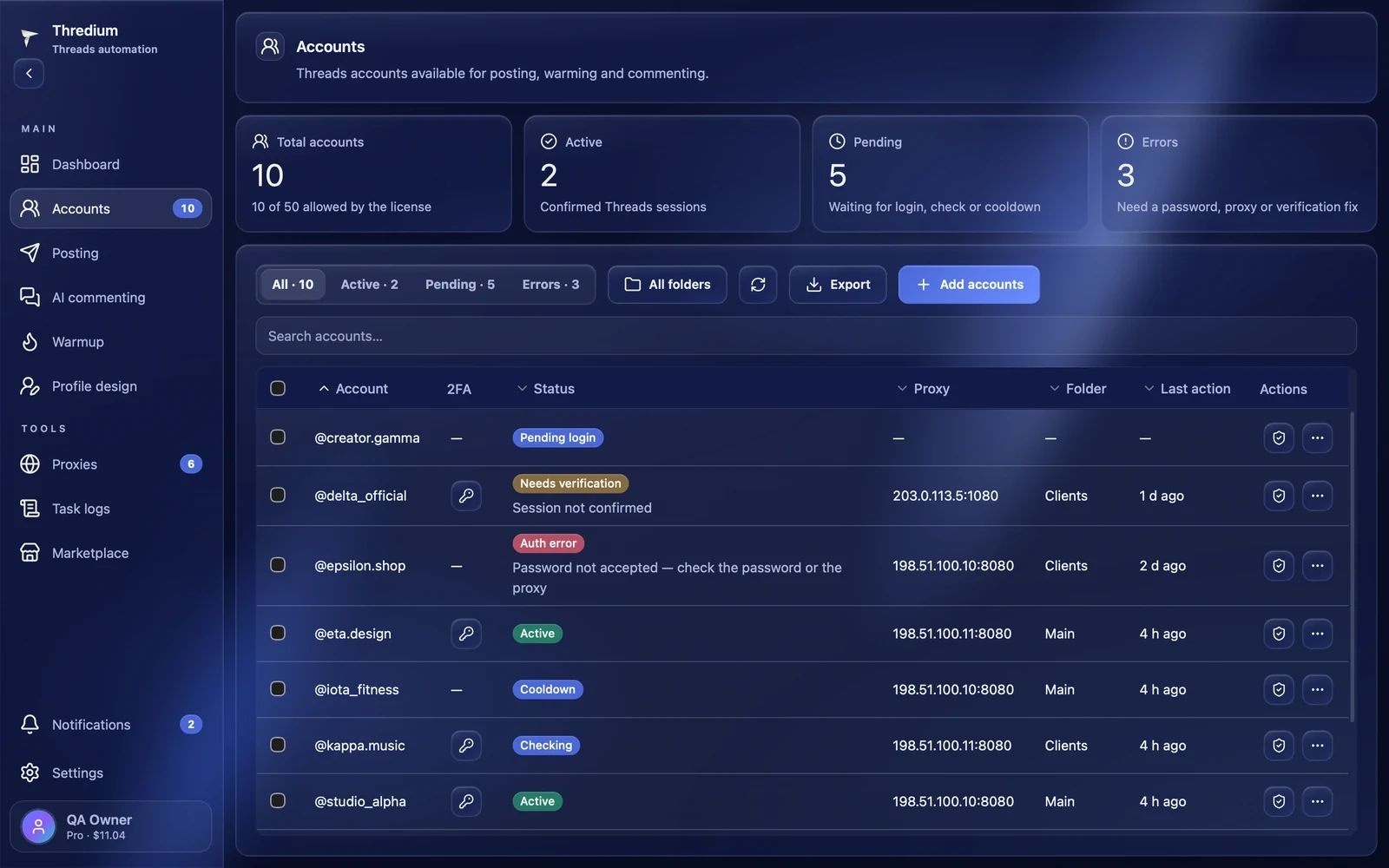
The four tiles at the top show:
- Total accounts — how many accounts are added and how many your license allows, for example "10 of 50 allowed by the license";
- Active — accounts with a confirmed Threads session; tasks can run on them;
- Pending — waiting for login, a check or a cooldown;
- Errors — a password, proxy or verification needs fixing.
What each status means is described in "Account sign-in and statuses".

Adding accounts
The account list
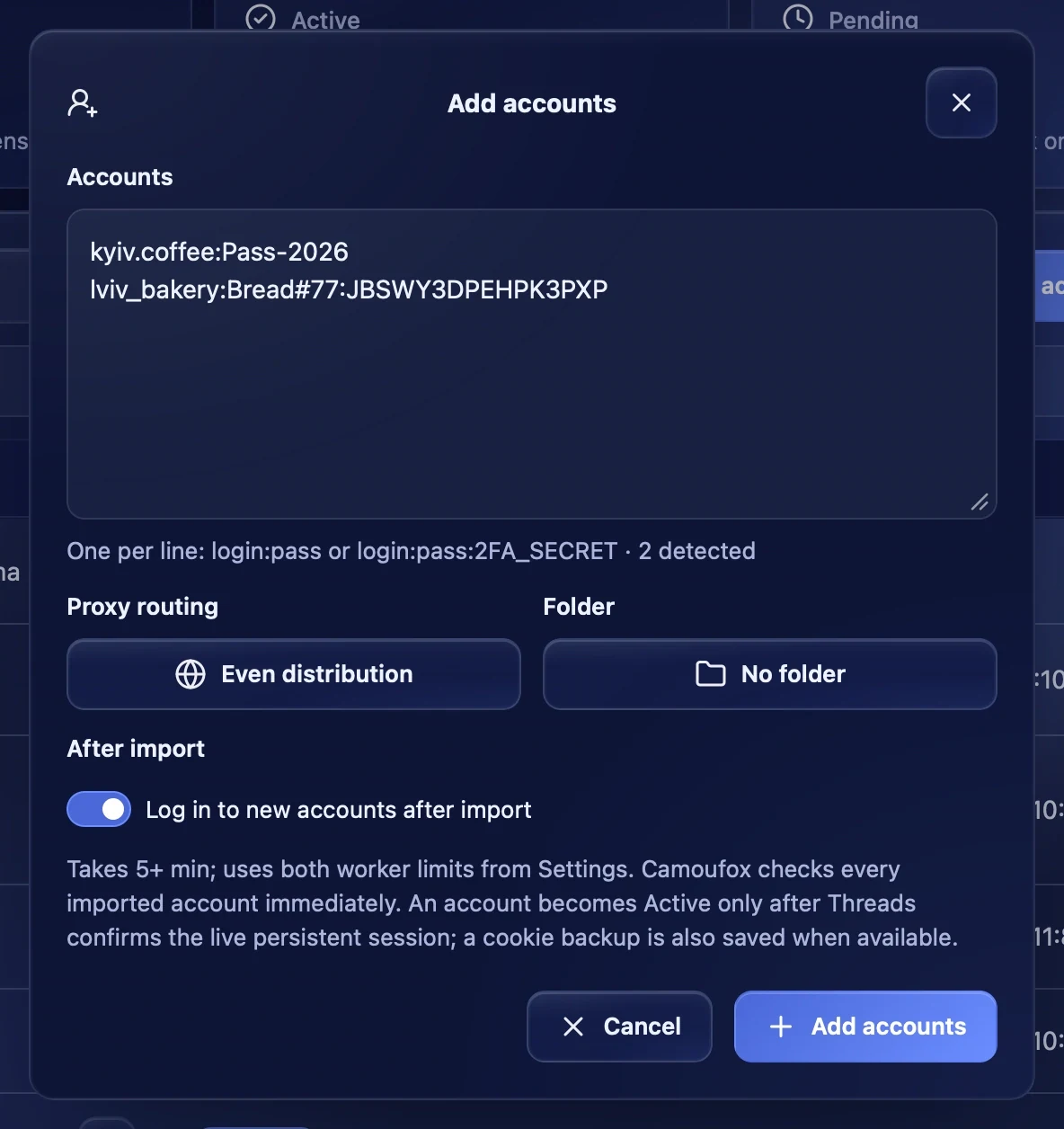
Press "Add accounts" and paste accounts one per line:
login:pass— login and password;login:pass:2FA_SECRET— login, password and the two-factor secret, if two-factor protection is on.
Under the field you see how many lines were recognised. Accounts that are already in the app are skipped as duplicates.
Proxy routing
"Proxy routing" decides which proxies the new accounts work through:
- Even distribution — the accounts are spread evenly over the working proxies;
- Pick proxies — the proxy list opens: tick the ones you need, and the accounts are spread over them in turn. If you pick one proxy, all new accounts get it;
- No proxy — the accounts work from your computer's IP. Only a few browsers start at once on one IP, even if the settings allow more.
Proxies are added in the "Proxies" section — it is best to add them before importing accounts.
Folder
Folders help to separate accounts, for example by project or client. Choose an existing folder or "+ Create new folder" and enter a name. The folder can be changed later.
After import
"Log in to new accounts after import" starts the login to every new account at once. It takes 5 minutes or more: the app opens a browser for each account and keeps to the parallel limits from "Settings". The "Active" status appears only after Threads confirms the session. If the automation browser is not set up yet, the switch is unavailable — check the accounts later then.
Search and filters
Above the table:
- the status filter — "All", "Active", "Pending", "Errors", with the number of accounts in each group;
- All folders — show the accounts of one folder;
- Refresh statuses — reread the saved statuses; no browsers open;
- Export and Add accounts;
- the search — by login, proxy, folder or status.

The accounts table
The table shows the account, 2FA, the status with its reason, the proxy, the folder and the last action. Sort the table by clicking a column title.
If an account has a 2FA secret, the 2FA column has a key button: it copies the current six-digit code. This is handy when Threads asks for the code during a manual login.
Account actions
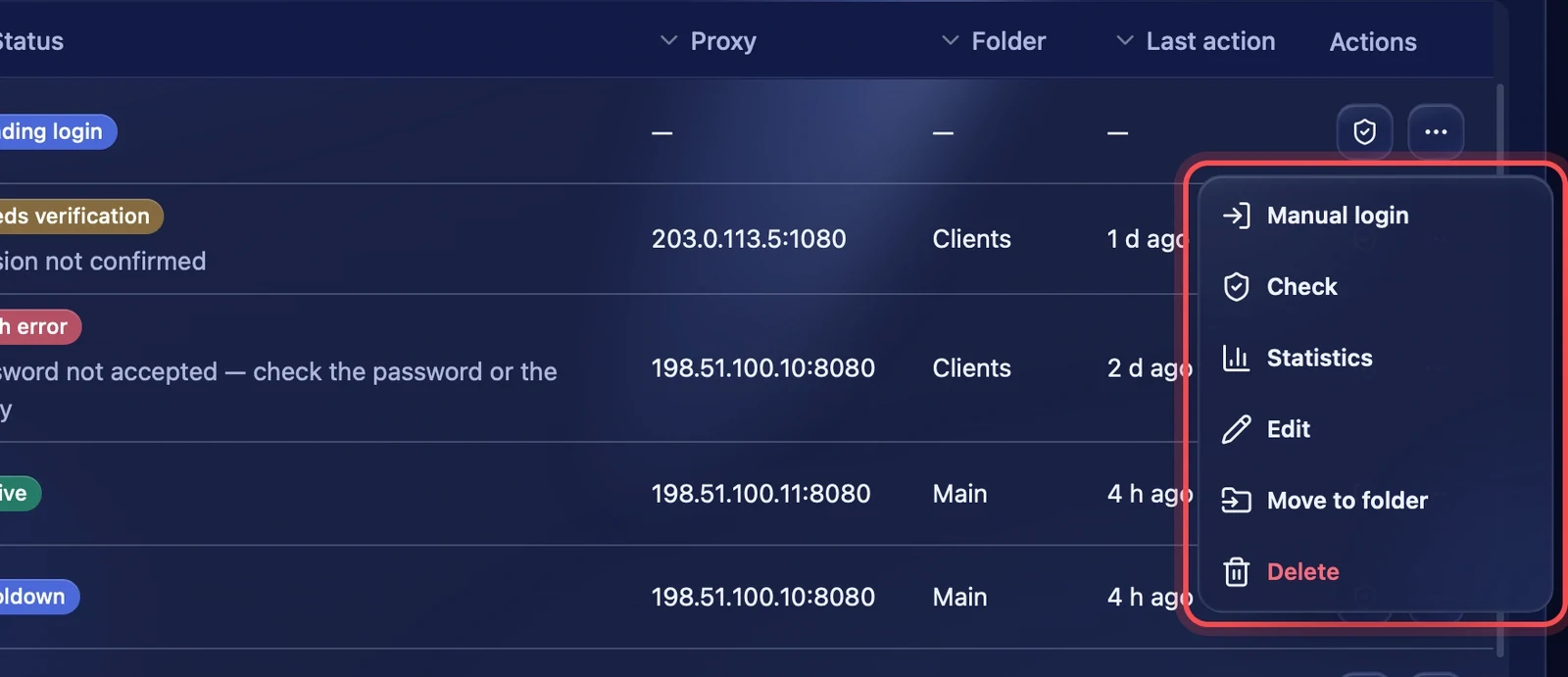
The shield button on the right starts a sign-in check. The "⋯" button opens a menu:
- Manual login — opens the account's browser for you to sign in yourself;
- Check — a sign-in check, like the shield button;
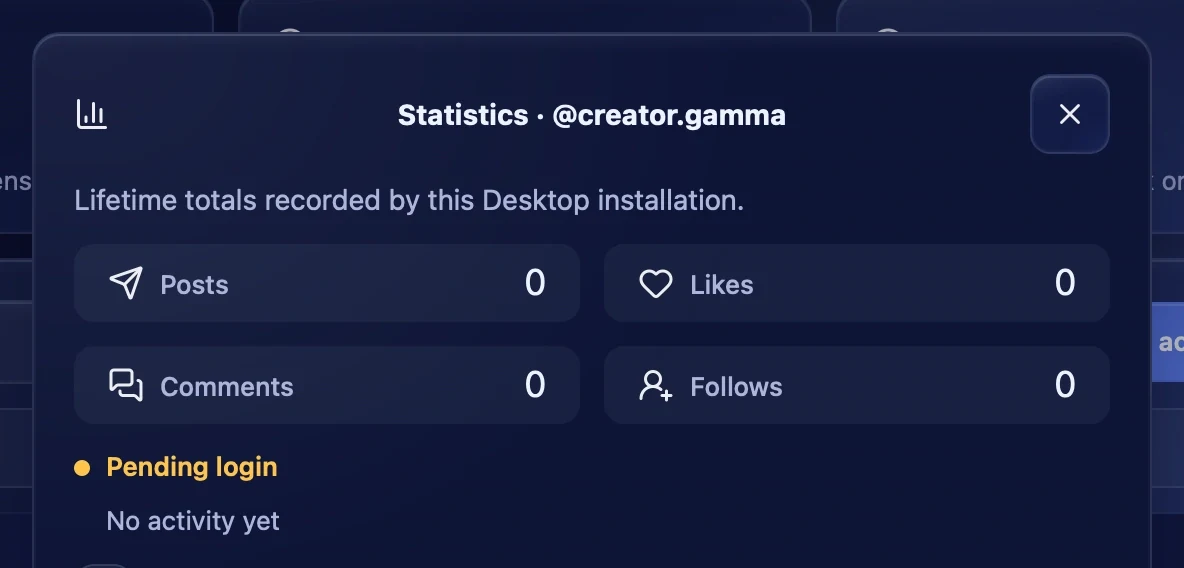
- Statistics — how many posts, likes, comments and follows the account made, and its latest events;
- Edit — change the login, password, 2FA secret, proxy or folder;
- Move to folder — move the account;
- Delete — delete the account after a confirmation.
Editing
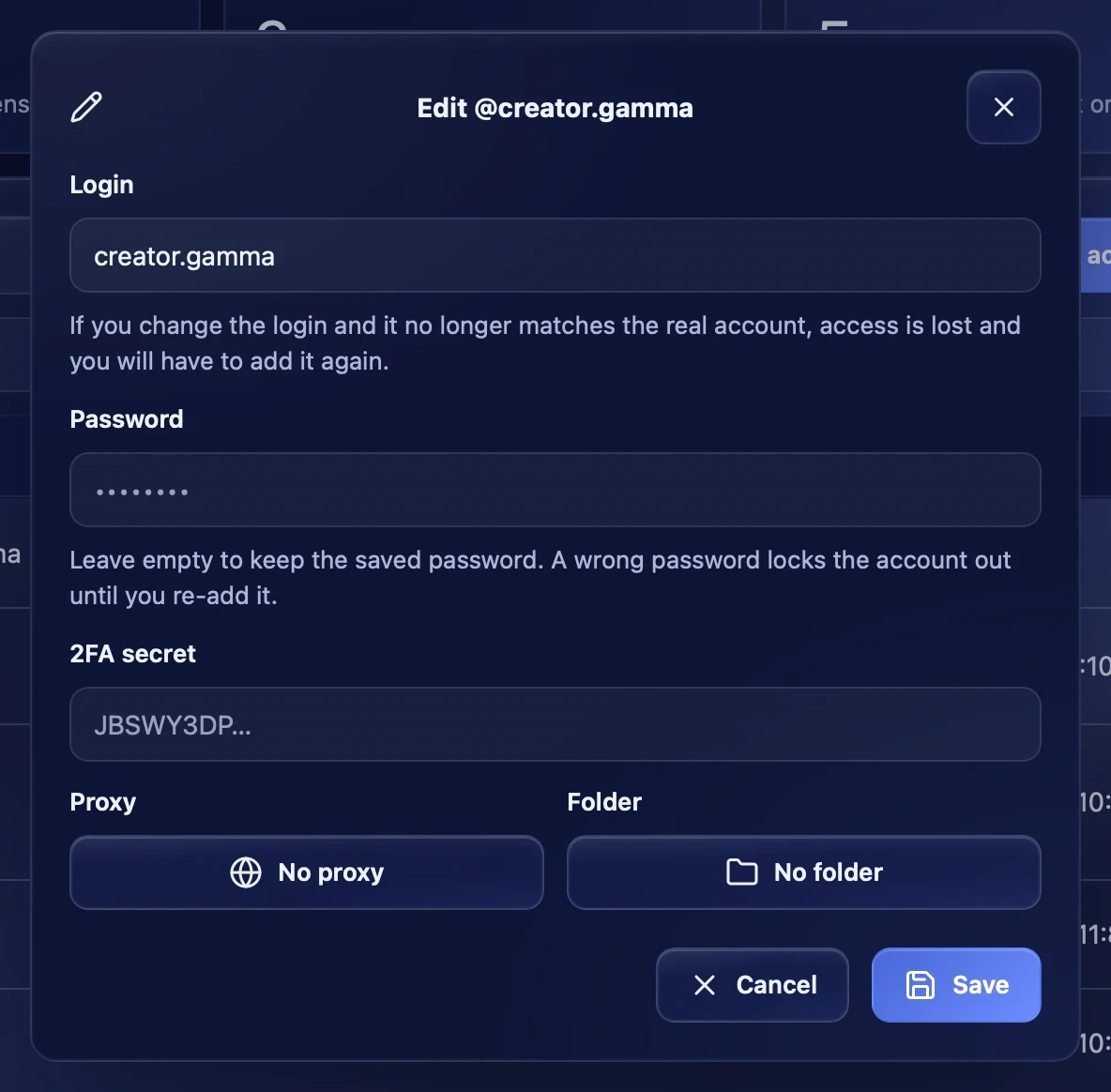
The "Edit" window changes the login, password, 2FA secret, proxy and folder.
- If you change the login and it does not match the real one, access to the account is lost — you will have to add it again.
- Leave the password empty to keep the current one.
Statistics
The "Statistics" window shows how many posts, likes, comments and follows the account has made in this Thredium installation, its status and its last activity. Below is the list of the account's events.
Several accounts at once
Tick accounts on the left — a "Selected: …" line appears above the table. The selected accounts can be moved to a folder, checked or deleted together. "Clear" removes the selection.

Export and backup
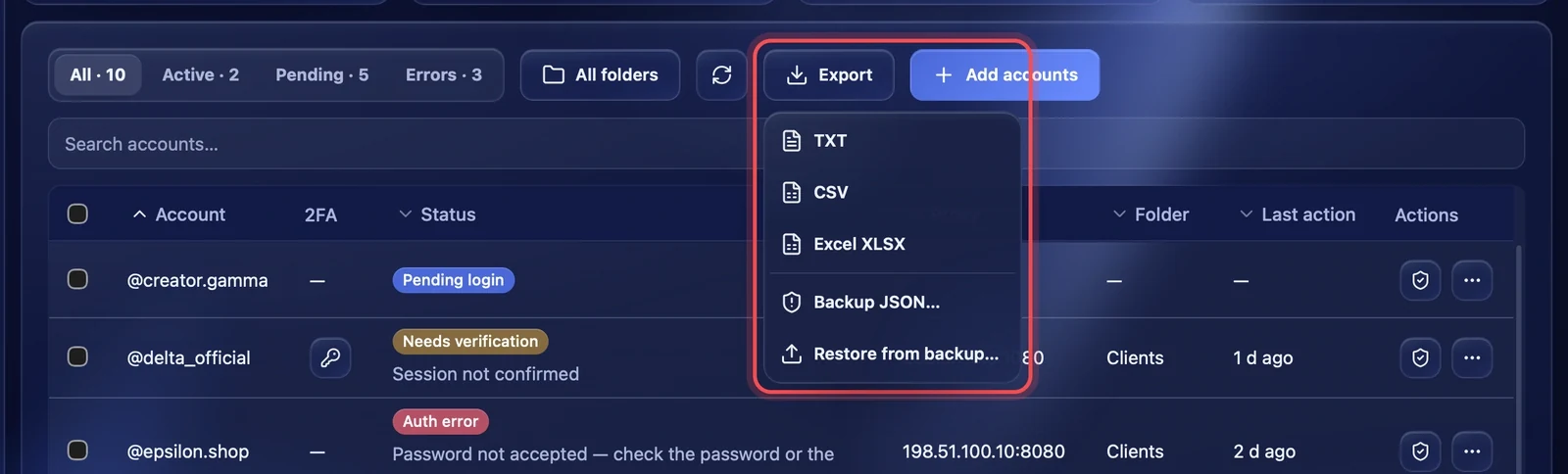
"Export" opens a menu:
- TXT, CSV, Excel XLSX — the account list without secrets, for example to send a report;
- Backup JSON… — a full copy: passwords, 2FA secrets and session cookies. The app warns you: everything in the file is in plain text. Keep it somewhere safe and do not send it to anyone;
- Restore from backup… — choose a JSON file saved with "Backup JSON". The app shows how many accounts will be added and how many are already there, and restores them with their sessions.
Recommendations
- Add proxies before importing accounts: each account gets its own IP straight away.
- Keep 1–2 accounts on one proxy.
- If an account has two-factor protection, add it with the 2FA secret: the login will not pass without it.
- Make a JSON backup before reinstalling Thredium or moving to another computer.