
The "Task logs" section keeps the history of every run: posting, warmup, AI commenting, profile design and account checks. For each task you see when it ran, how it ended and what each account did. The logs can be exported to a file.
Summary
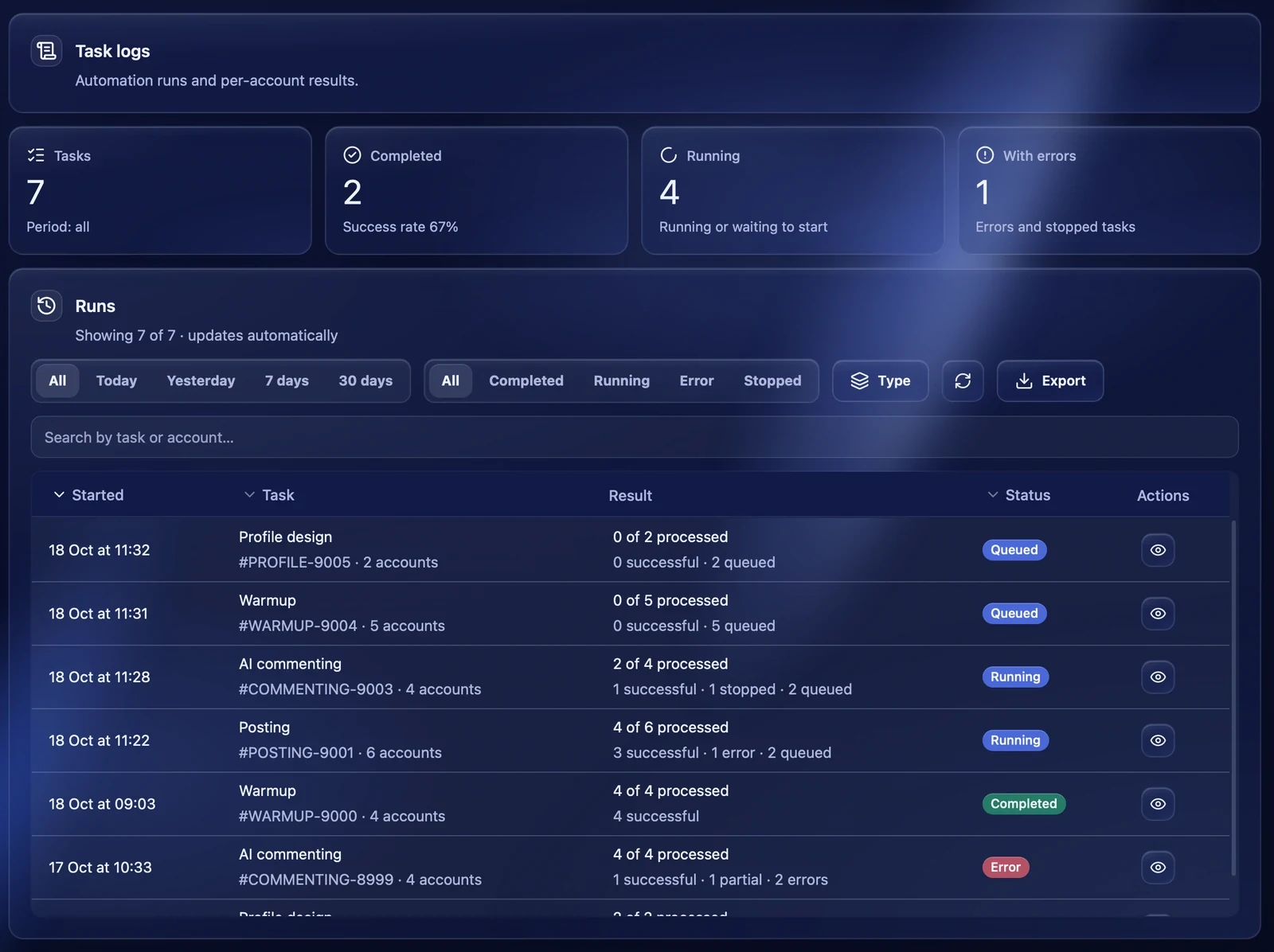
- Tasks — how many tasks in the chosen period;
- Completed — how many ended successfully, and the success rate;
- Running — tasks that run or wait to start;
- With errors — tasks with errors and stopped ones.
Runs
Filters and search
- the period — "All", "Today", "Yesterday", "7 days", "30 days";
- the state — "All", "Completed", "Running", "Error", "Stopped";
- Type — only posting, warmup, AI commenting, profile design or account checks;
- the search — by task or account.
The list refreshes by itself while the section is open. The arrows button refreshes it at once.
The runs table
A row shows the start time, the task with its number and the number of accounts, the result — for example "4 of 6 processed · 3 successful · 1 error · 2 queued" — and the state. The eye button opens the details.
Task details
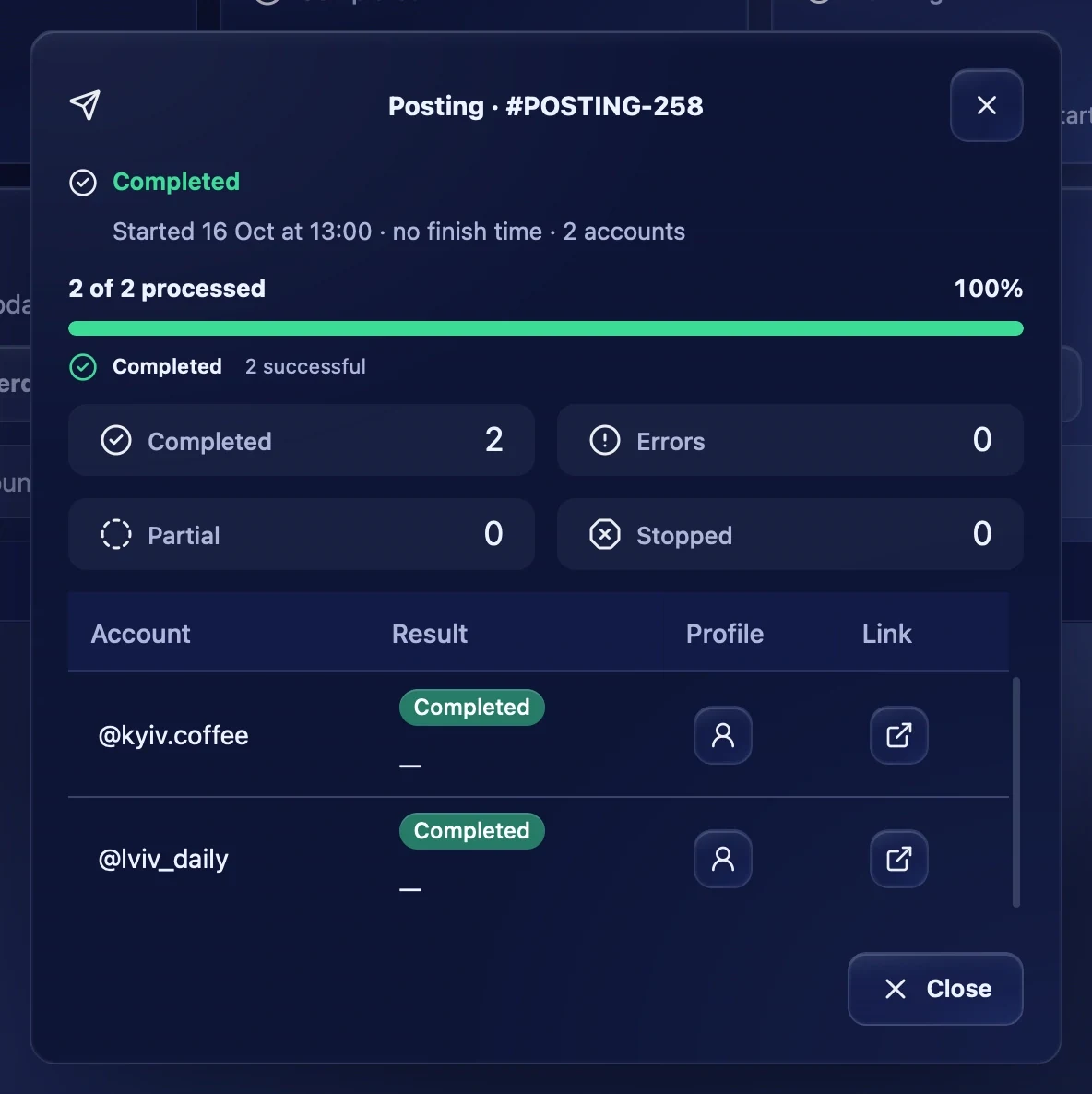
The task window shows:
- the state and, if the task stopped, the reason in words;
- the start and finish time and the number of accounts;
- the progress — how many accounts are processed;
- the result for each account — "Completed", "Partial", "Action required" or "Stopped", with what the account did and what went wrong.
The person button opens the account's profile in Threads, the arrow button opens the published result, for example a post or a comment. This makes it easy to check what the task really did. If the task has a final report, "Save report" saves it as TXT — the same way Telegram sends it.
Exporting logs
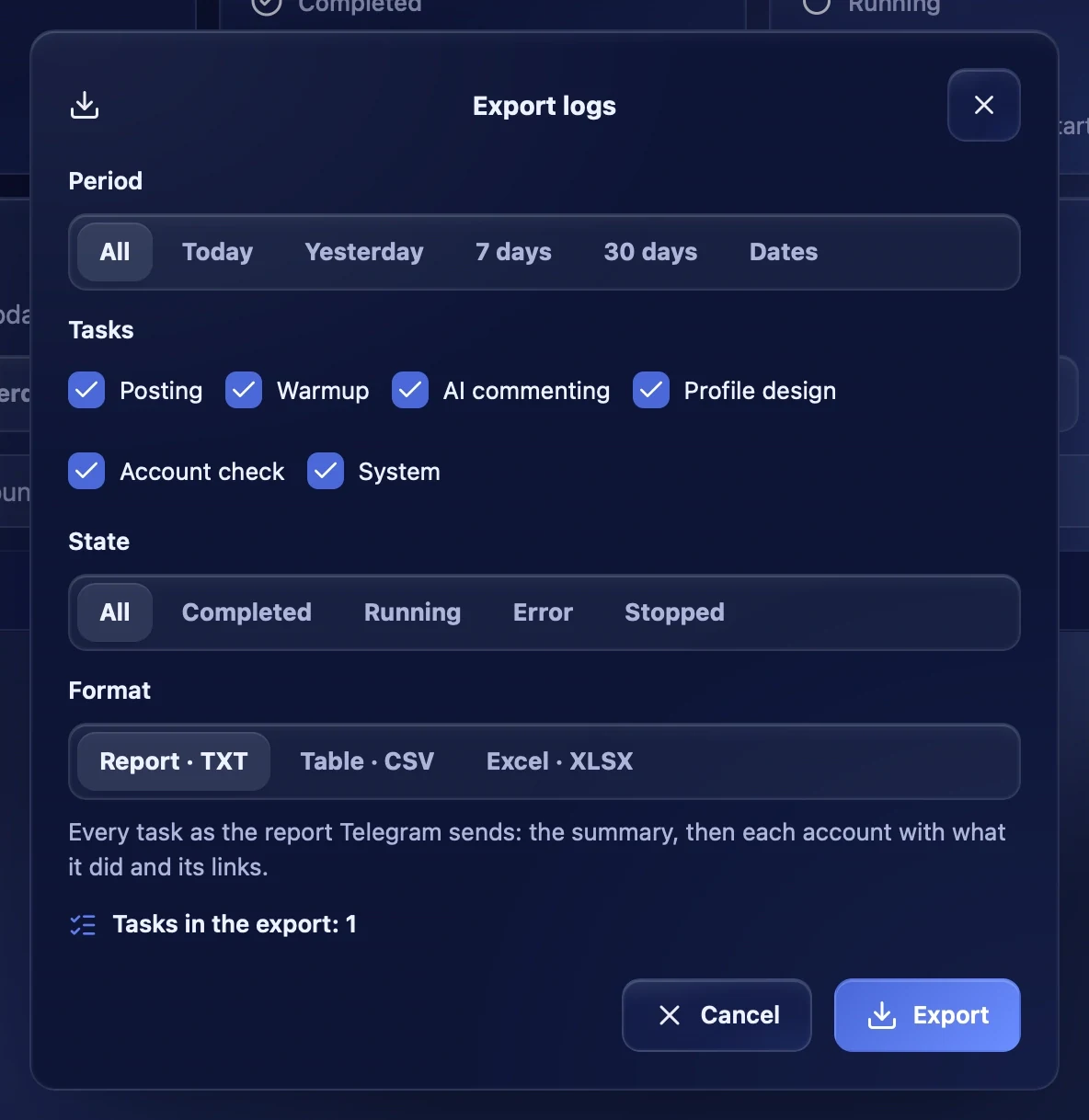
"Export" opens the export window:
- Period — "All", "Today", "Yesterday", "7 days", "30 days" or "Dates" — your own range;
- Tasks — which kinds of tasks to include;
- State — all, completed, running, failed or stopped;
- Format — one of the three below.
Export formats:
- "Report · TXT" — every task as the report Telegram sends: the summary, then each account with what it did and its links;
- "Table · CSV" — a row per account in a task: its result, what it did, the problems and the links;
- "Excel · XLSX" — the same table as an Excel workbook.
At the bottom you see how many tasks go into the export. "Export" asks where to save the file.
Recommendations
- If a task ended "Partial" or with errors, open its details: they say exactly what did not work for each account.
- Check the result through the links: this shows the post or comment really was published.
- To get results automatically, turn on the "Task completed" notification in Telegram.