
"My account" is your Thredium account right in the app: profile, licenses, devices, purchases, balance, support, events and security. It is the same as the cabinet on the site. Open it from the profile menu at the bottom of the sidebar → "My account".
Profile
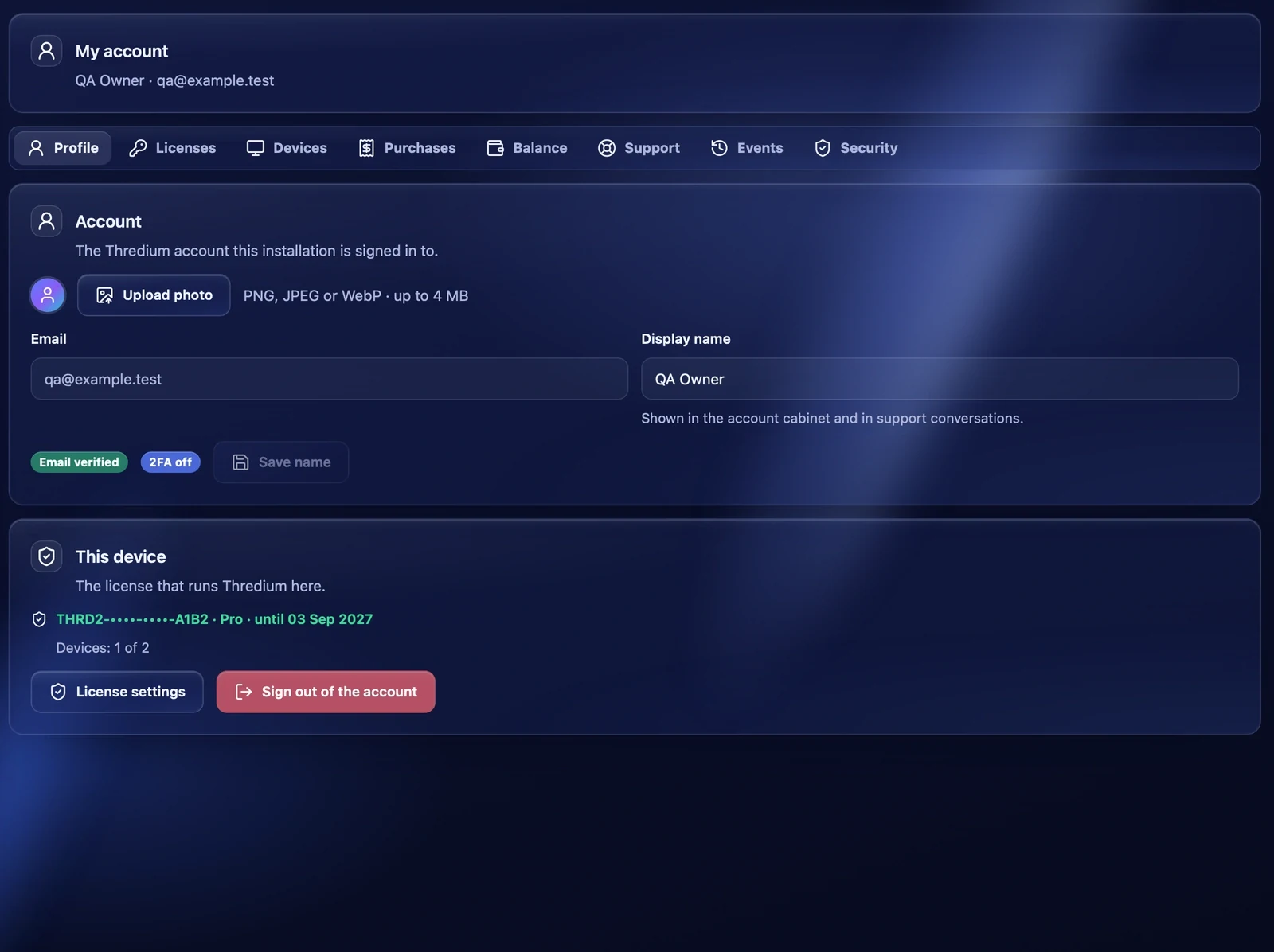
The profile photo — PNG, JPEG or WebP up to 4 MB, "Upload photo" or "Change photo". The account email and its state — "Email verified" or "Email not verified". The Display name is shown in the sidebar, in the cabinet and in support conversations.
Below, in the "This device" block, is the license Thredium runs under on this computer, its expiry and the number of devices. The "License settings" and "Sign out of the account" buttons.
Licenses
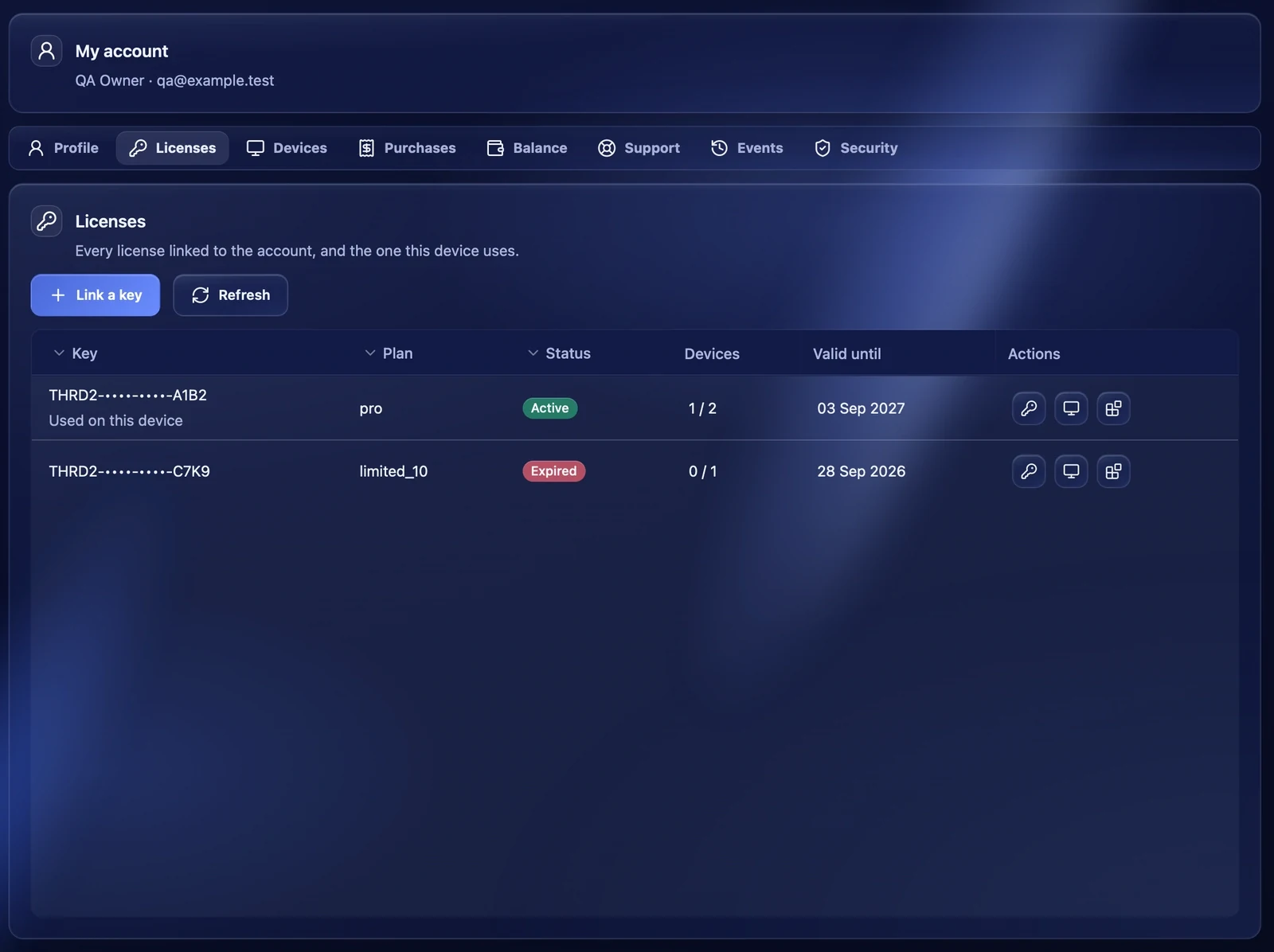
All licenses of the account: key, plan, status, how many devices are used and the expiry. The license that runs on this computer is marked "Used on this device".
- Link a key — add a license to the account by the key from the purchase email.
- Use on this device — switch this computer to another license of the account. Running tasks must be stopped first. The previous license stays linked to the account.
- The buttons in a row open the license's devices and modules.
Devices
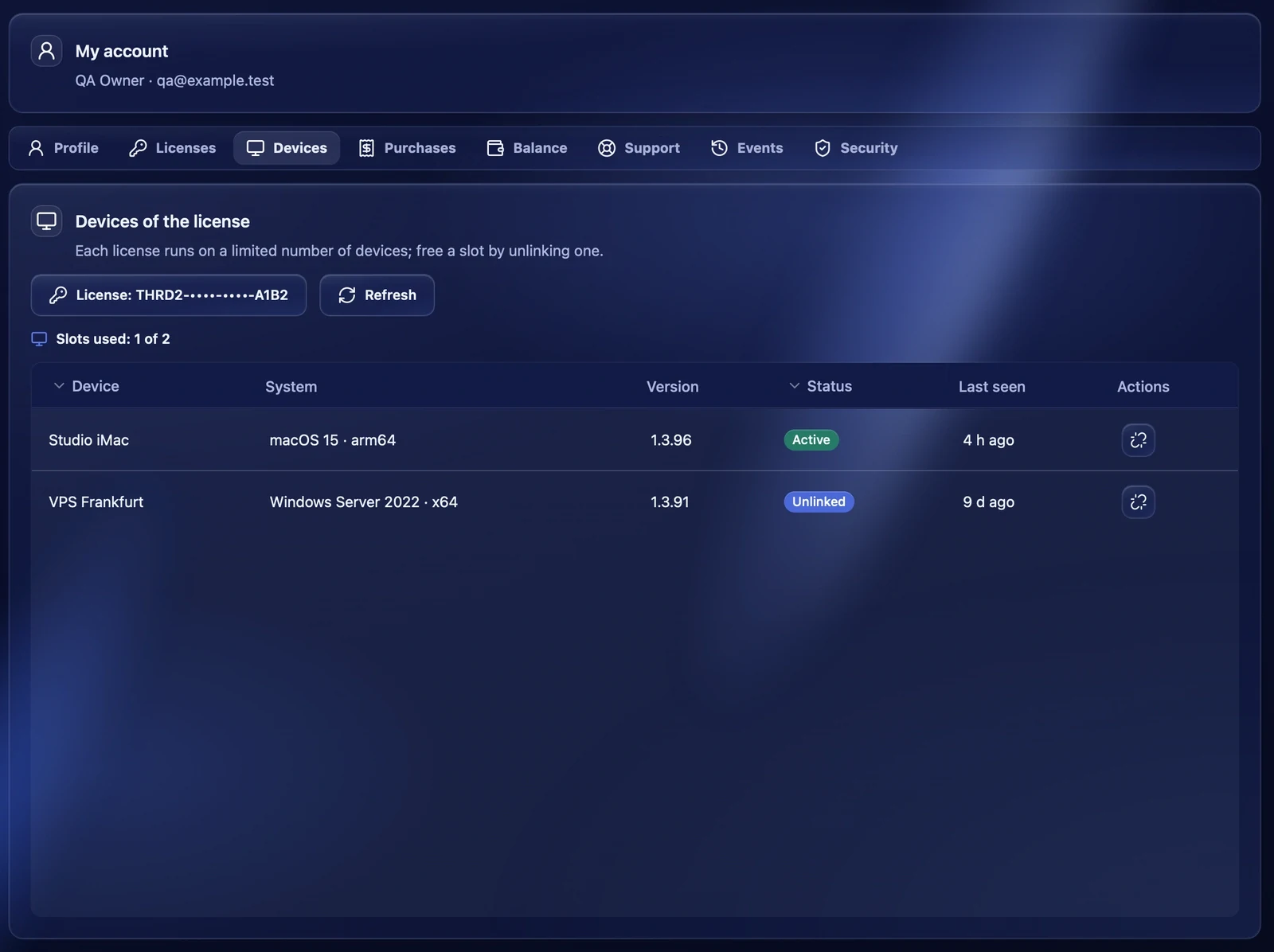
Each license runs on a limited number of devices. The "Devices" tab shows the computers the license is used on: name, system, Thredium version, status and last activity. To free a slot for a new computer, unlink an unneeded one with the button in its row. Thredium on the unlinked computer asks for a license again.
Purchases
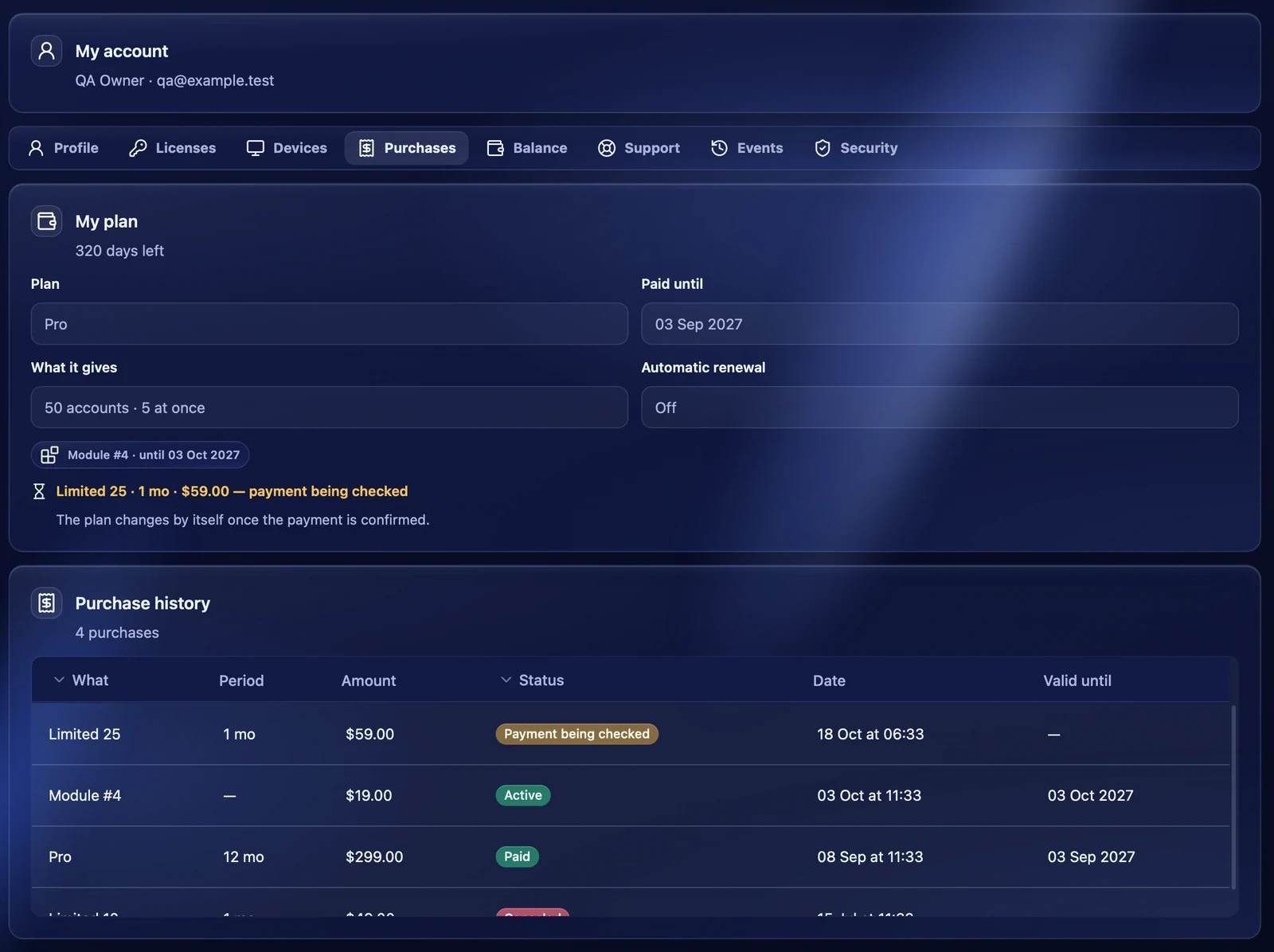
My plan — the current plan, how many days are left, the date it is paid until, what the plan gives and whether auto-renewal is on. If the payment for a new plan is still being checked, it says so here: the plan changes by itself once the payment is confirmed. "Turn off auto-renewal" turns automatic renewal off.
Purchase history — every plan and module bought: period, amount, status and expiry.
Balance
The balance for marketplace purchases, its top-up, unpaid invoices and the history of movements. See the "Balance" article.
Support
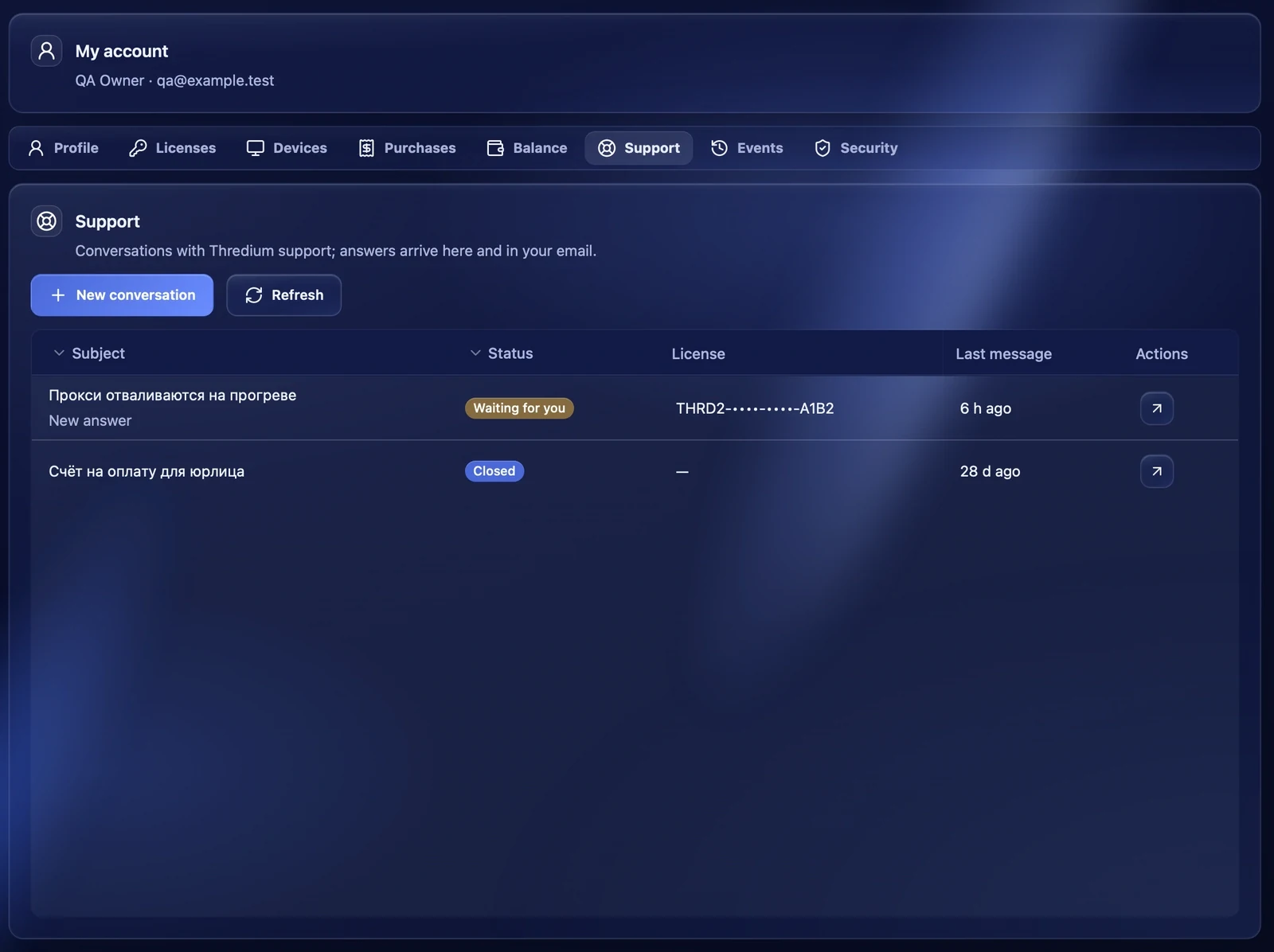
Conversations with Thredium support. "New conversation" starts a new one: a subject, a license if the question is about it, and a message. Answers arrive here and in your email. The list shows the subject, the status — for example "Waiting for you" or "Closed" — and the time of the last message. The button in a row opens the conversation.
Events
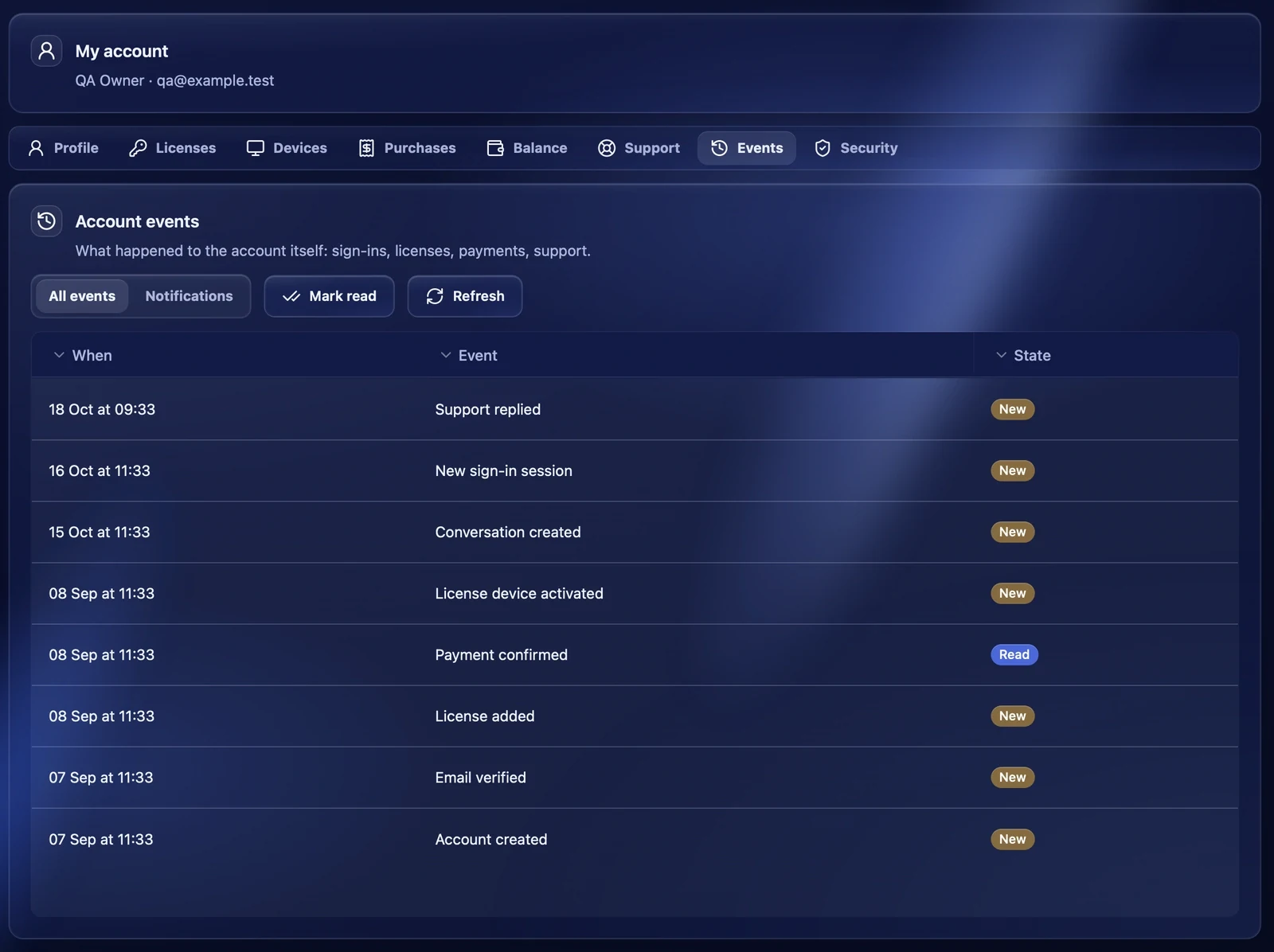
The account history: sign-ins, licenses, payments, support answers and more. New events are marked "New". The "All events / Notifications" filter; "Mark read" marks the events read.
Security
Two-factor authentication
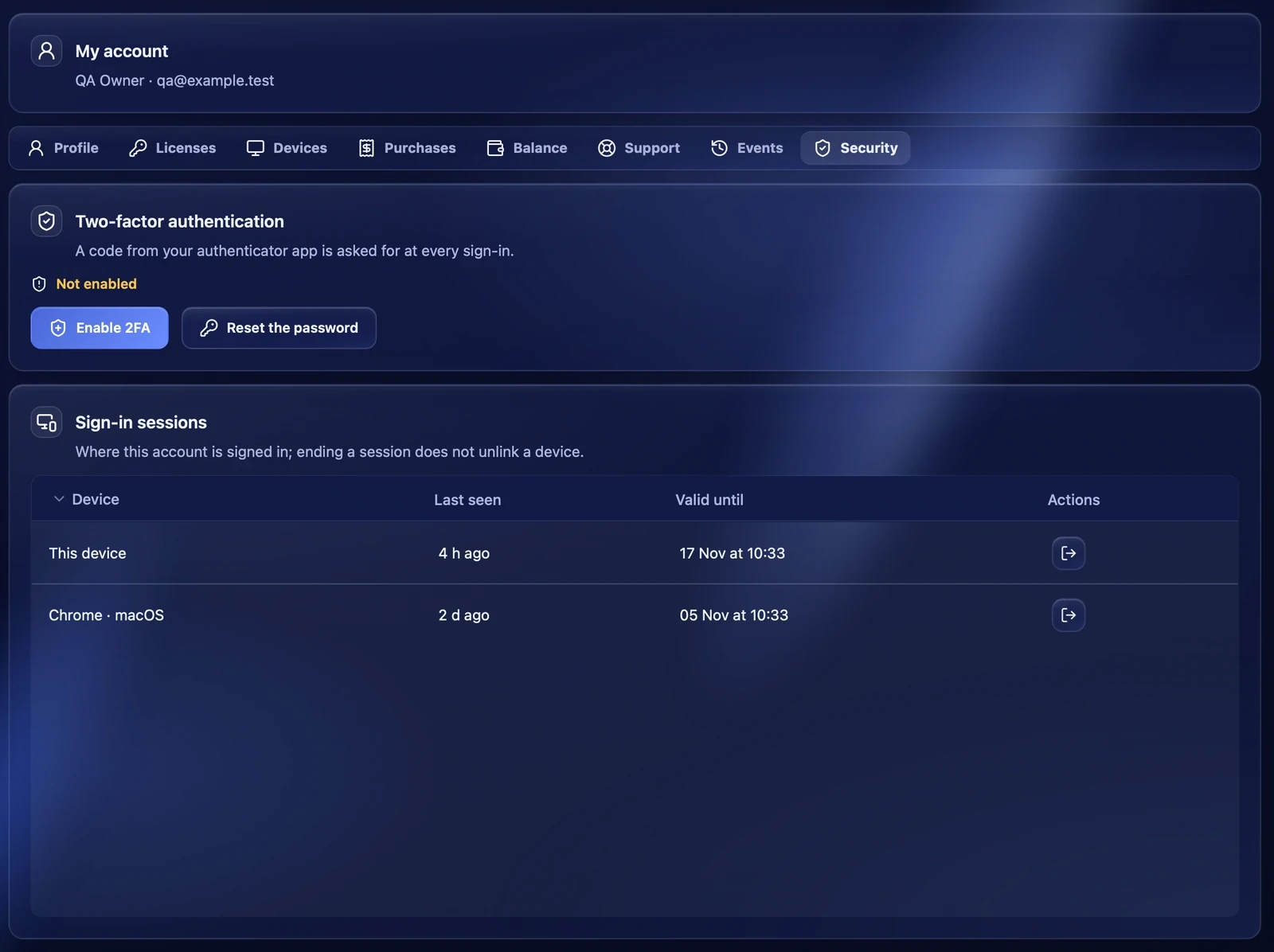
With 2FA on, every sign-in to the account needs a code from an authenticator app. After turning it on you get backup codes — save them: they help to sign in if the phone is lost. "New backup codes" replaces the old ones.
Password and sessions
"Reset the password" sends a link for changing the password to your email. The current password keeps working until you set a new one from the letter. "Sign-in sessions" shows where the account is signed in and when each session ends. "End session" signs the account out on that device — the device itself is not unlinked from the license.
Recommendations
- Turn on two-factor authentication and keep the backup codes somewhere safe.
- If you changed computers, unlink the old one in the "Devices" tab to free a slot.
- If you see an unfamiliar sign-in session, end it and change the password.