
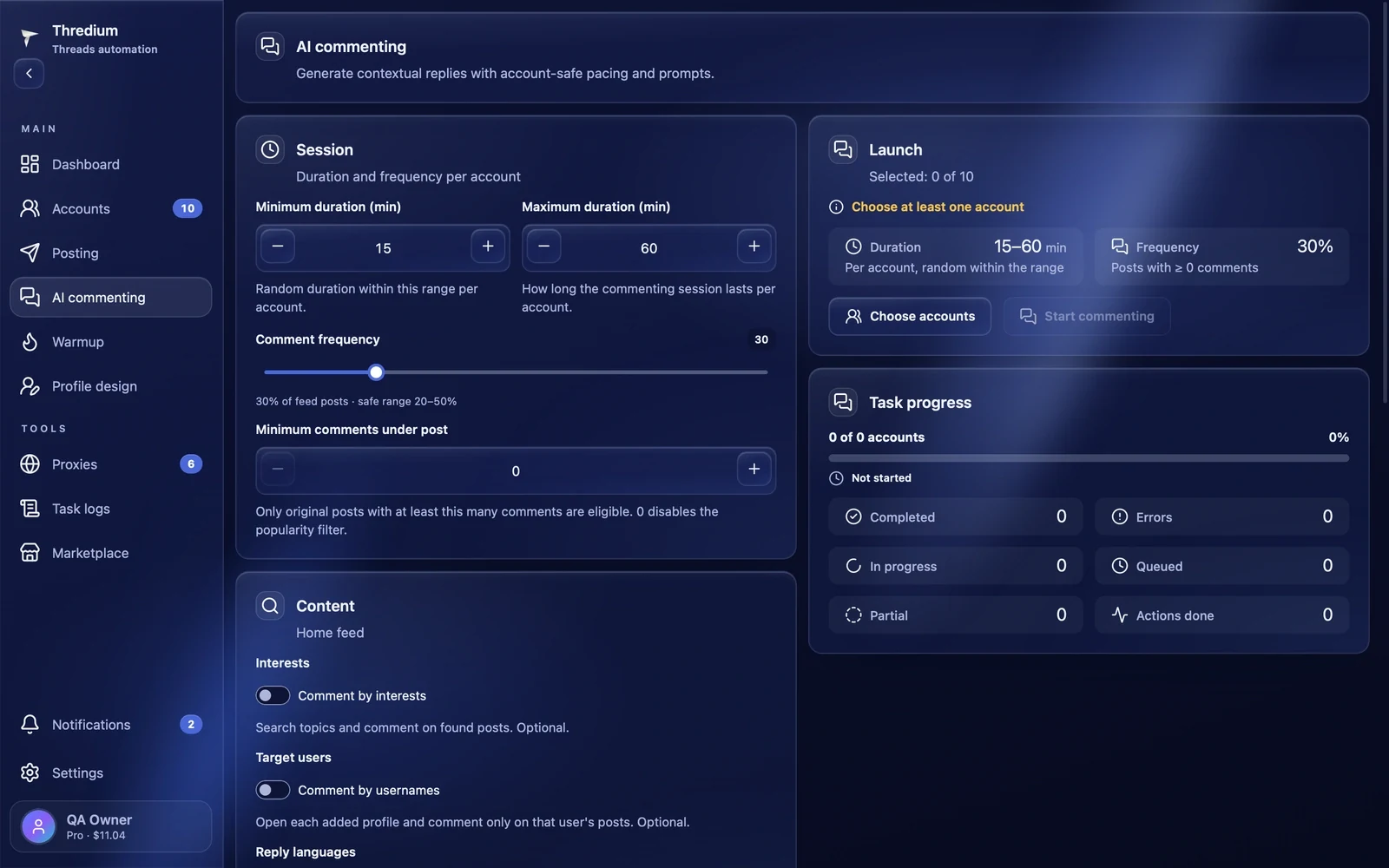
The module leaves comments under Threads posts on behalf of your accounts. The AI model you choose writes every comment: it reads the post and answers to the point, in the language of the post. An account scrolls the feed like a real person, likes the post it is going to comment on and writes the reply. You decide how long a session lasts, under what share of posts comments appear and where the posts come from.
Before you start
The "Start commenting" button becomes active when:
- at least one account is added and signed in — the "Accounts" section;
- an API key is added and a model is chosen — "Settings → AI models";
- the browser setup is finished, if the app asks for it — "Settings".
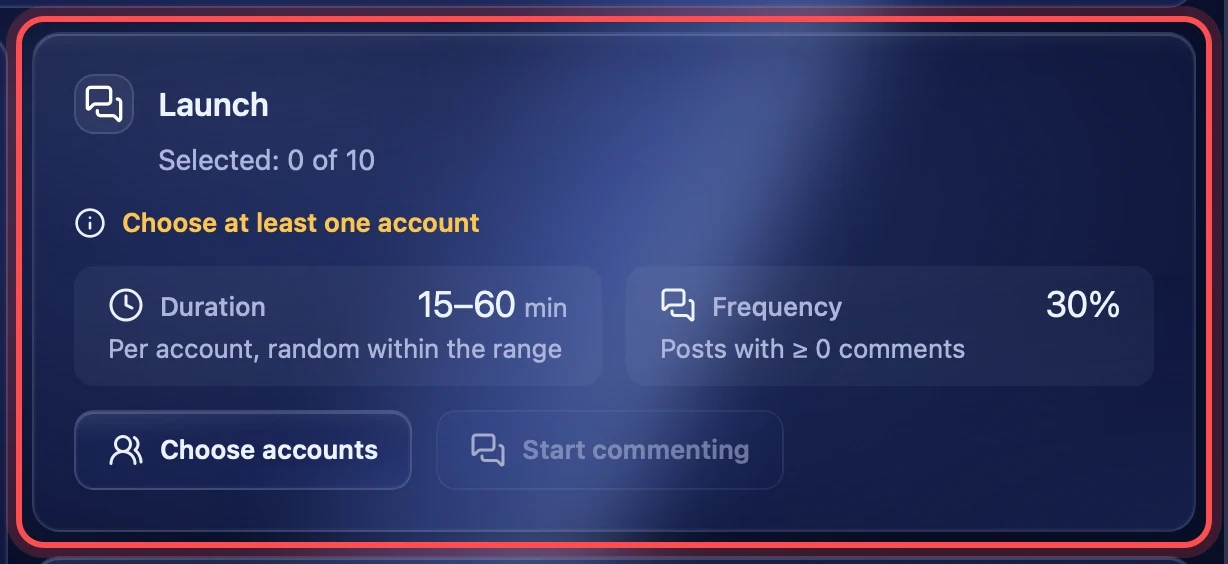
If something is missing, the "Launch" block says what in yellow, for example "Choose at least one account" or "Add an AI key in Settings".
Setting it up
Minimum and maximum duration
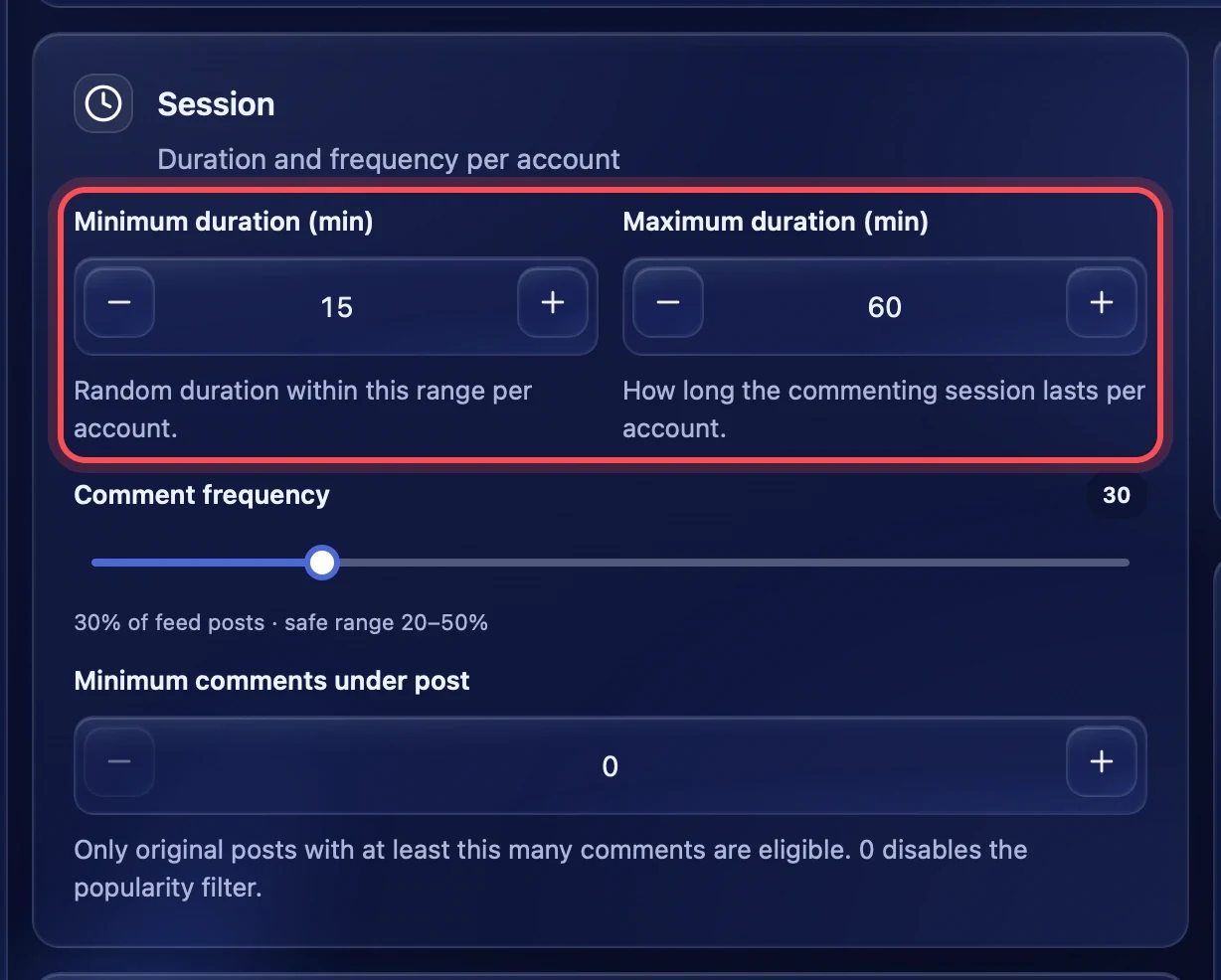
How many minutes one account spends in a commenting session. Each account gets a random time within this range, so accounts do not finish at the same moment and do not look like a bot. From 5 to 480 minutes; 15 to 60 by default.
Comment frequency
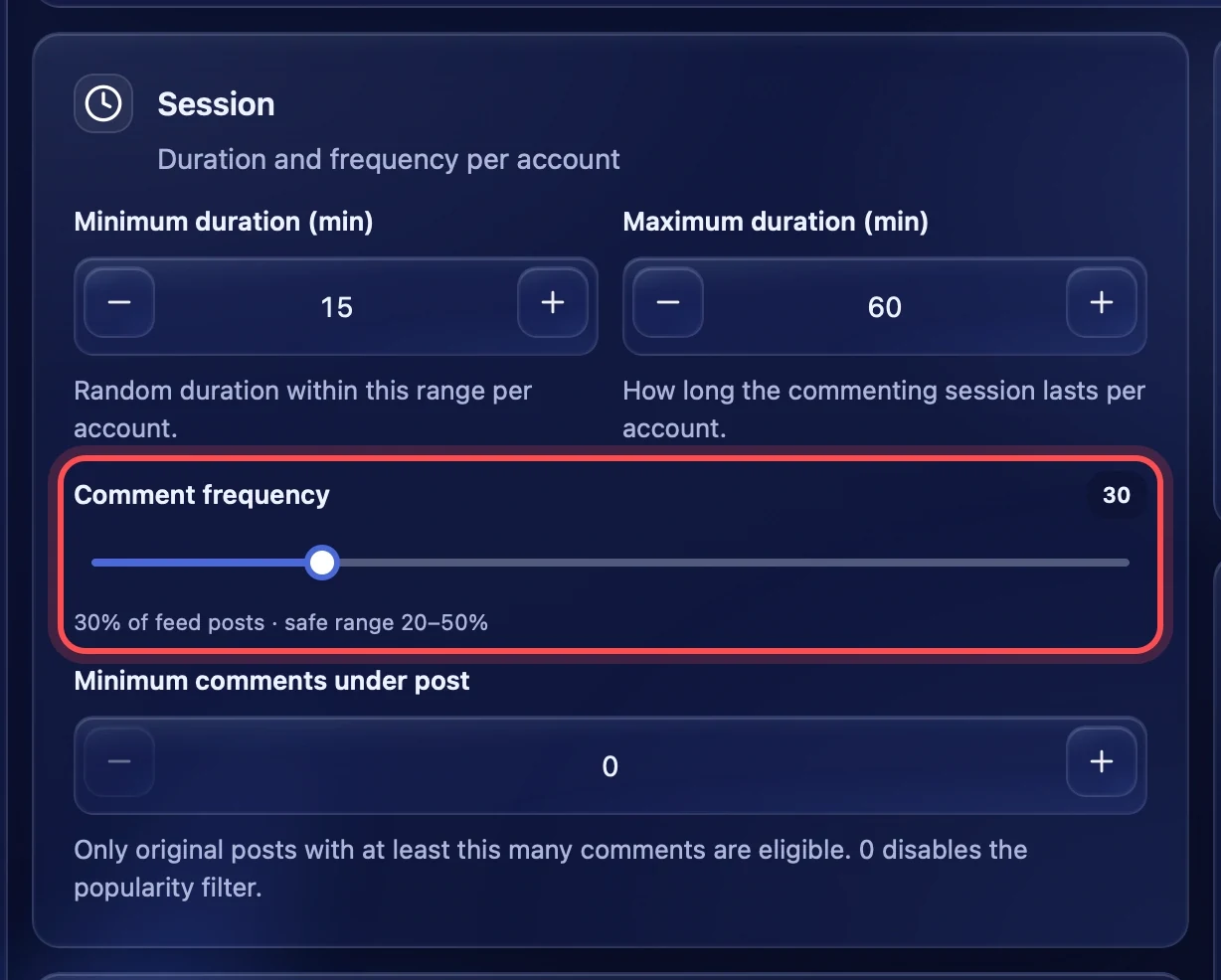
The share of feed posts an account comments on. At 30 % it comments on about every third suitable post and just scrolls past the rest. The safe range is 20–50 %. Above 70 % a warning appears: comments under almost every post look unnatural and raise the risk of limits from Threads.
Minimum comments under post
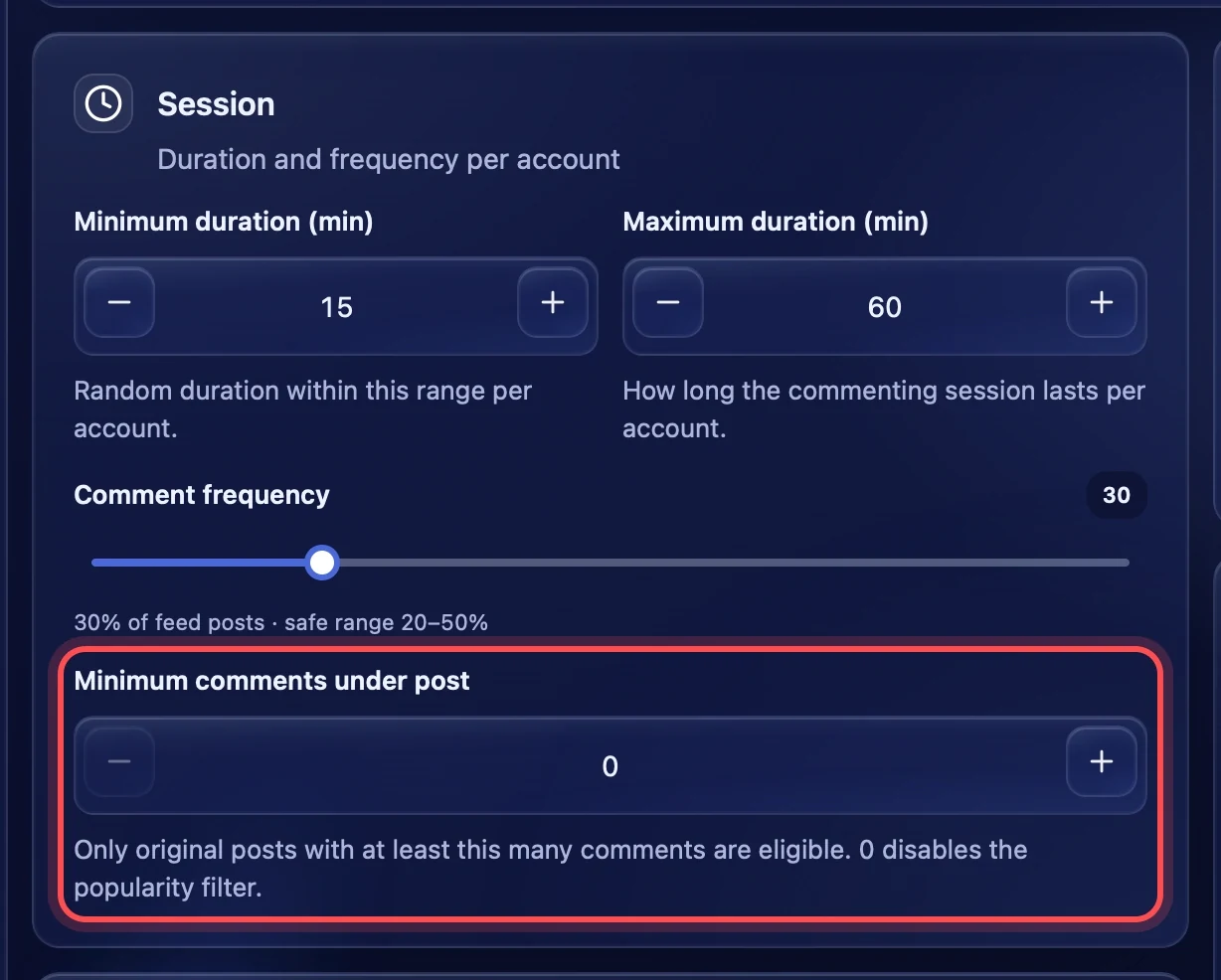
Comment only on posts that already have at least this many comments. This way accounts write under popular posts where more people see the reply. 0 turns the filter off and any post fits. Only original posts count, not replies.
Comment by interests
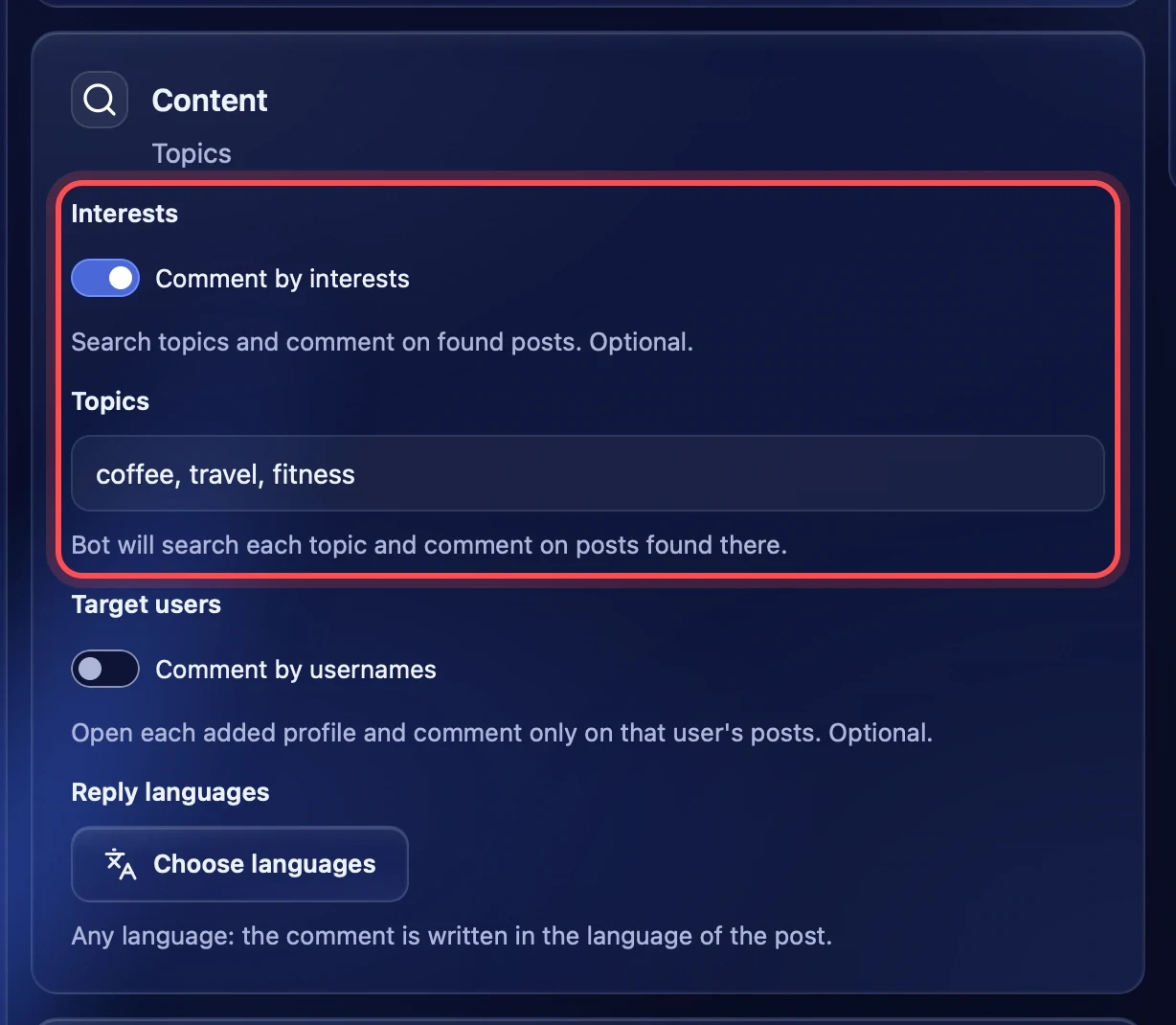
By default accounts comment on their own feed. Turn on "Comment by interests" and list topics separated by commas — for example "coffee, travel, fitness". The account searches each topic in Threads and comments on the posts it finds.
Comment by usernames
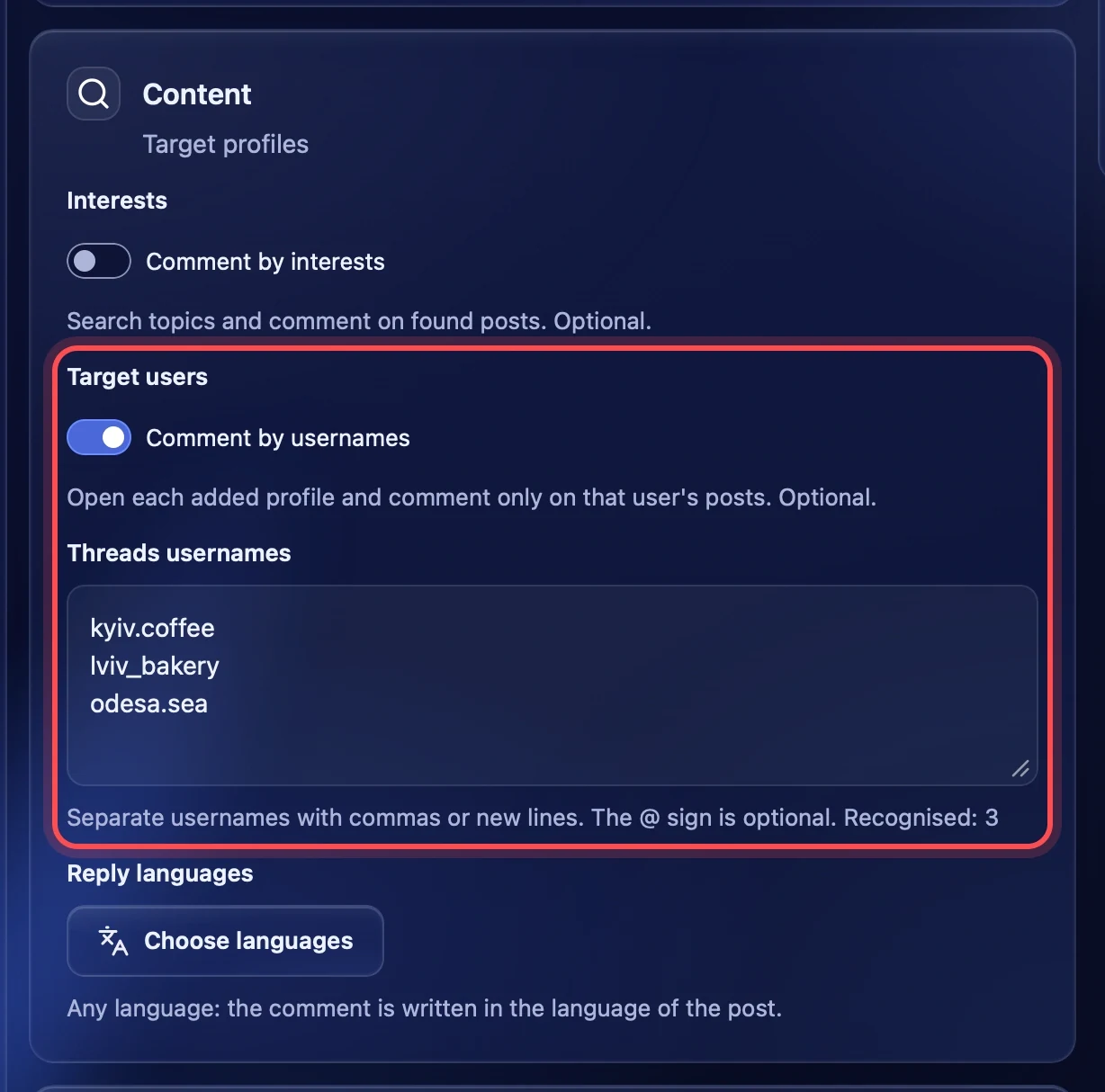
Turn it on to comment on posts of particular people. Enter their usernames separated by commas or on separate lines; the @ sign is optional. Under the field you see how many usernames were recognised. The account opens each profile and comments only on its posts.
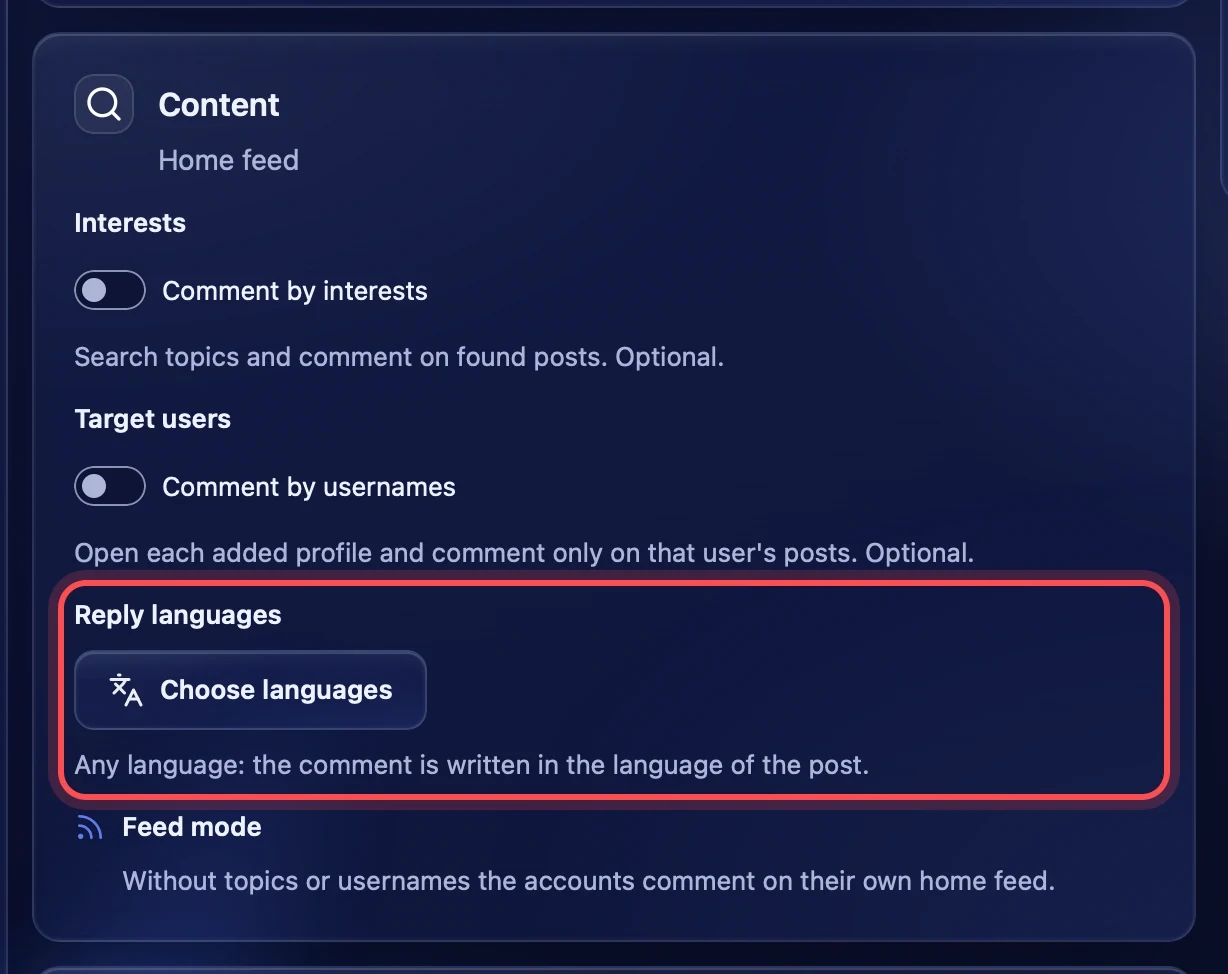
Interests and usernames can be on together — then the account goes through both topics and profiles. With both off, "Feed mode" works: the accounts comment on their own feed.
Reply languages
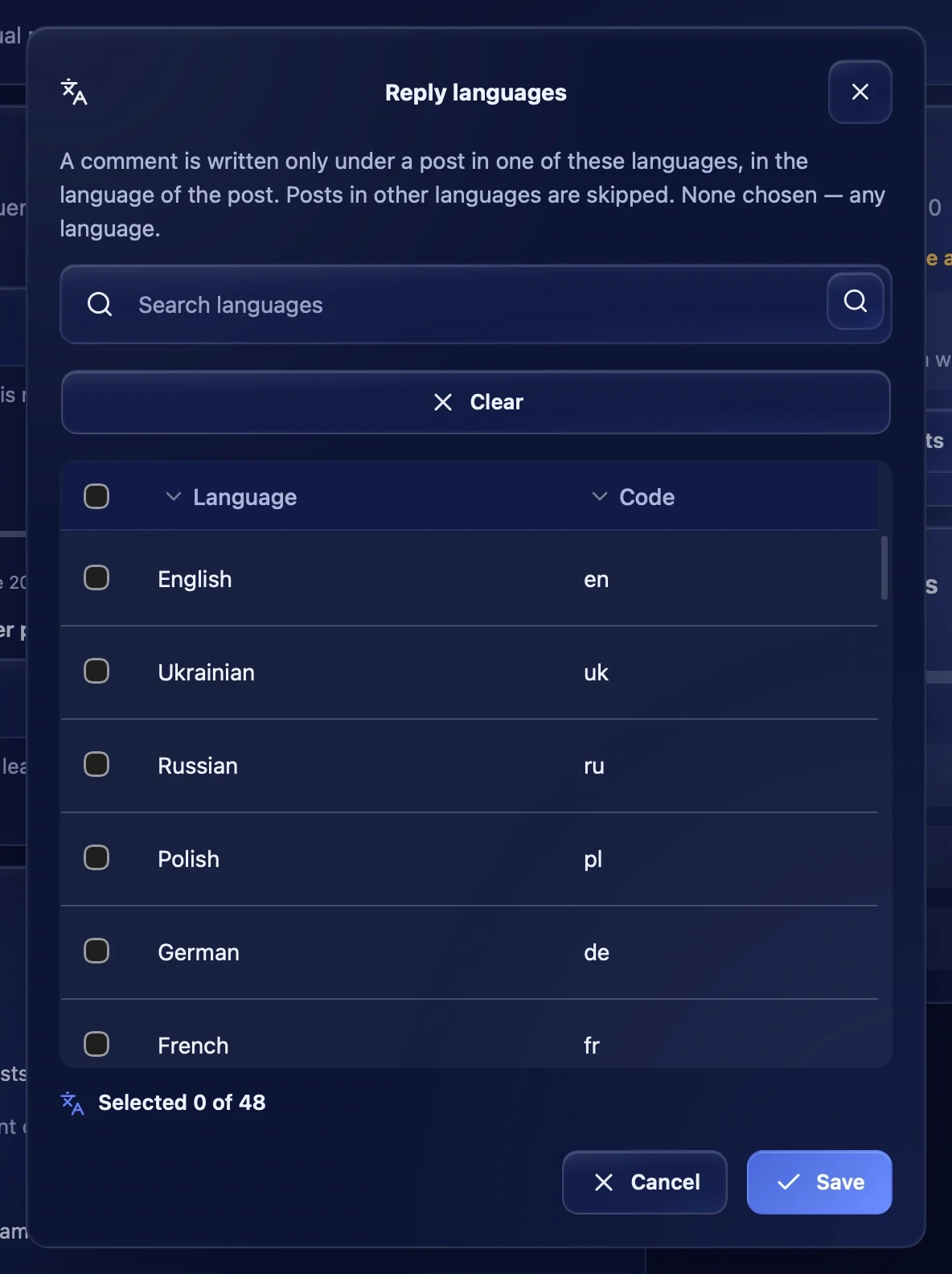
With no languages chosen, a comment is written in the language of the post, whatever it is. If you press "Choose languages" and tick, for example, Ukrainian and English, the accounts comment only on posts in these languages and skip the rest. Posts in another script (for example, Chinese or Japanese) are filtered out before the AI is asked.
AI provider and active prompt
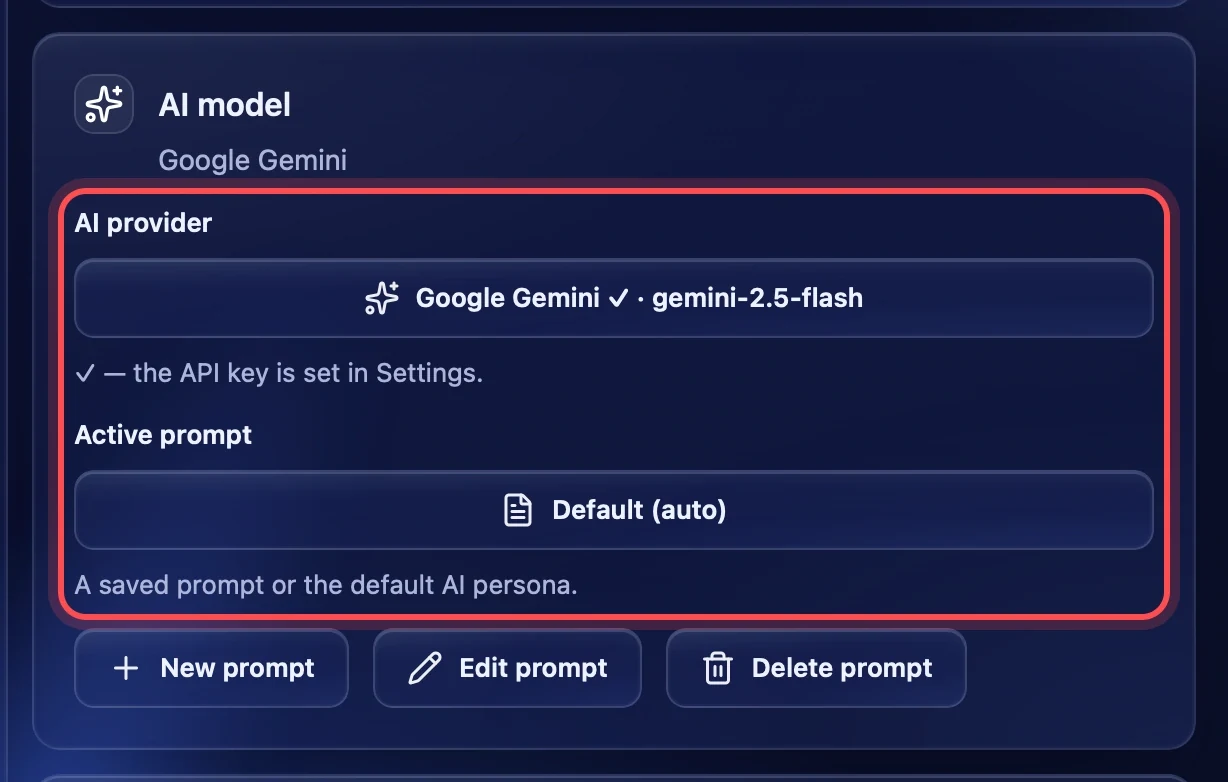
AI provider — the model that writes the comments. The list shows the providers whose keys you added in "Settings → AI models". A ✓ means the key is set; the chosen model is next to it. If a provider has no key or no model, the list says so.
Active prompt — the instruction for the model: what tone to use and what to write about. "Default (auto)" is the built-in Thredium persona. You can choose one of your saved prompts.
Your prompts
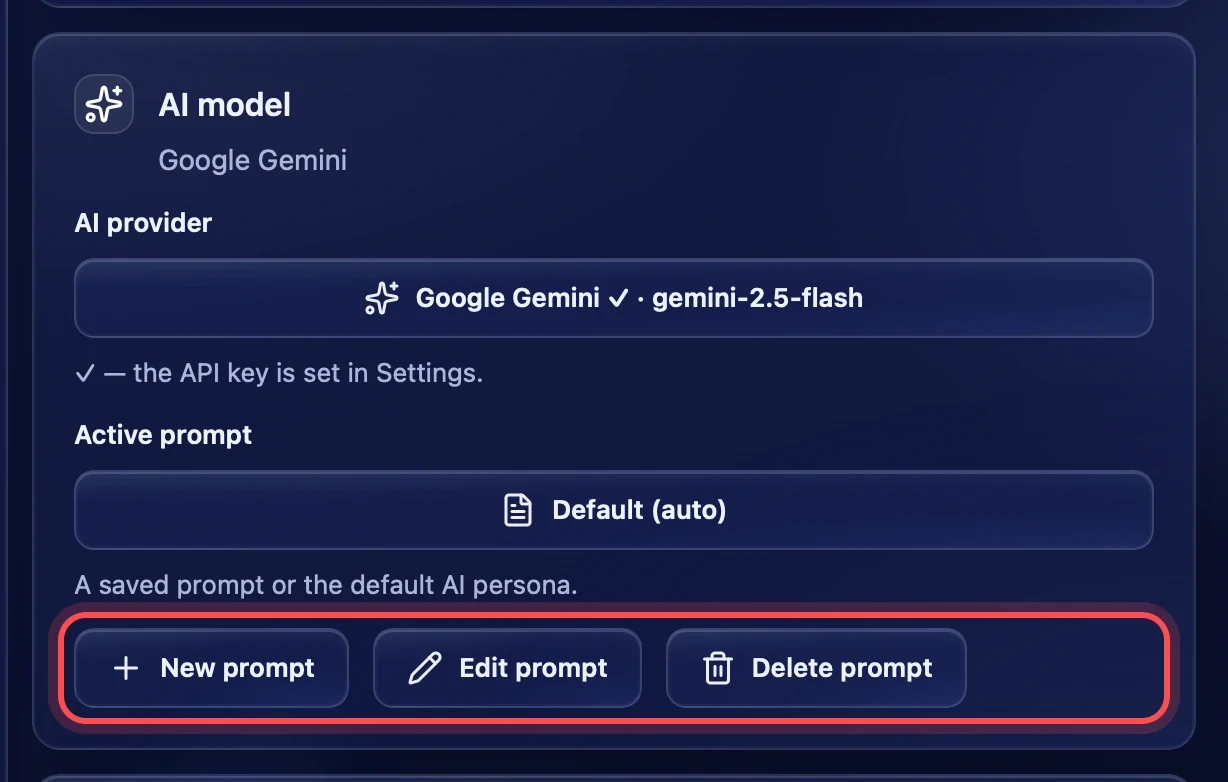
"New prompt" opens a window where you set the name and the instruction text. "Edit prompt" and "Delete prompt" work with the prompt chosen in "Active prompt". The text of the chosen prompt is shown under the buttons.
Test AI comment
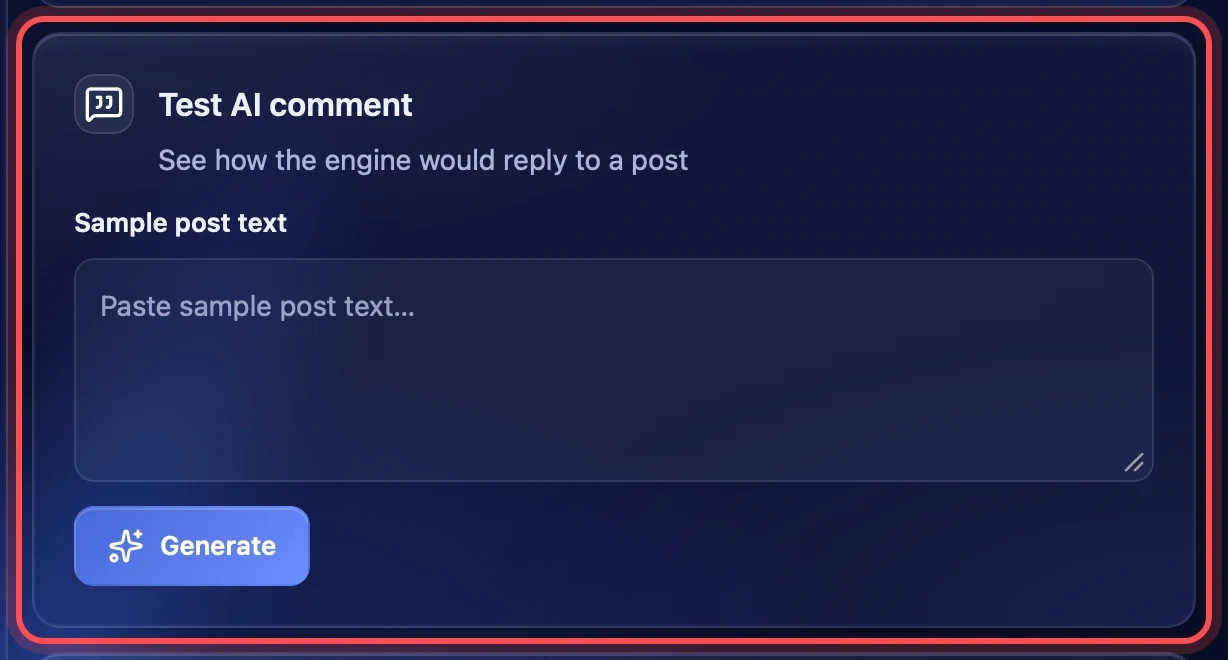
Before starting, check how the model answers. Paste the text of any post and press "Generate" — you see the comment the AI would write under it and the model name. Nothing is published. If the key does not work or the model is unavailable, you get an error with the "Open AI settings" button instead of an answer.
Launch
Choosing accounts
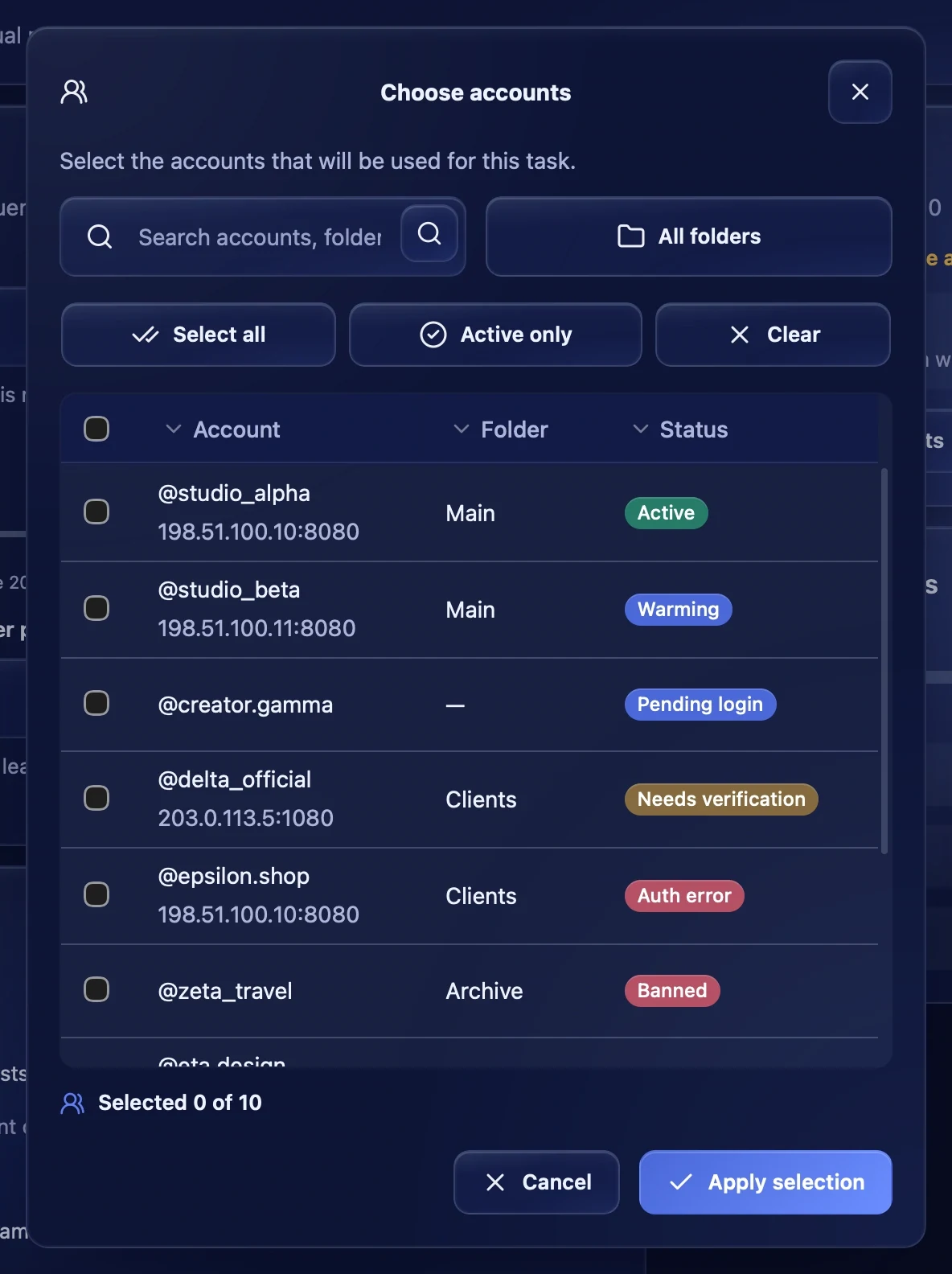
Press "Choose accounts". In the window you can search by account, pick a folder, tick all or only active ones. The table shows each account's status: it is best to run only accounts with the "Active" status.
Start and stop
The "Launch" block shows how many accounts are chosen and, briefly, the duration and frequency. "Start commenting" starts the task; while it runs, the "Stop commenting" button takes its place.
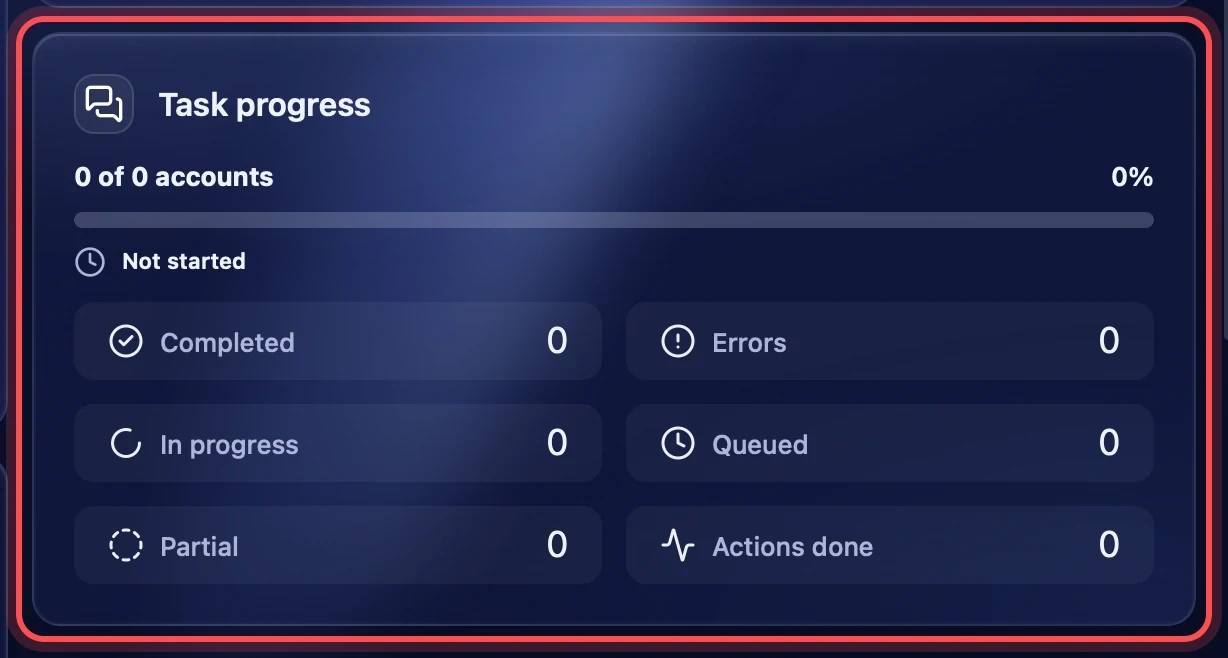
Task progress
While the task runs, the "Task progress" block shows how many accounts have finished and the counters: "Completed", "Errors", "In progress", "Queued", "Partial" and "Actions done". The detailed course for each account and the final report are in "Task logs".
Recommendations
- Start with a frequency of 20–30 % and sessions of 15–60 minutes, especially on new accounts.
- Before the first launch, check the model with "Test AI comment".
- Warm up fresh accounts first — the "Warmup" section.
- Do not run commenting on accounts with the "Needs verification" or "Auth error" status: sign in to them again first.
- If you chose reply languages and there are few comments, the feed simply has few posts in these languages. Add interests in the language you need.