
A schedule starts a task at the time you need without you: once on a chosen day or regularly on weekdays. It is on the "Posting", "Warmup" and "AI commenting" pages. A scheduled run starts with the same settings and accounts the page had when you created it — just as if you had pressed the start button.
The schedule follows your computer's clock. At that time the computer must be on and Thredium open.
Creating a schedule
Prepare the page
First set the page up the way the task should start: write the post text, set the warmup or commenting options and choose the accounts. The "Schedule" button becomes active only when the task can start. If something is missing, the "Schedule" block says what in yellow.
Changes on the page after the schedule is created do not affect it. To run another text or other accounts, create a new schedule.
Once
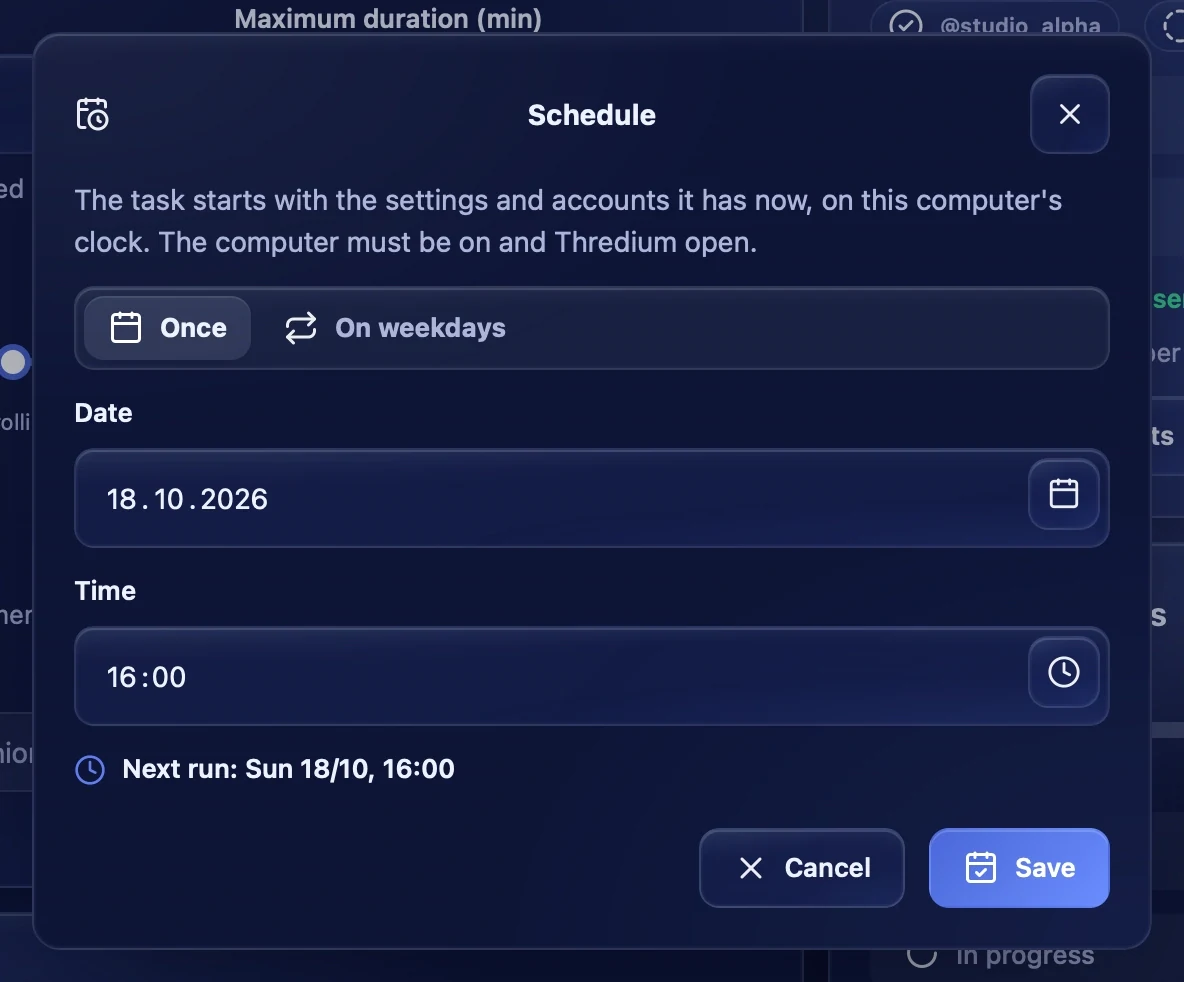
Press "Schedule", keep "Once" and choose the date and time. Under the fields you see when the run happens: "Next run: …". If the time has already passed, it says "This time has already passed", and the schedule cannot be saved. Press "Save".
On weekdays
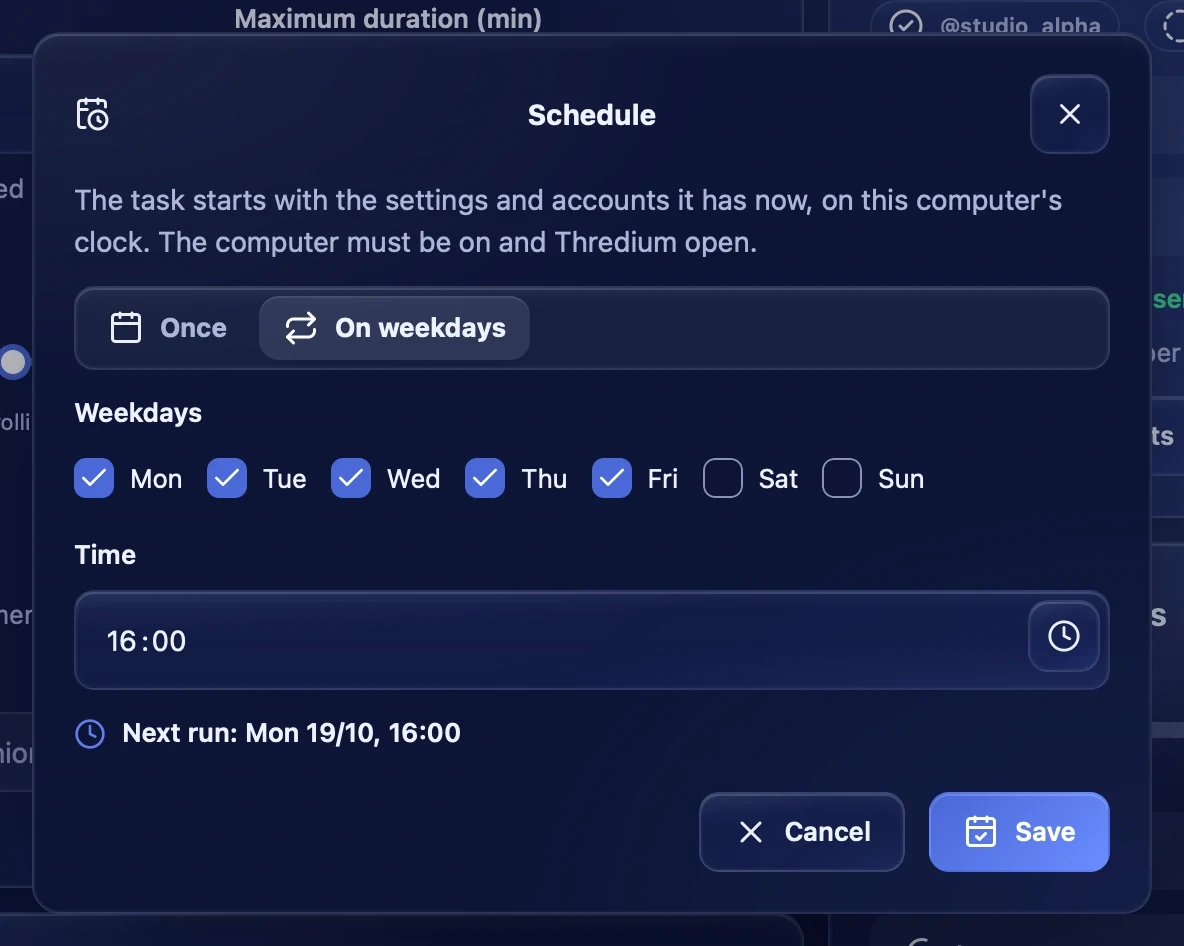
Choose "On weekdays", tick the days and the time. The task starts at that time on every ticked day. With all seven days ticked, the table says "Every day".
Scheduled runs
The table
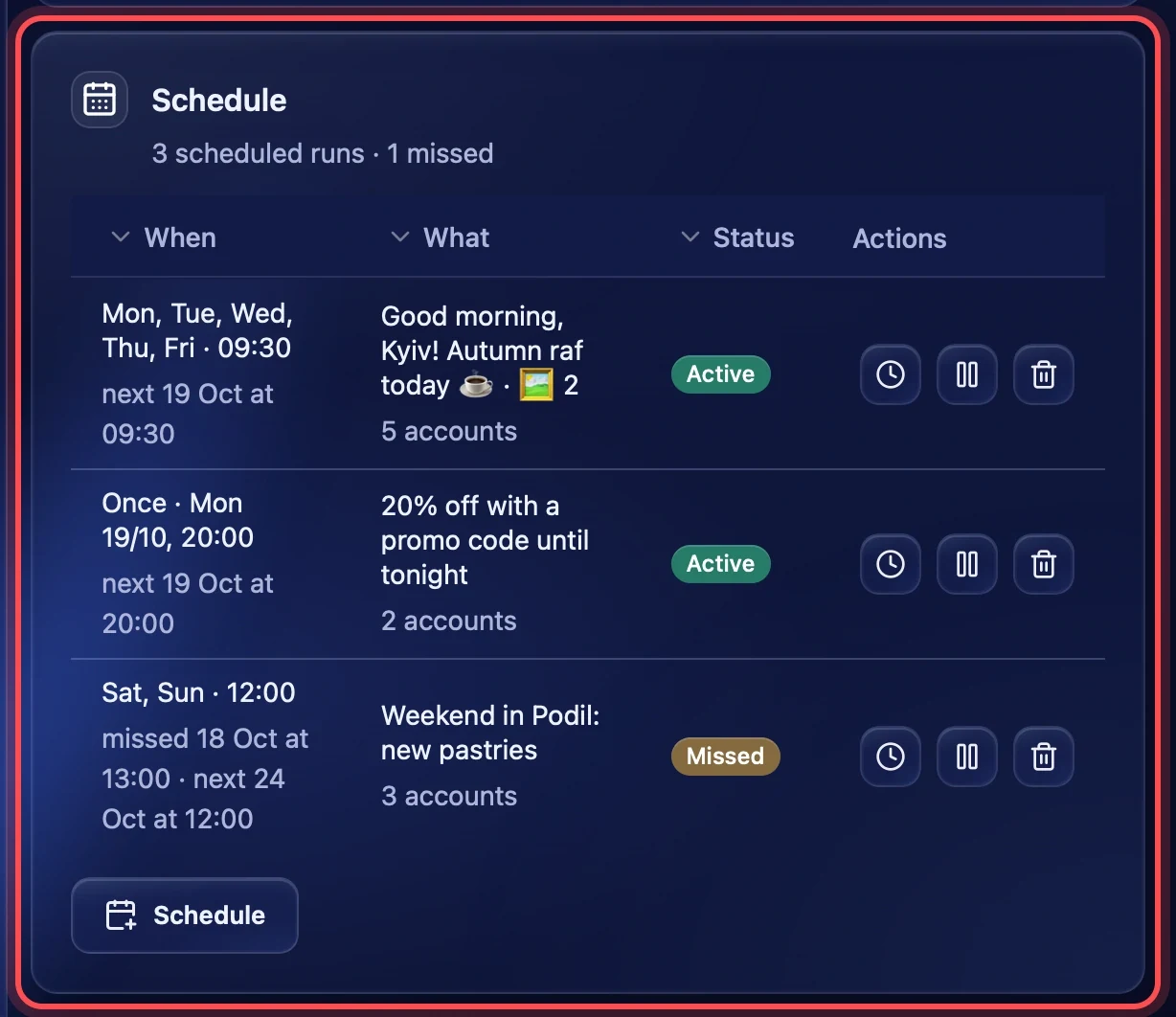
All the page's schedules are in the "Schedule" block:
- When — days and time, below them the next run;
- What — for posting, the beginning of the post text, and how many accounts take part;
- Status — "Active", "Paused", "Done" (a single run has passed) or "Missed".
Actions
Each row has three buttons on the right:
- New time — opens the same window as when creating and changes the time without touching the task settings;
- Pause / resume — pauses the schedule without deleting it, and turns it back on;
- Delete — deletes the schedule after a confirmation.
When the task has started
When a scheduled run starts, the app shows the "Started on schedule" notification. The task appears on its page in the "Task progress" block, as with an ordinary start. The course and the result are in "Task logs".
A missed run
If the task could not start in time, the run counts as missed and is not made up later. Being up to 10 minutes late is fine: for example, if the app has just opened. Reasons for a miss:
- the computer was off or asleep, or the app was closed;
- the previous run of this schedule was still going;
- the browser was not set up;
- the task did not start;
- its accounts were busy in another task for 2 hours.
A "A scheduled run was missed" notification with the "Set a new time" button comes in "Notifications". If error notices are on in the Telegram settings, it comes there too. In the table such a schedule has the "Missed" status, and a weekday schedule goes on from the next ticked day.
A manual start before a scheduled run
If you start a task by hand while a scheduled task for the same accounts is due within 15 minutes, the app warns you: the manual task may not finish in time.
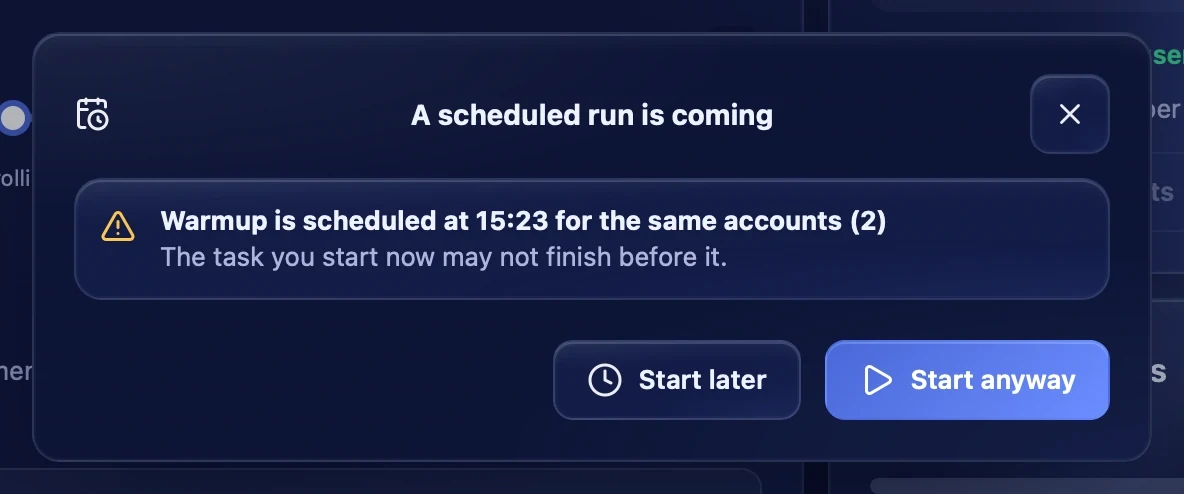
- Start later — nothing starts; you can come back to it after the scheduled run.
- Start anyway — the app offers to move the scheduled run 15 minutes later. Only this one run moves; the schedule keeps its time.
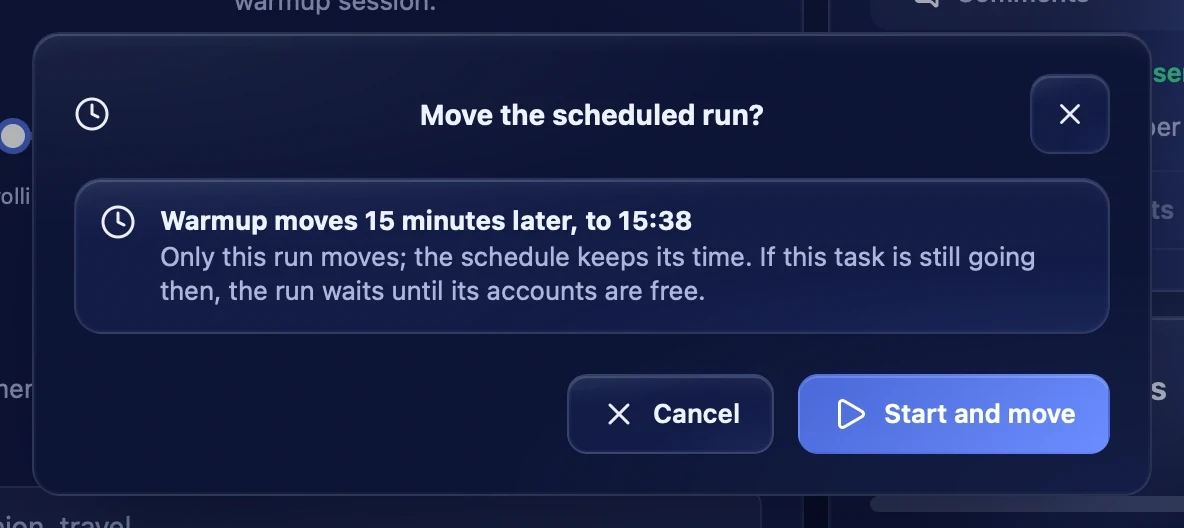
If the accounts are still busy at the moved time, the scheduled run waits until they are free — but no longer than 2 hours. After that it counts as missed.
Recommendations
- Do not put different tasks for the same accounts at the same time: one will wait for the other.
- A weekday schedule at a fixed time suits warmup; one-off runs suit posting, one per post.
- If the computer sleeps at night, do not schedule runs for the night: they will be missed.
- Check the computer's clock and time zone: the schedule follows them.