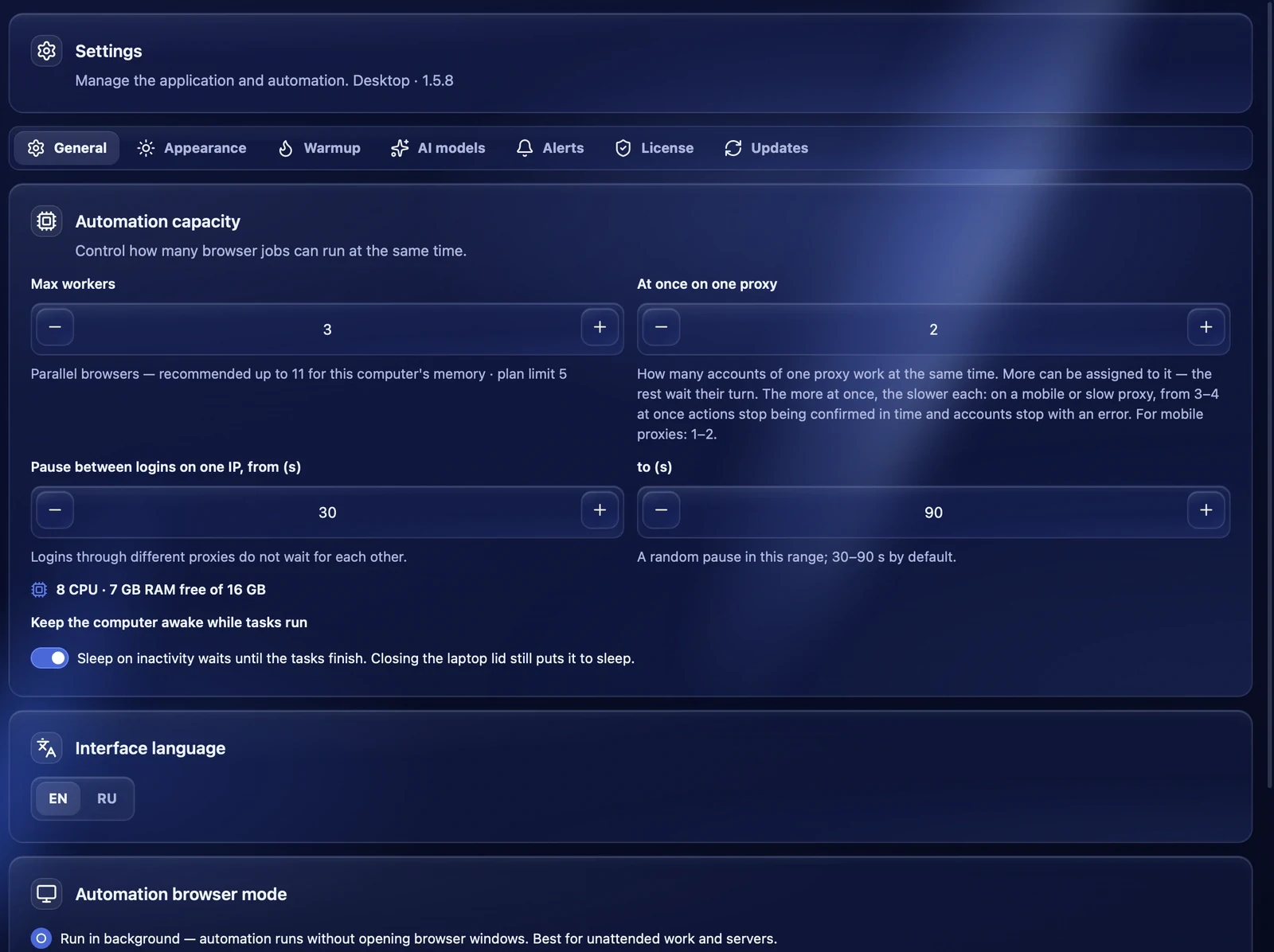
"Settings" has seven tabs: "General", "Appearance", "Warmup", "AI models", "Alerts", "License" and "Updates". On "General", "Appearance", "Warmup" and "Alerts" changes apply after "Save" — it appears at the bottom of the tab after the first edit, next to "Discard changes". On the other tabs everything is saved at once.
The "Alerts" tab is described in a separate article, "Telegram notifications".
General
Max workers
How many browsers with accounts can run at the same time across all tasks. Each browser needs about 1.5 GB of memory, so under the field the app suggests how many are recommended for this computer and shows your plan limit. If you set more than recommended, a warning appears: browser tabs may crash. More than the plan limit cannot be saved — the value is reduced to the limit.
Below you see how many processors the computer has and how much memory is free.
At once on one proxy
How many accounts of one proxy work at the same time. More can be assigned to the proxy — the rest wait their turn. The more at once, the slower each account: on a mobile or slow proxy, from 3–4 at once actions stop being confirmed in time and accounts stop with an error. For mobile proxies set 1–2.
Pause between logins on one IP
A random pause between sign-ins of different accounts through one IP — from and to, in seconds. 30–90 seconds by default. Sign-ins through different proxies do not wait for each other.
Keep the computer awake while tasks run
While tasks run, the computer does not fall asleep from inactivity. Closing the laptop lid still puts it to sleep — the tasks are then interrupted.
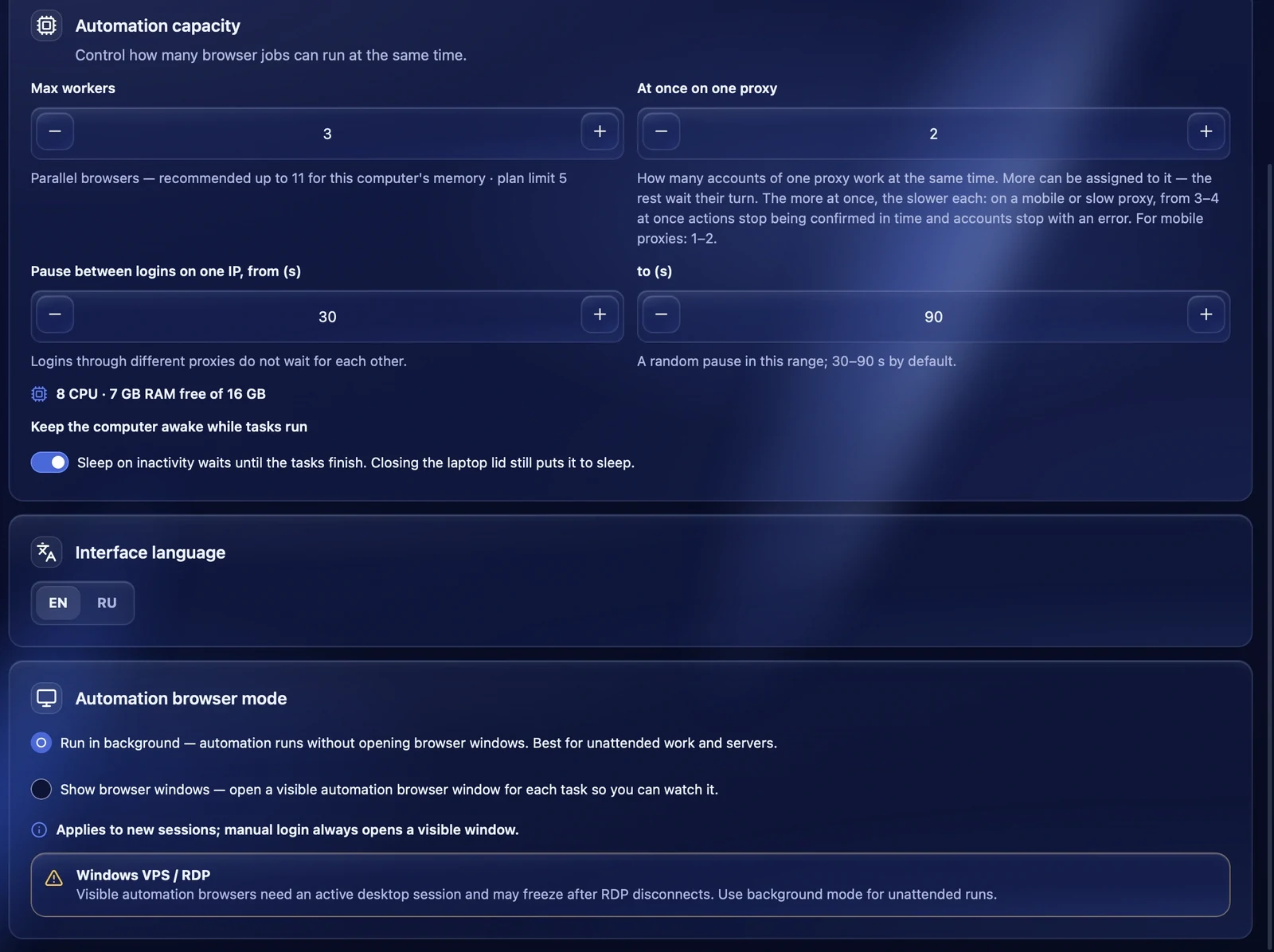
Interface language
The EN / RU switch — the language of the whole app.
Automation browser mode
- Run in background — the browsers work without windows. The best choice for unattended work and servers.
- Show browser windows — a visible browser window opens for each task, and you can watch it.
The mode applies to new sessions. A manual login always opens a visible window. On a Windows VPS over RDP, visible windows need an active desktop session: after RDP disconnects they may freeze, so use the background mode there.
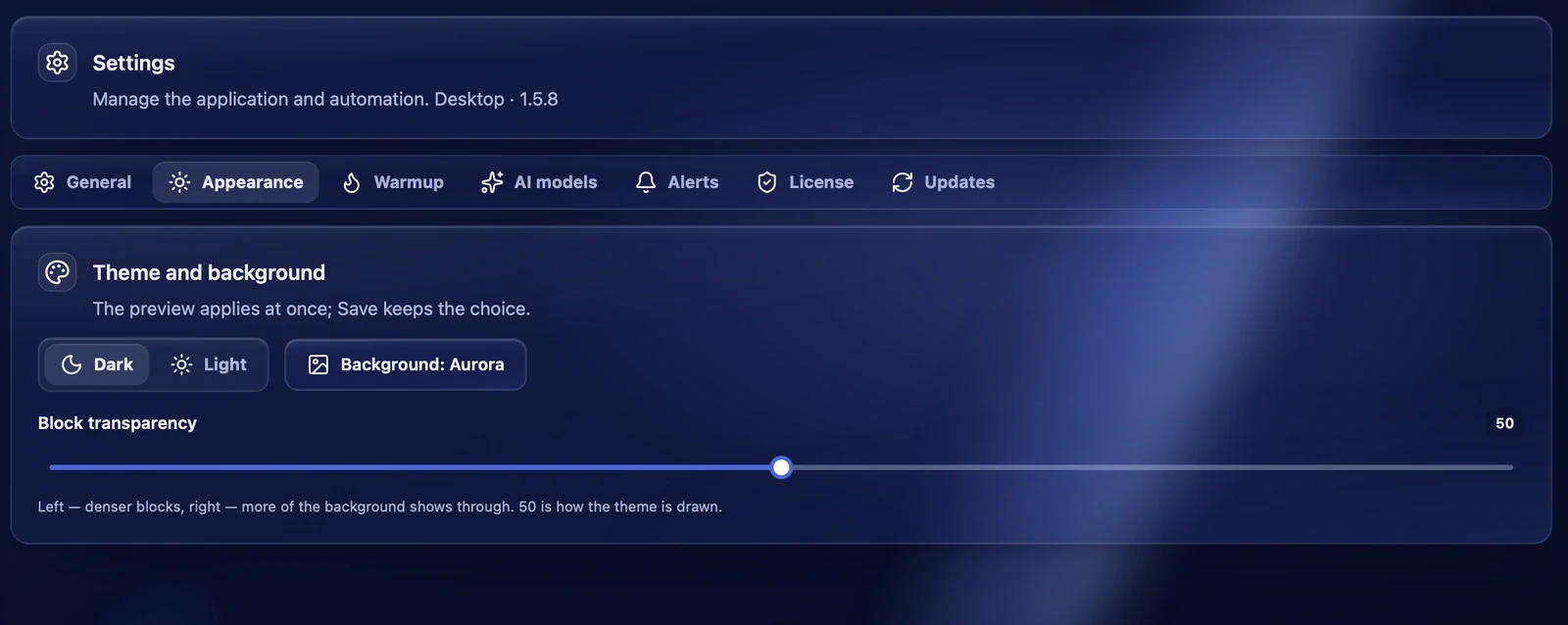
Appearance
Choose the dark or light theme and the window background. The background menu offers ready backgrounds or uploading your own. The "Block transparency" slider: further left — denser blocks, further right — more of the background shows through, 50 is how the theme is drawn. The preview changes at once; "Save" keeps the choice.
Warmup
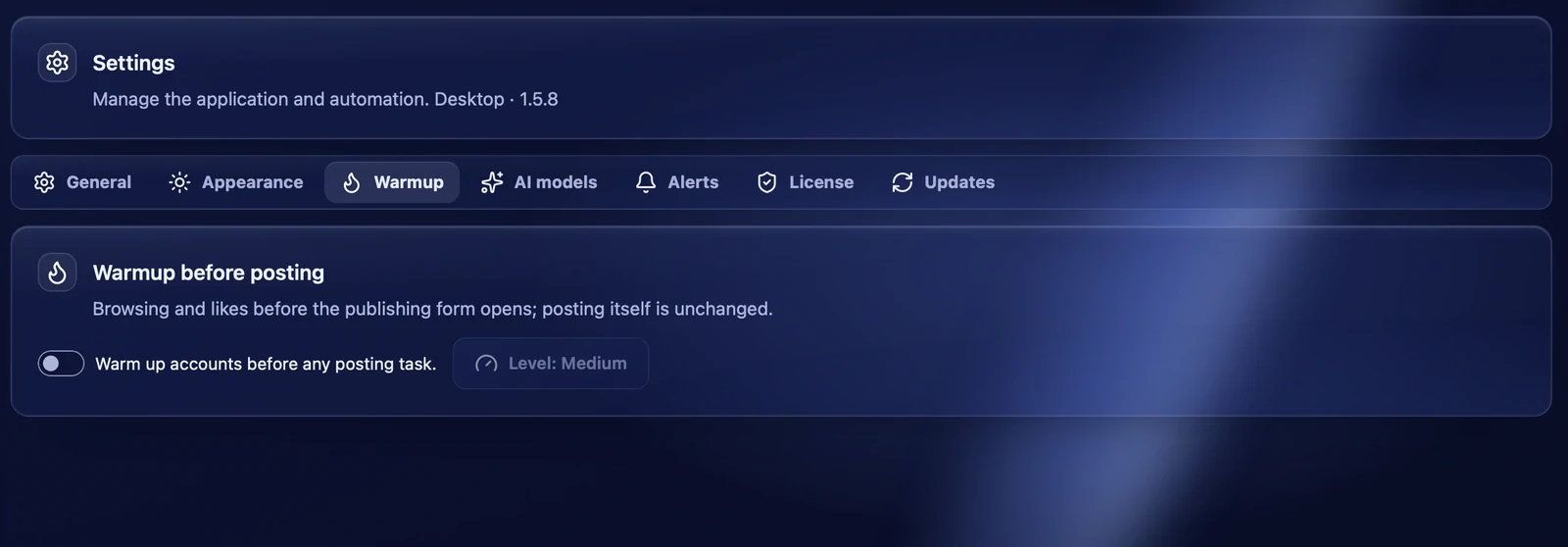
Turn on "Warm up accounts before any posting task.", and before publishing the account scrolls the feed a little and likes posts. Posting itself does not change. The "Level" button sets how long and how active: "Light", "Medium" or "Aggressive".
AI models
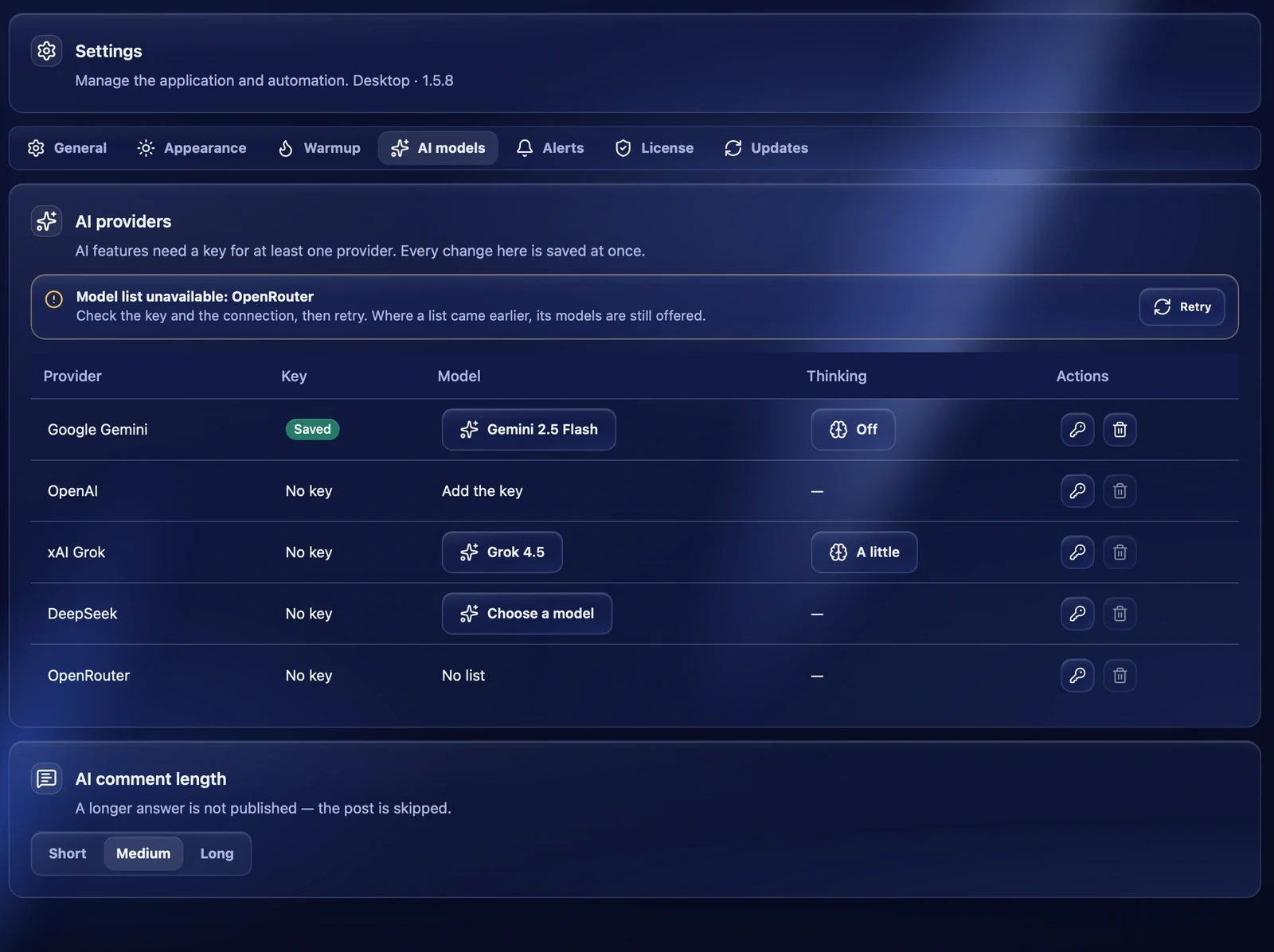
AI commenting needs a key for at least one AI provider. The table lists the providers; for each you see whether a key is saved, the chosen model and the thinking mode, if the model supports it.
- The key button adds or replaces the key, the bin button deletes it.
- The button in the "Model" column opens the provider's model list, loaded with your key.
- If the model list did not load, a warning with "Retry" appears above the table. Models from the earlier list are still offered.
AI comment length — "Short", "Medium" or "Long". If the model answers longer, the comment is not published and the post is skipped.
License
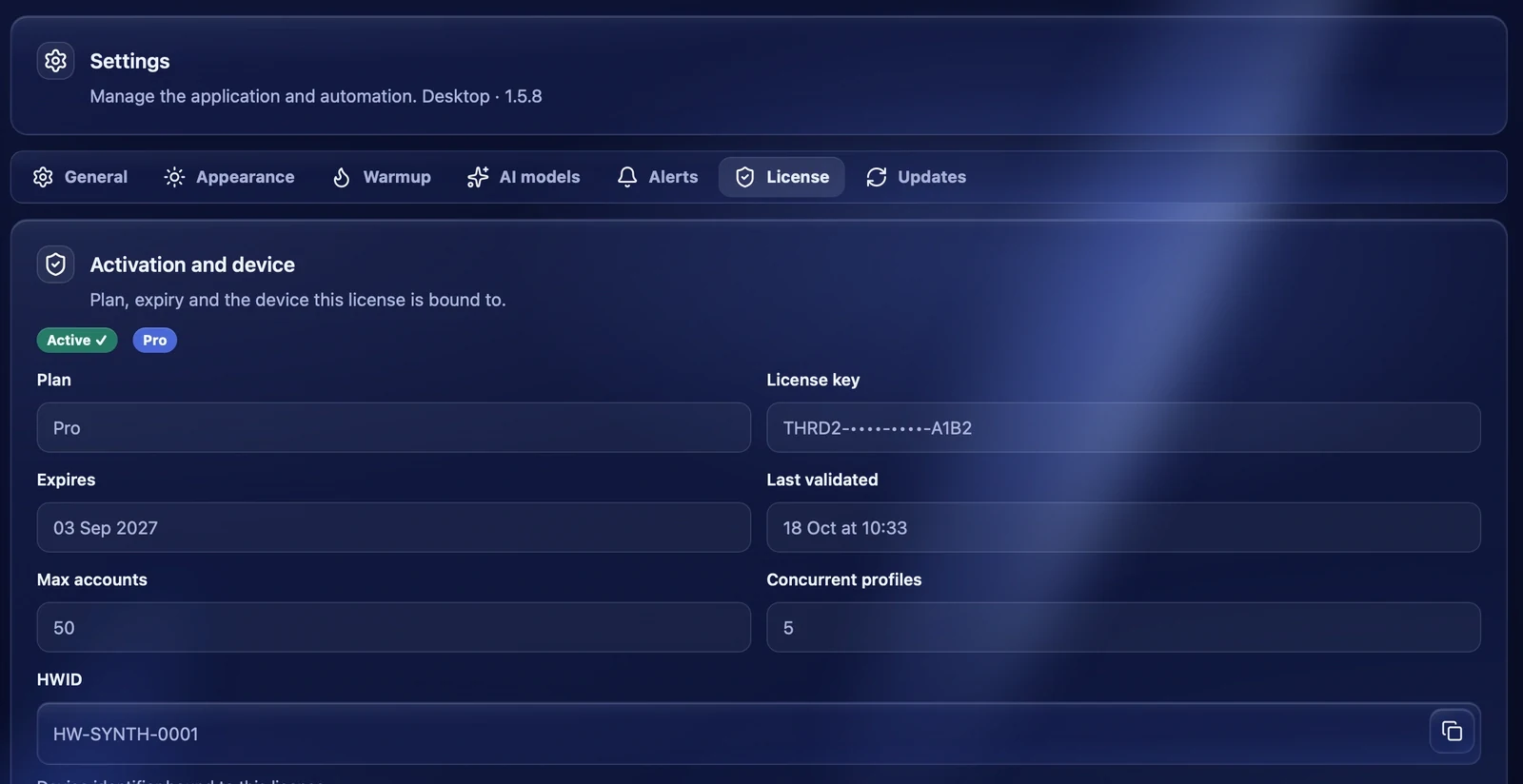
The plan, license key, expiry, last check, how many accounts and concurrent profiles are allowed, and the HWID — this computer's identifier the license is bound to. The HWID can be copied with the button next to it.
- Re-validate — check the license with the server.
- Sign out of account — if you signed in with a Thredium account. If the license is activated with a key only, this place has "Deactivate on this device". Automation stops and the activation screen opens; accounts and settings stay on the computer.
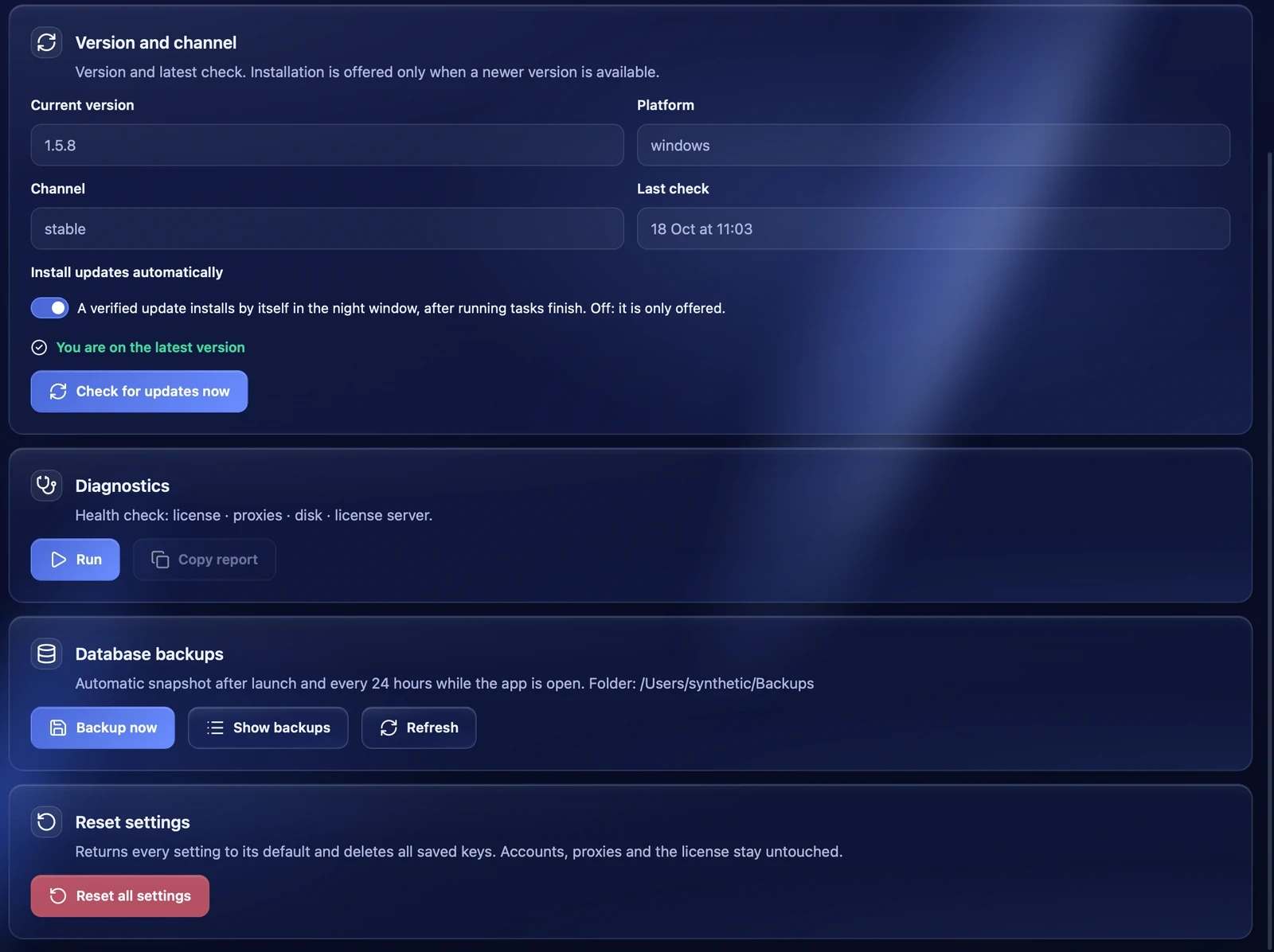
Updates
Version and updates
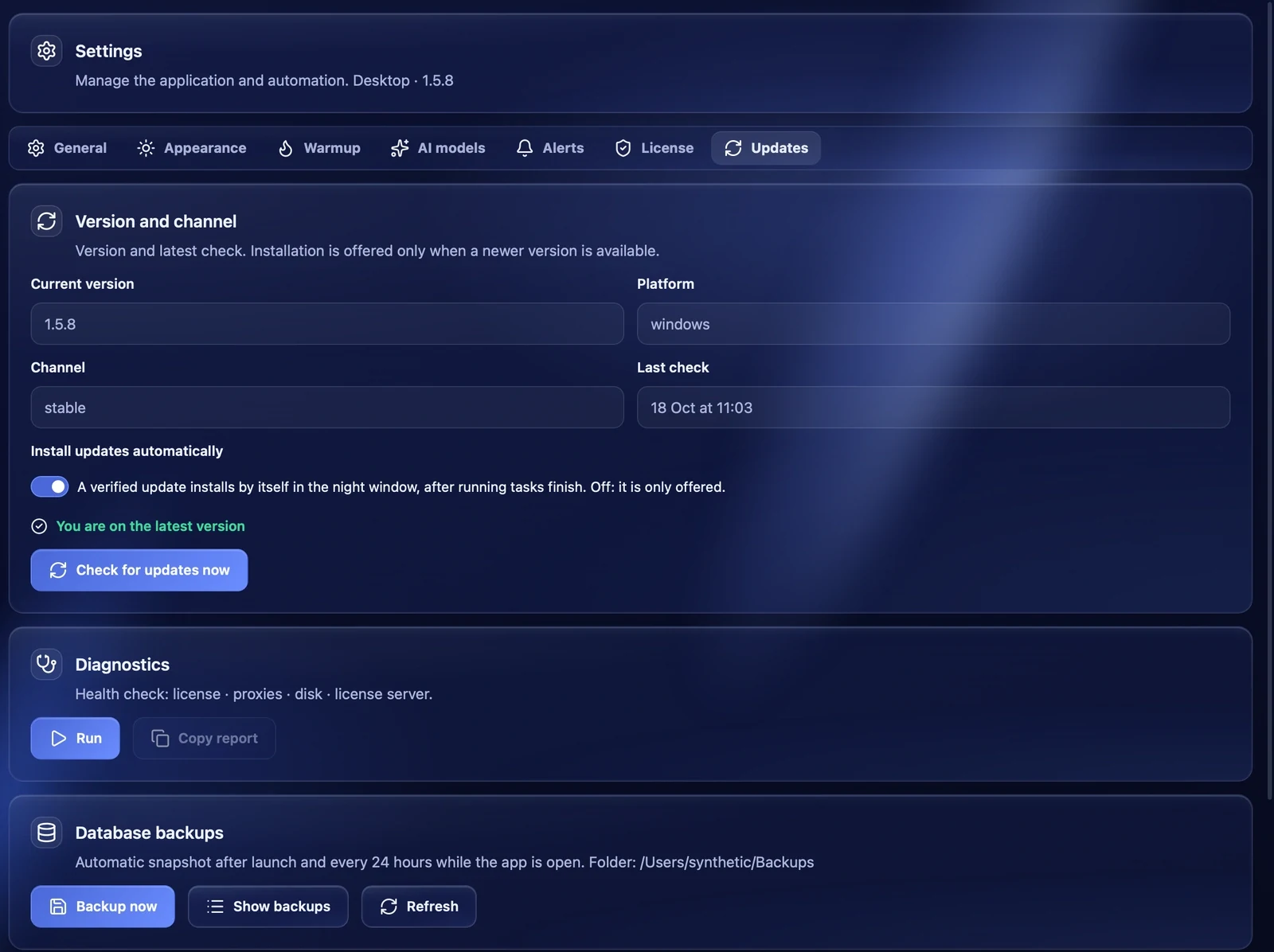
The current version, platform, channel and time of the last check. "Check for updates now" checks whether there is a new version. If there is, its description and the "Install update" button appear.
Install updates automatically — a verified update installs by itself at night, after tasks finish. When off, the update is only offered. If the new version fails to start, the app brings back the previous one.
Diagnostics
"Run" checks the license, proxies, free disk space and the connection to the license server. "Copy report" copies the result — handy to send to support.
Database backups
The app makes a copy of its database after launch and every 24 hours while it is open. The description shows the folder with the copies. "Backup now" makes a copy at once, "Show backups" lists the copies with size and date.
Reset settings
"Reset all settings" returns every setting to its default and deletes all saved keys — the AI providers' and Telegram's. Accounts, proxies and the license are not affected.