
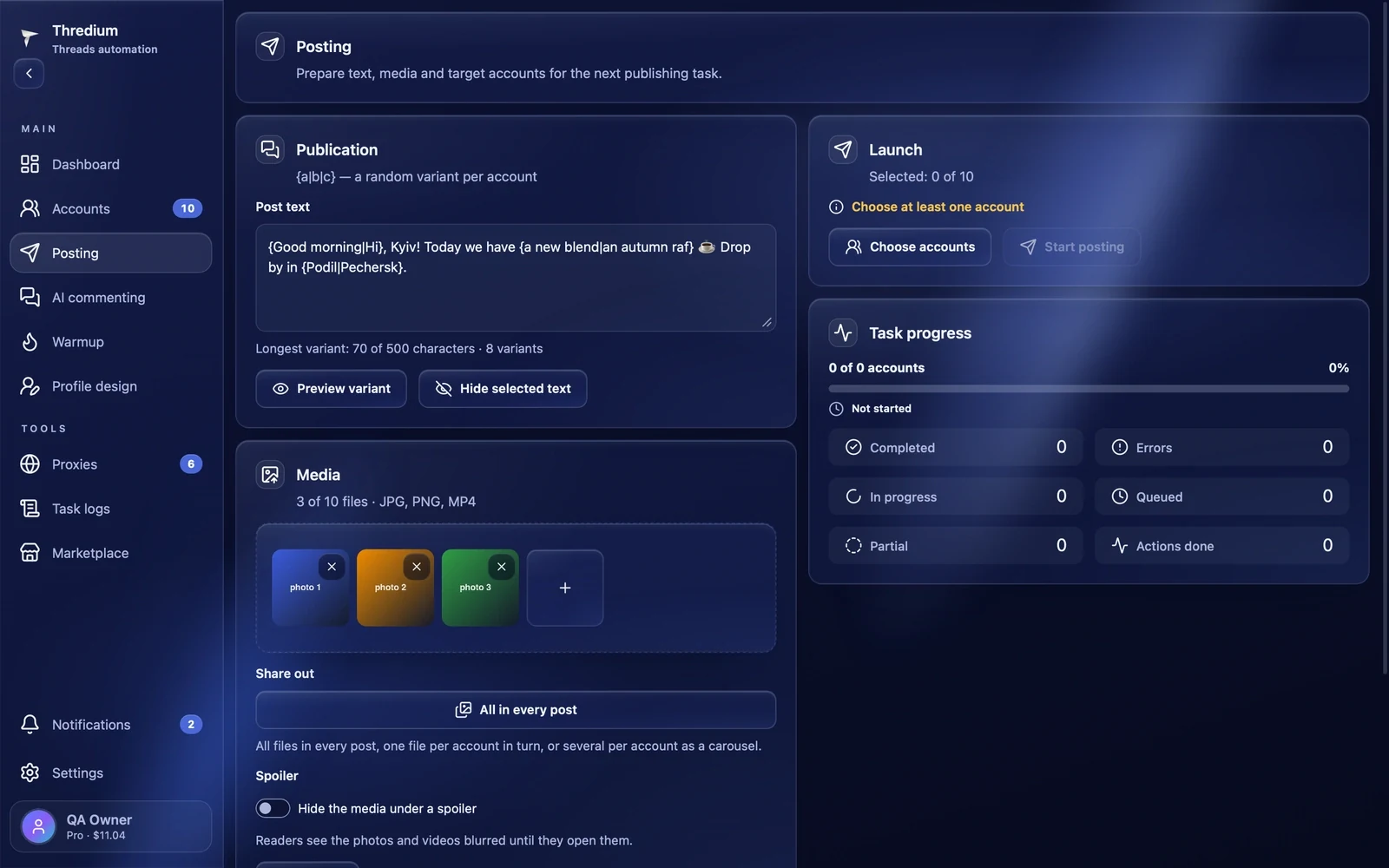
The module publishes a Threads post from several of your accounts at once. You write the text, add photos and videos if you like, choose the accounts and start the task. Each account opens Threads in its own browser with its own proxy and publishes the post itself. To keep the posts from being identical, you can put variants into the text: each account gets its own random version.
Before you start
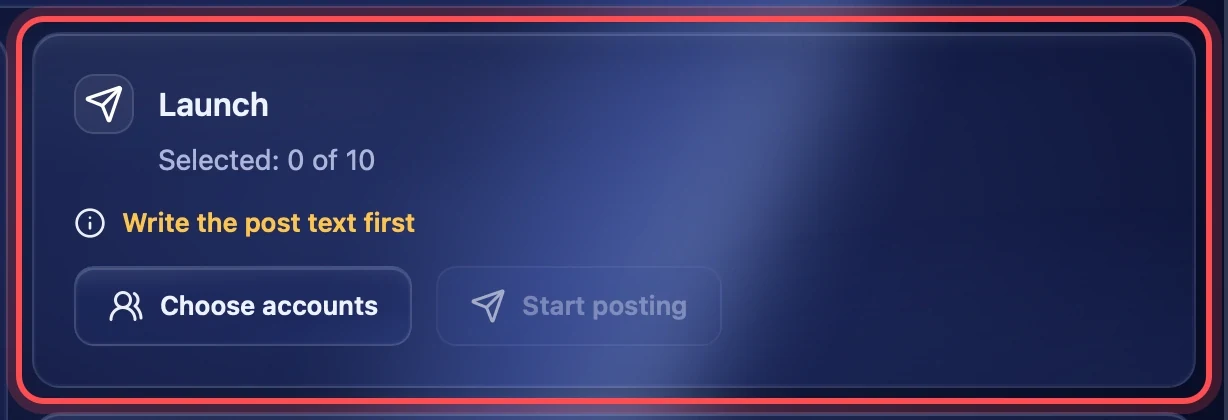
The "Start posting" button becomes active when:
- at least one account is added and signed in — the "Accounts" section;
- the post text is written;
- the browser setup is finished, if the app asks for it — "Settings".
If something is missing, the "Launch" block says what in yellow, for example "Write the post text first" or "Choose at least one account".
Post text
Text and variants
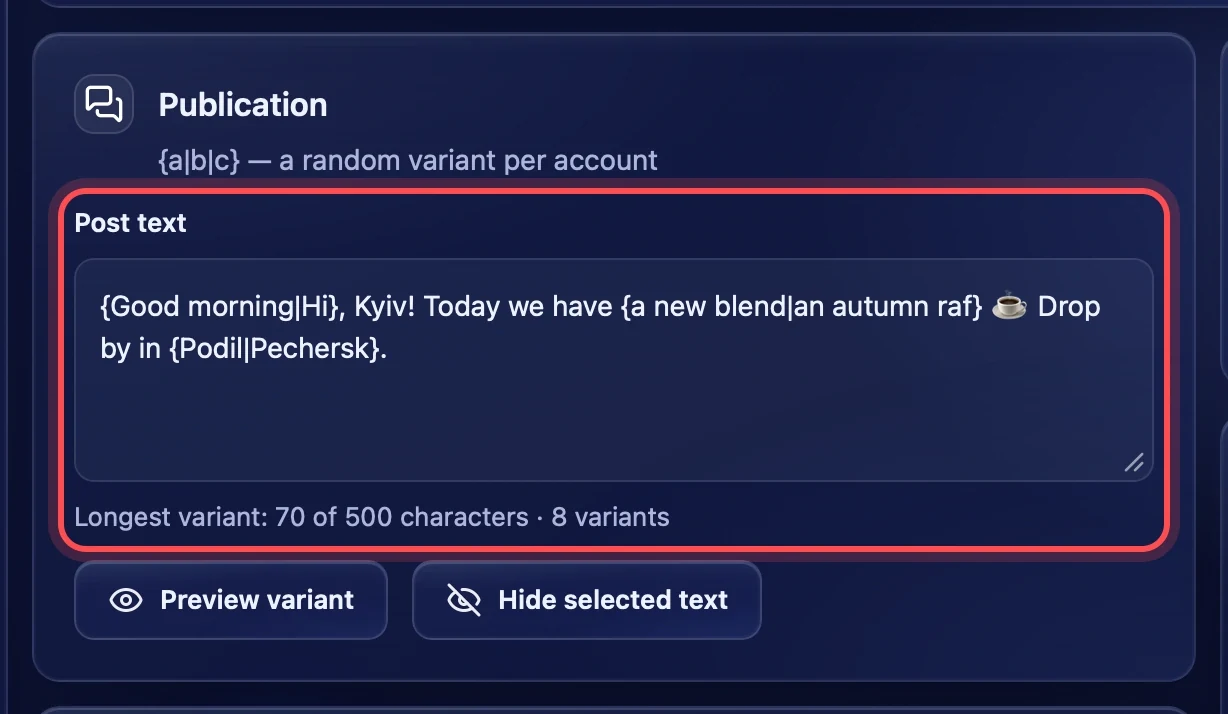
Write the text in the "Post text" field. To make the accounts publish different versions, put variants in curly braces separated by a vertical bar: {Good morning|Hi}. Each account picks one variant from the braces at random. The text can hold as many braces as you like.
A Threads post holds up to 500 characters. Under the field you see how many characters the longest variant has and how many variants there are in total. It is the longest variant that counts: if it does not fit into 500 characters, the task will not start until you shorten the text.
Preview variant
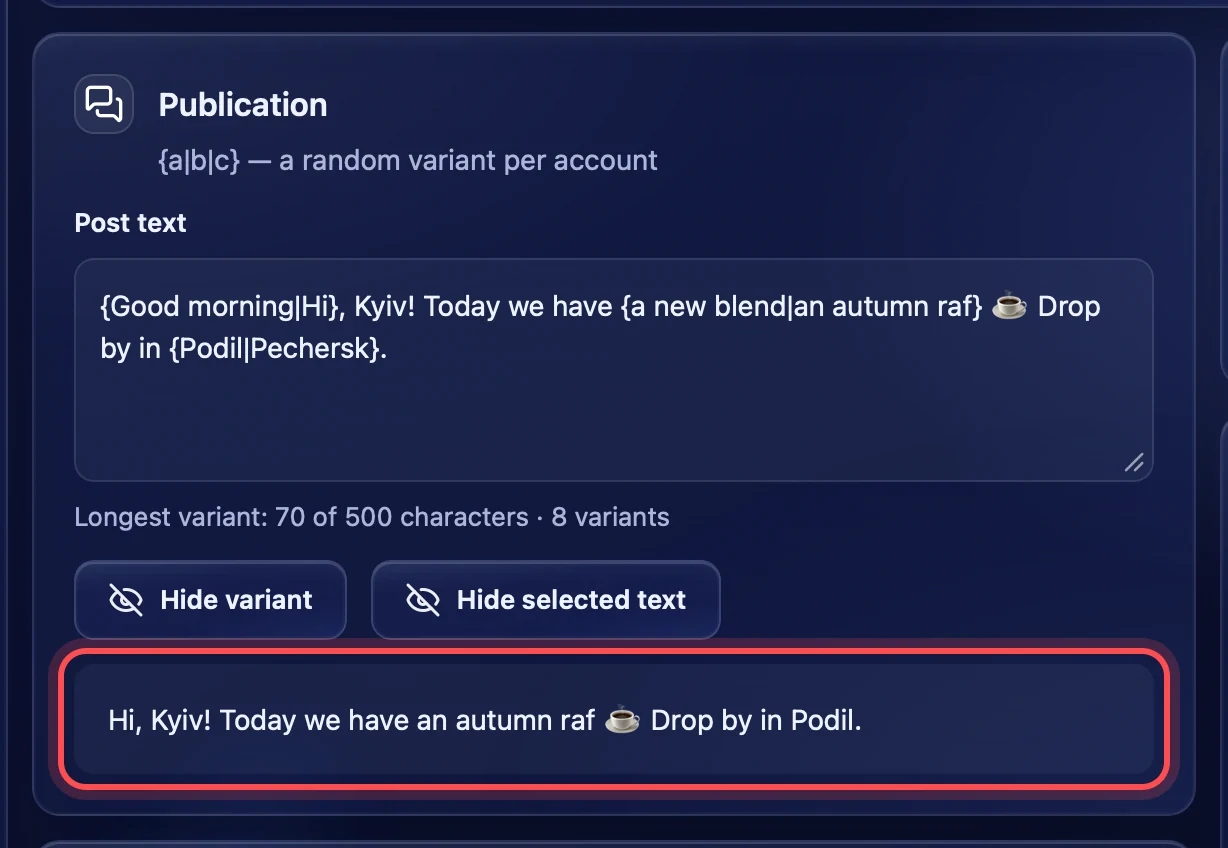
"Preview variant" shows one random version of the post under the field — the way an account will publish it. While the variant is open, it follows the text as you type. "Hide variant" removes it.
Hide selected text
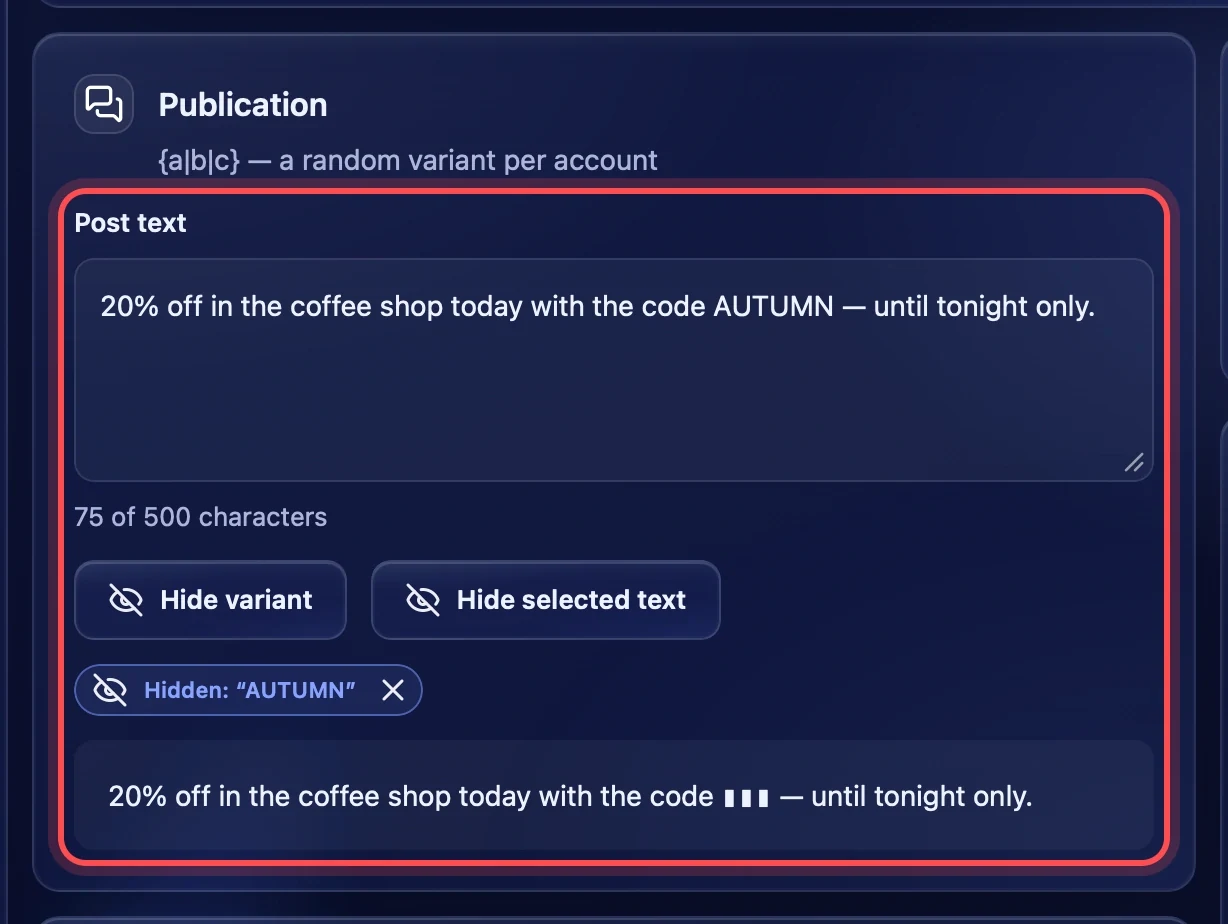
Threads can hide part of a text under a spoiler: the reader sees a covered fragment and opens it with a tap. Select the words in the field — for example a promo code — and press "Hide selected text". A "Hidden: …" mark appears under the field, and in the variant the fragment is covered with ▮▮▮.
- Up to 20 fragments can be hidden in one post.
- A fragment may contain whole variant braces, but cannot start or end inside them.
- If you select text that overlaps a hidden fragment, they join into one.
- If you change the text inside a hidden fragment, its mark is removed and the app tells you. Select the fragment and hide it again.
- To open a fragment, press the cross on its mark.
Media
Adding files
Drag photos and videos into the "Media" block or press "Add images or video". Media is optional: you can publish text only.
- Formats: JPG, PNG and MP4.
- Up to 10 files in one post.
- A photo up to 25 MB, a video up to 100 MB, all files together up to 150 MB.
Files that do not fit are not added, and the app names them and the reason. Remove an extra file with the cross on its thumbnail. Files are sent only when posting starts.
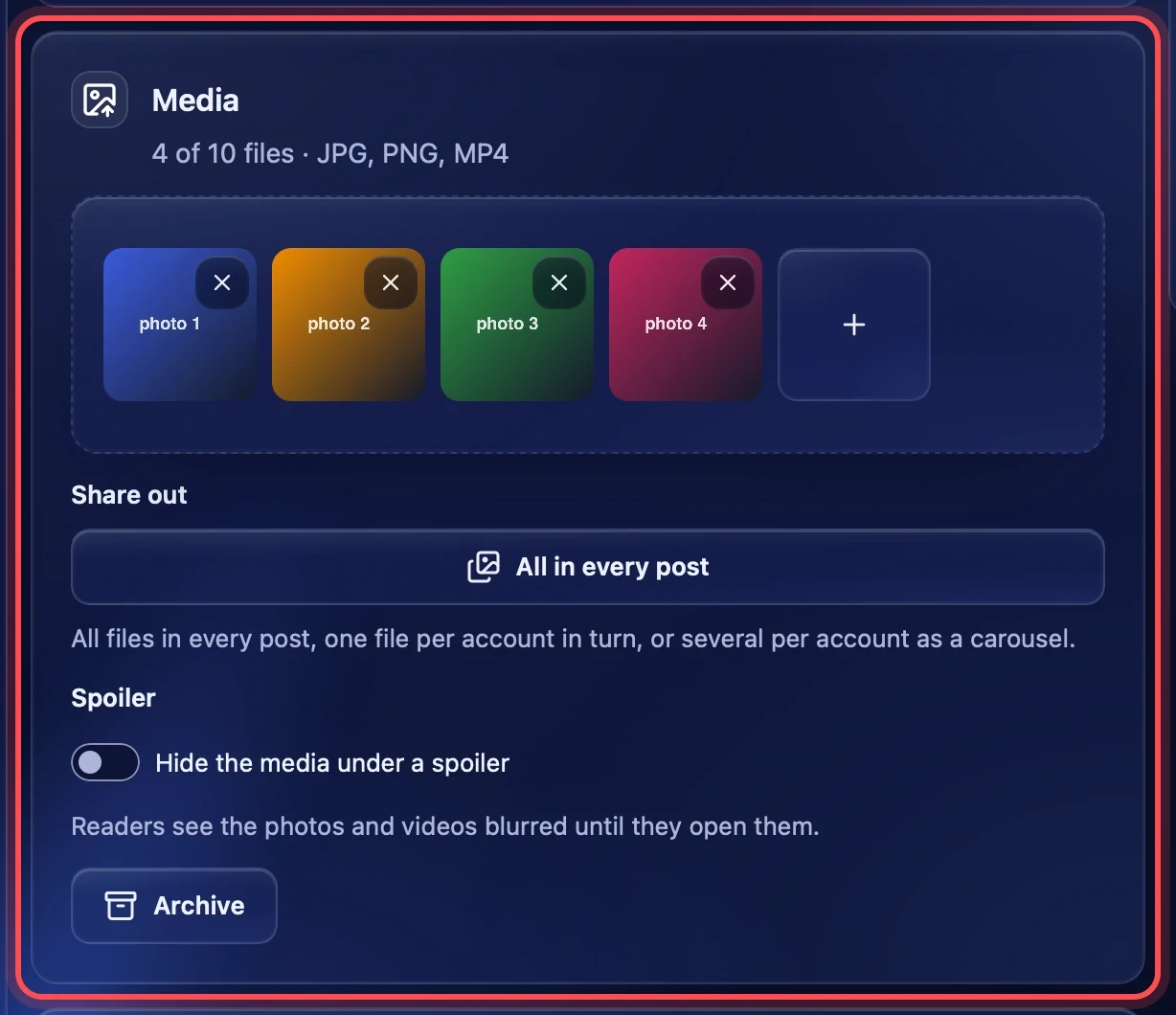
Share out
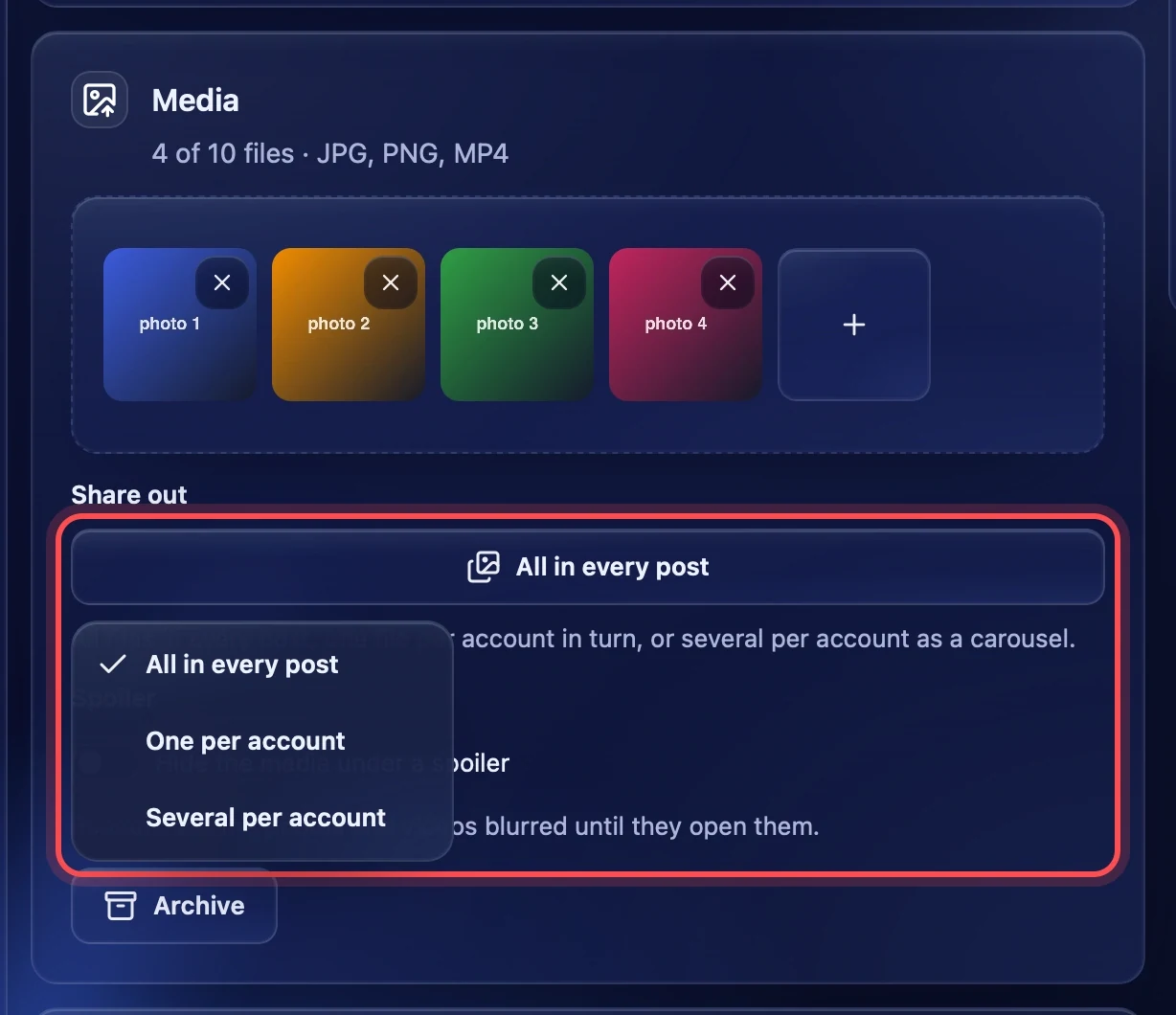
With more than one file, the "Share out" choice appears:
- All in every post — every account publishes all the files as one carousel. In this mode up to 10 files can be added.
- One per account — each account gets its own file, in turn. If there are more accounts than files, one file goes to several accounts.
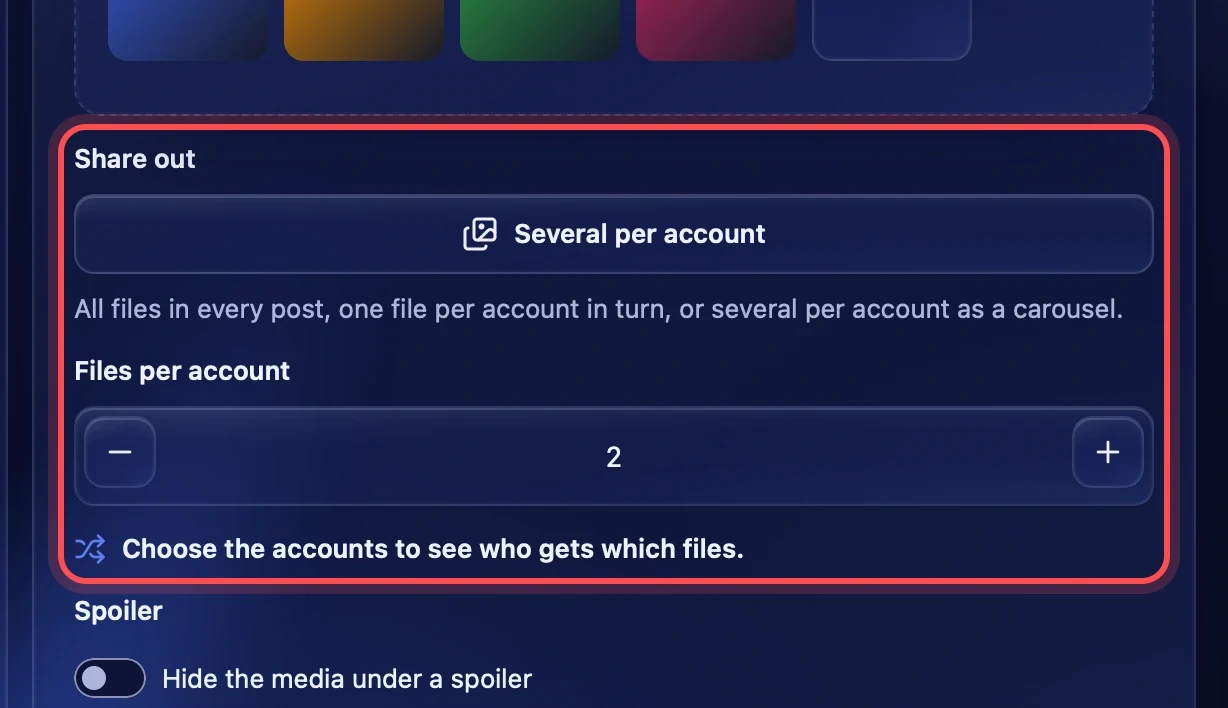
- Several per account — each account gets its own carousel of several files.
In the "One per account" and "Several per account" modes up to 50 files can be added: they are shared between the accounts, and one post still takes no more than 10.
Files per account
The field appears in the "Several per account" mode: how many files each account's carousel holds, from 1 to 10. Under it the app says who gets what, for example "2 per account as a carousel: 5 accounts take 10 of 12 files, none repeats." If there are not enough files for everybody, the line turns yellow: photos go round again and repeat on different accounts. Until accounts are chosen, it says "Choose the accounts to see who gets which files."
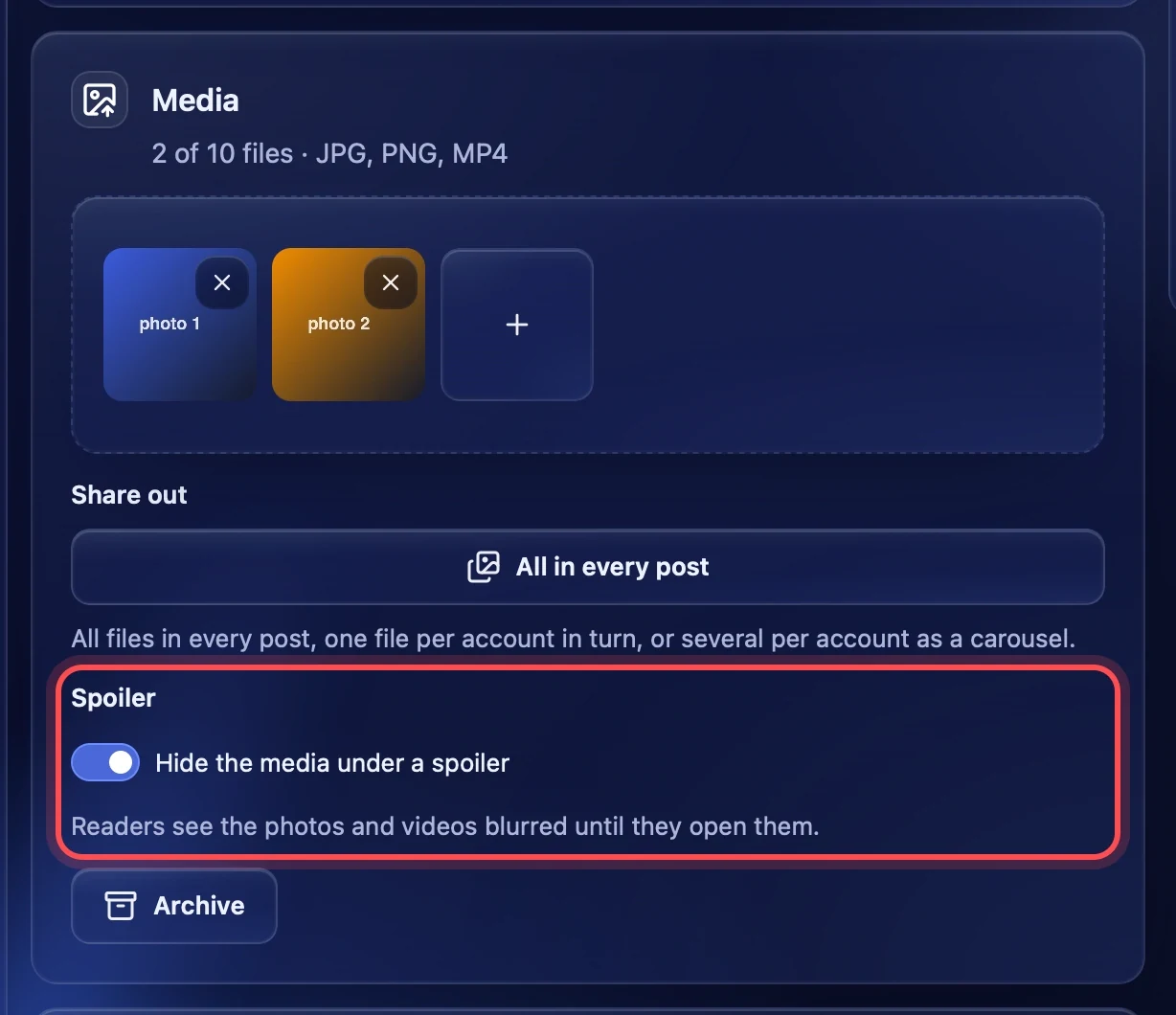
Media spoiler
Turn on "Hide the media under a spoiler": readers see the photos and videos blurred until they open them. The switch applies to all files of the post.
Archive
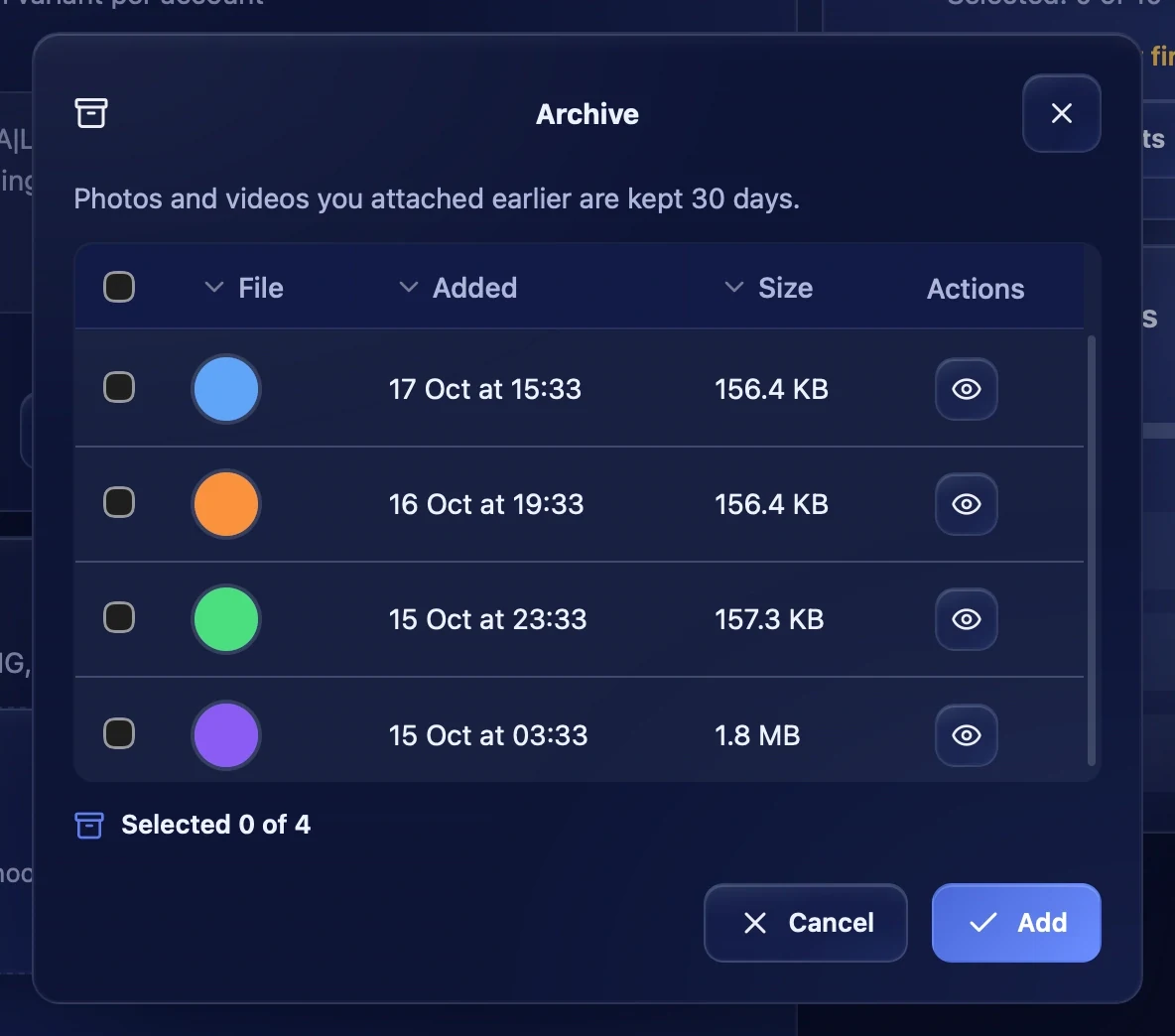
Photos and videos you have already run tasks with are kept in the archive for 30 days. "Archive" opens their list: tick the files you need and press "Add" — they join the post as new ones. The eye button shows a file whole.
Launch
Choosing accounts
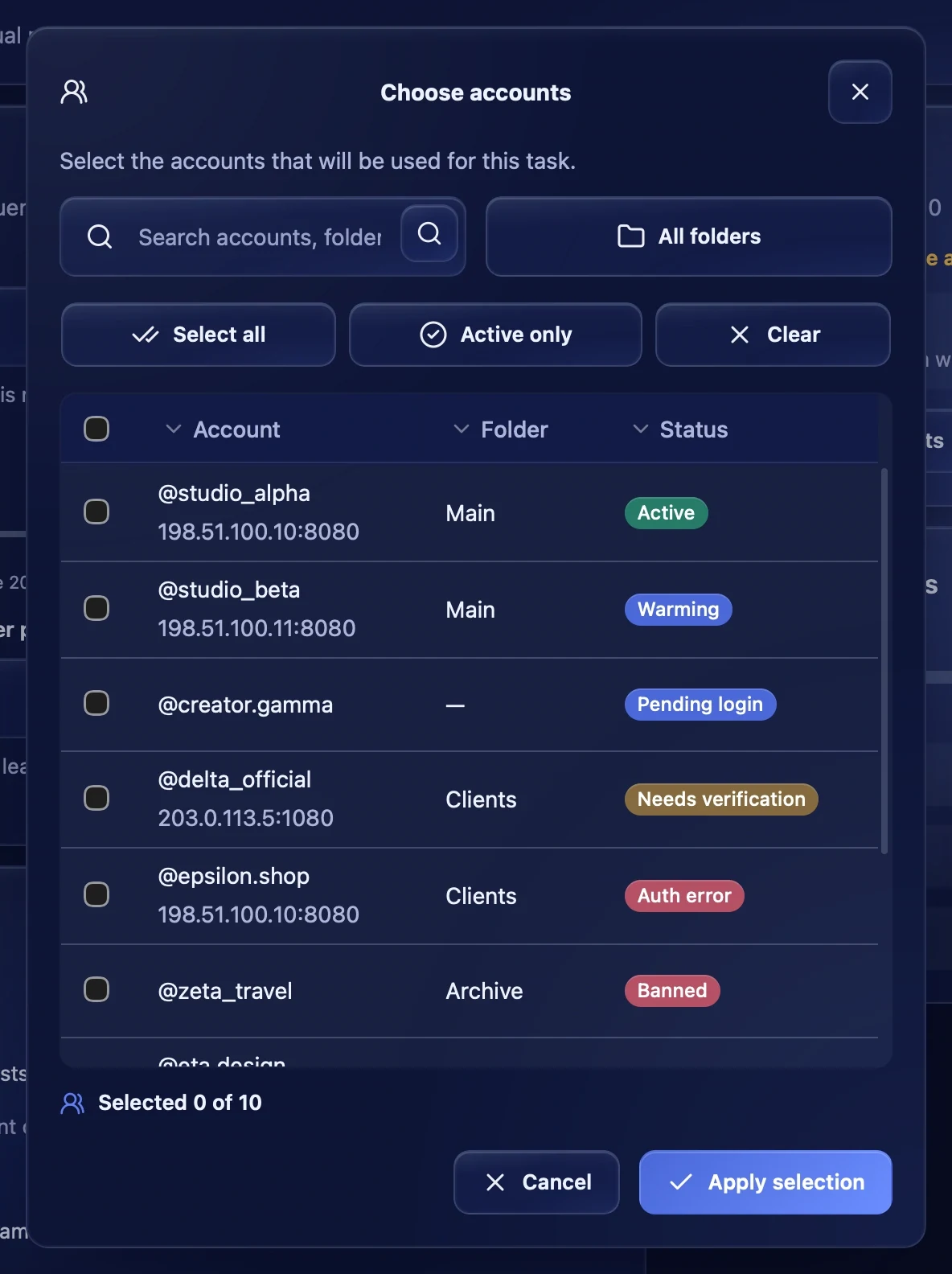
Press "Choose accounts". In the window you can search by account, pick a folder, tick all or only active ones. The table shows each account's status: it is best to run only accounts with the "Active" status.
Start and stop
The "Launch" block shows how many accounts are chosen. "Start posting" starts the task; while it runs, the "Stop task" button takes its place. If the task cannot start right now, the reason is written above the buttons.
To publish later, use the "Schedule" block on the same page — see the "Schedule" article.
Task progress
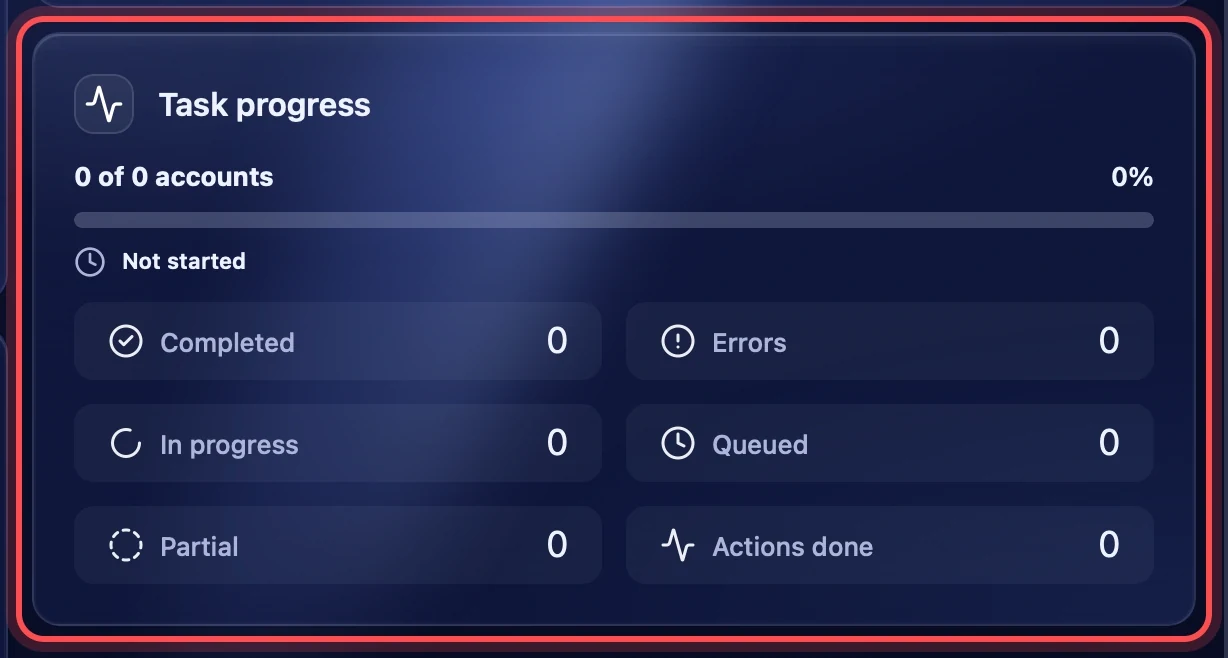
While the task runs, the "Task progress" block shows how many accounts have finished and the counters: "Completed", "Errors", "In progress", "Queued", "Partial" and "Actions done". The detailed course for each account and the final report are in "Task logs".
Recommendations
- Write at least 2–3 variants in braces: identical posts from many accounts look like a mailing.
- Before starting, press "Preview variant" a few times and read how each version sounds.
- Different photos for different accounts are better: the "One per account" or "Several per account" mode.
- Warm up fresh accounts first — the "Warmup" section.
- Do not run posting on accounts with the "Needs verification" or "Auth error" status: sign in to them again first.