
Thredium runs on macOS with an Apple Silicon processor and on Windows 10 and 11. First you download a small installer: it checks the license key, downloads and installs the app. On the first launch you sign in to your Thredium account, choose a license, and the app prepares the browser it works with Threads through.
Installation
Download the installer
Open the "Download" page on thredium.app and download the installer for your system. The same page shows what is new in each version.
If the system warns that the app was downloaded from the internet or comes from an unknown developer, allow it to run: on Windows — "More info" → "Run anyway", on macOS — "System Settings" → "Privacy & Security" → "Open Anyway".
Step 1. License key
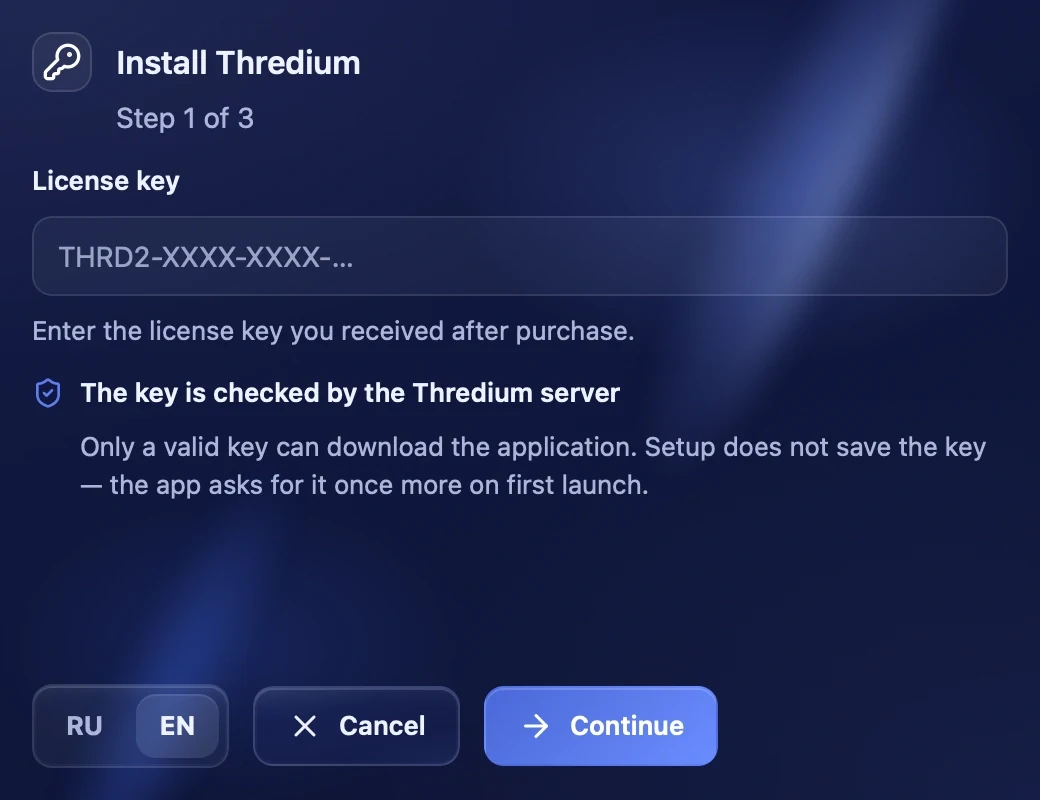
Paste the license key from the purchase email or from the cabinet on the site and press "Continue". The key is checked by the Thredium server: the app can be downloaded only with a valid key. The installer does not save the key — the app asks for it once more on the first launch.
The RU / EN buttons at the bottom switch the installer language.
Step 2. Installation options
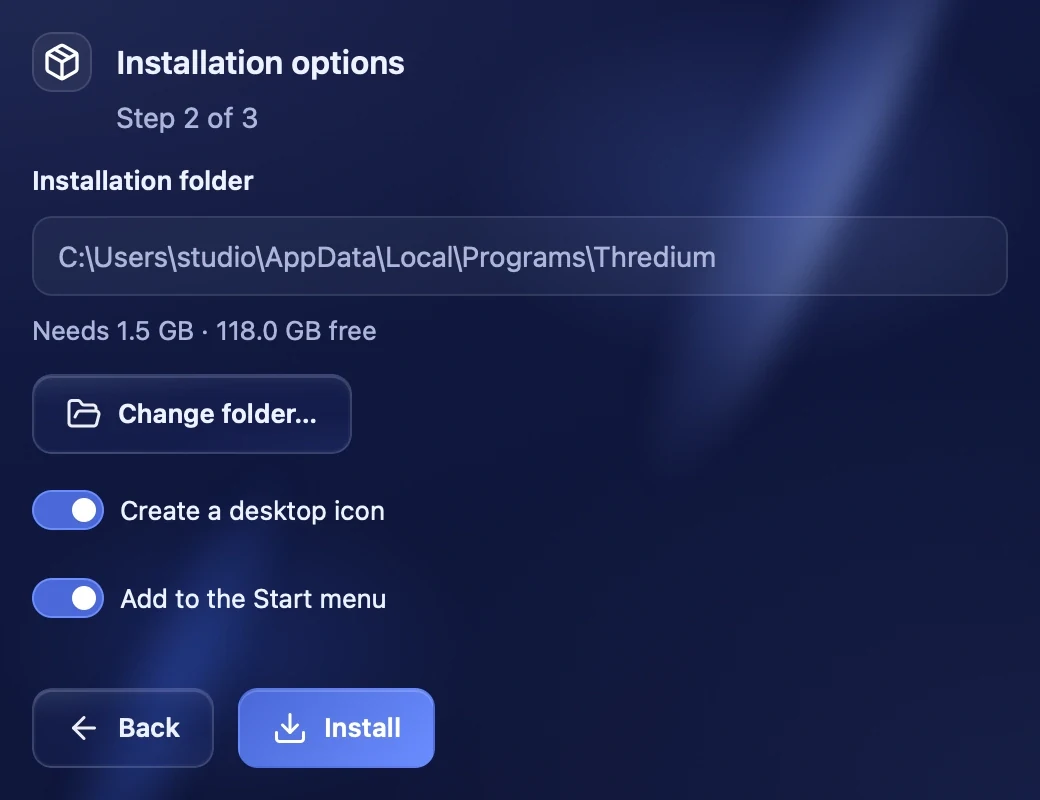
On Windows choose the installation folder with "Change folder…" and tick whether you want a desktop icon and a Start menu entry. On macOS the app goes into "Applications", and "Add Thredium to the Dock" adds it to the Dock. Under the folder you see how much space is needed and how much is free.
Step 3. Download and installation
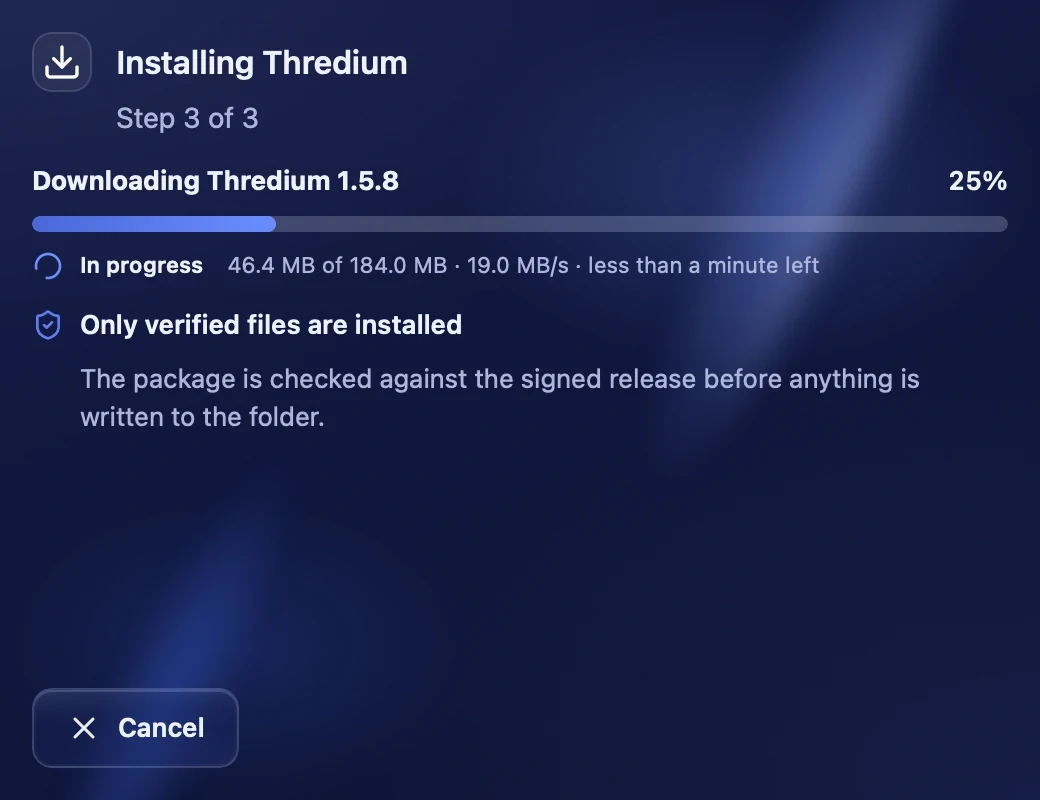
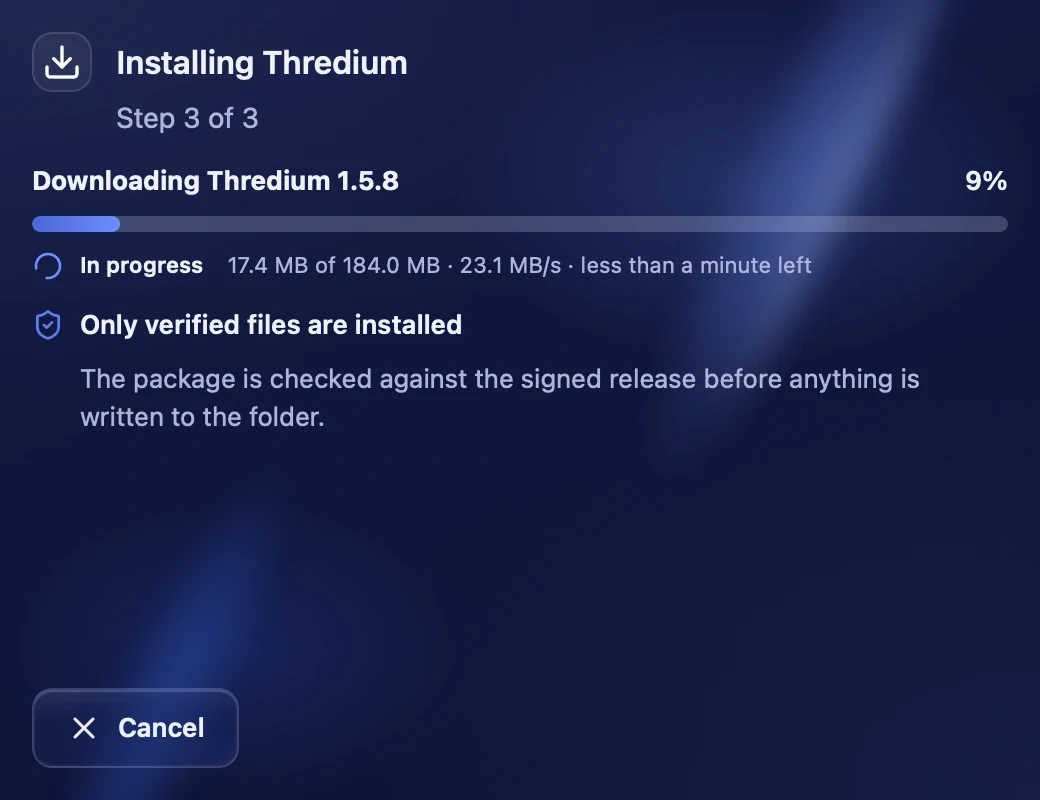
Press "Install". The installer downloads the app and checks it against the signed release before writing anything to the disk — only verified files are installed. If something goes wrong, the installer says what happened and offers to try again.
Done
When "Thredium installed" appears, press "Launch Thredium".
If Thredium is already installed, the same installer updates it. Accounts, settings and the license stay on the computer. If the new version fails to start, the previous one comes back.
First launch
Signing in to your Thredium account
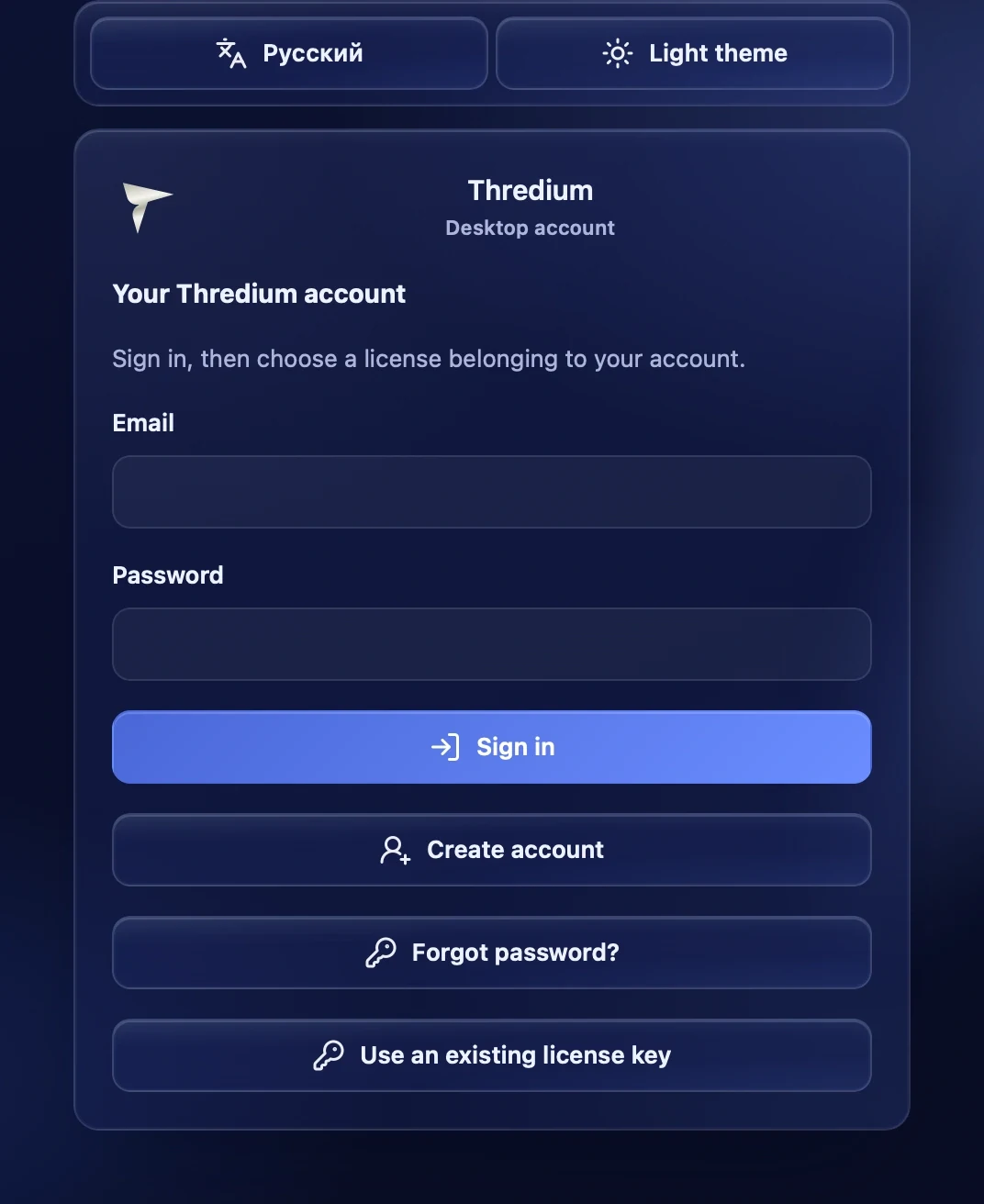
On the first launch the app asks you to sign in to your Thredium account — the same one as in the cabinet on the site. Enter your email and password and press "Sign in". If two-factor protection is on for the account, the app asks for a code from the authenticator app or a backup code.
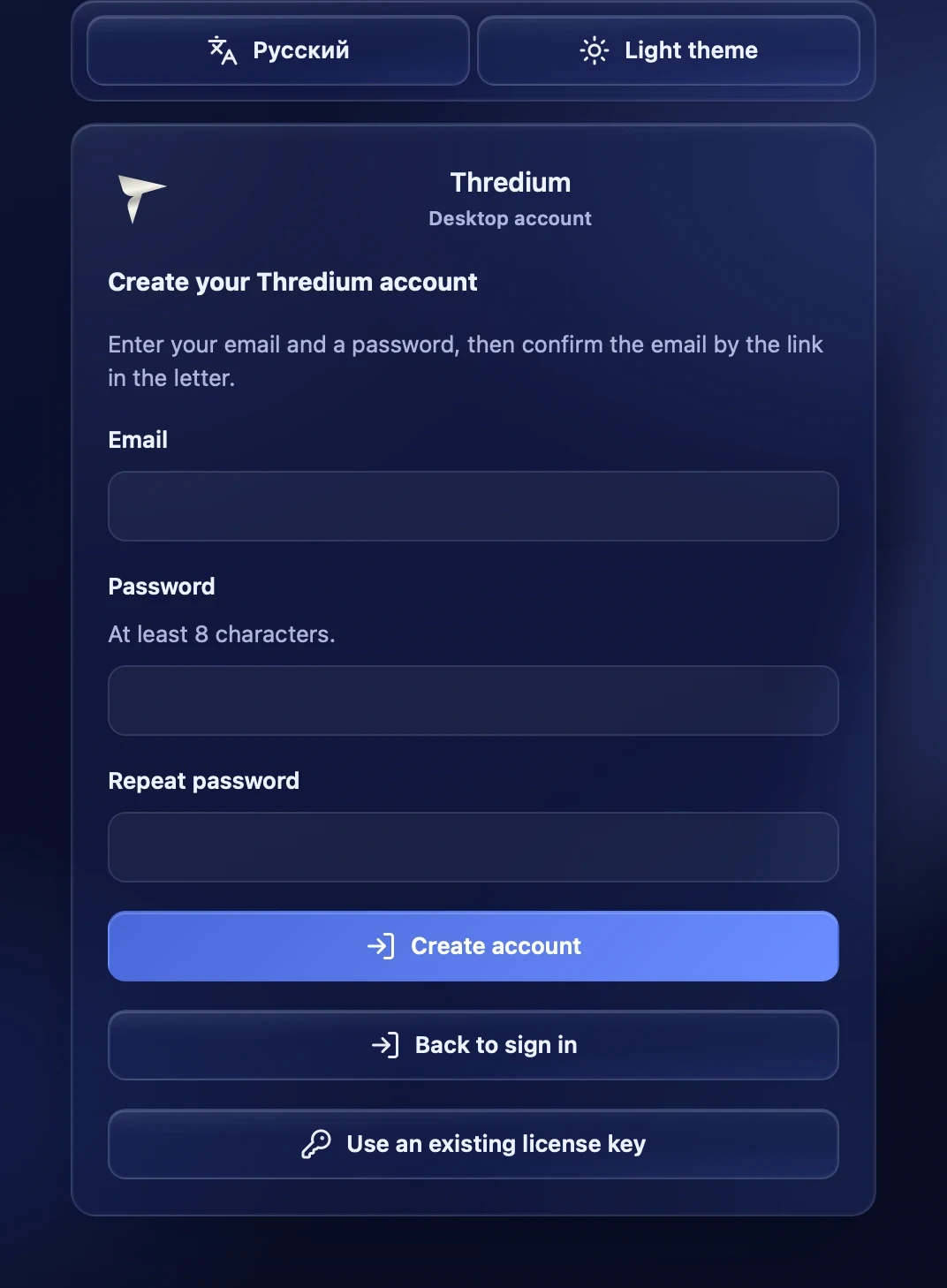
- Create account — if you have no account yet. Enter an email and a password of at least 8 characters, then open the link from the email and sign in.
- Forgot password? — password recovery.
- Use an existing license key — activate the app with a license key only, without an account.
The buttons at the top switch the language and the theme.
Choosing a license
After signing in, choose the license for this computer from the "Choose a license for this device" list. It shows the plan, status, expiry and number of devices. If there are no licenses, link the key from the purchase email in the "Link a license" block — the key must be bought for your verified email. If the purchase email is different, contact support.
Activating with a key
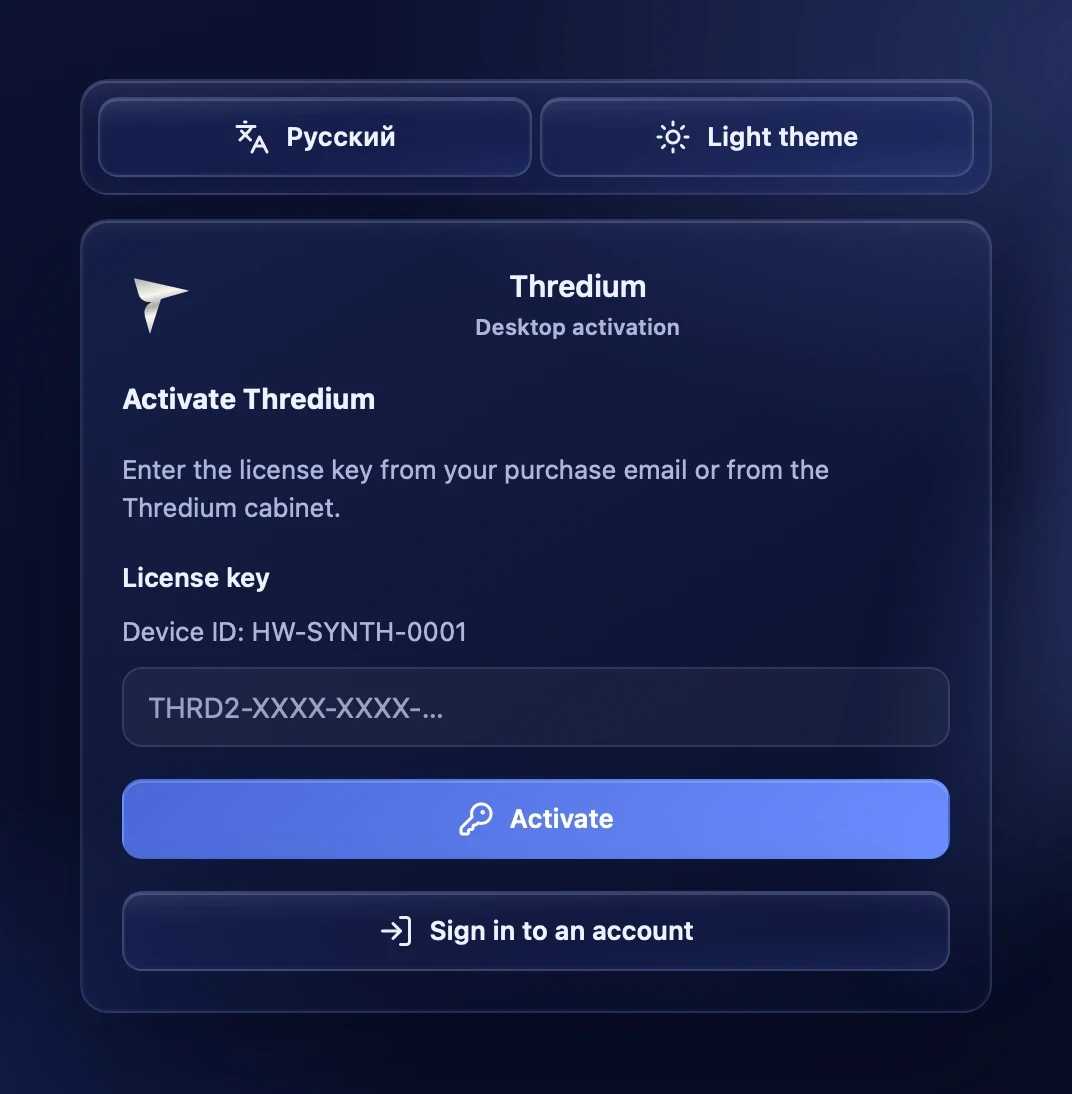
If you chose "Use an existing license key", enter the license key and press "Activate". Under the field you see the device ID — the license is bound to the computer by it. How many devices the license allows is shown in the cabinet.
Preparing the browser
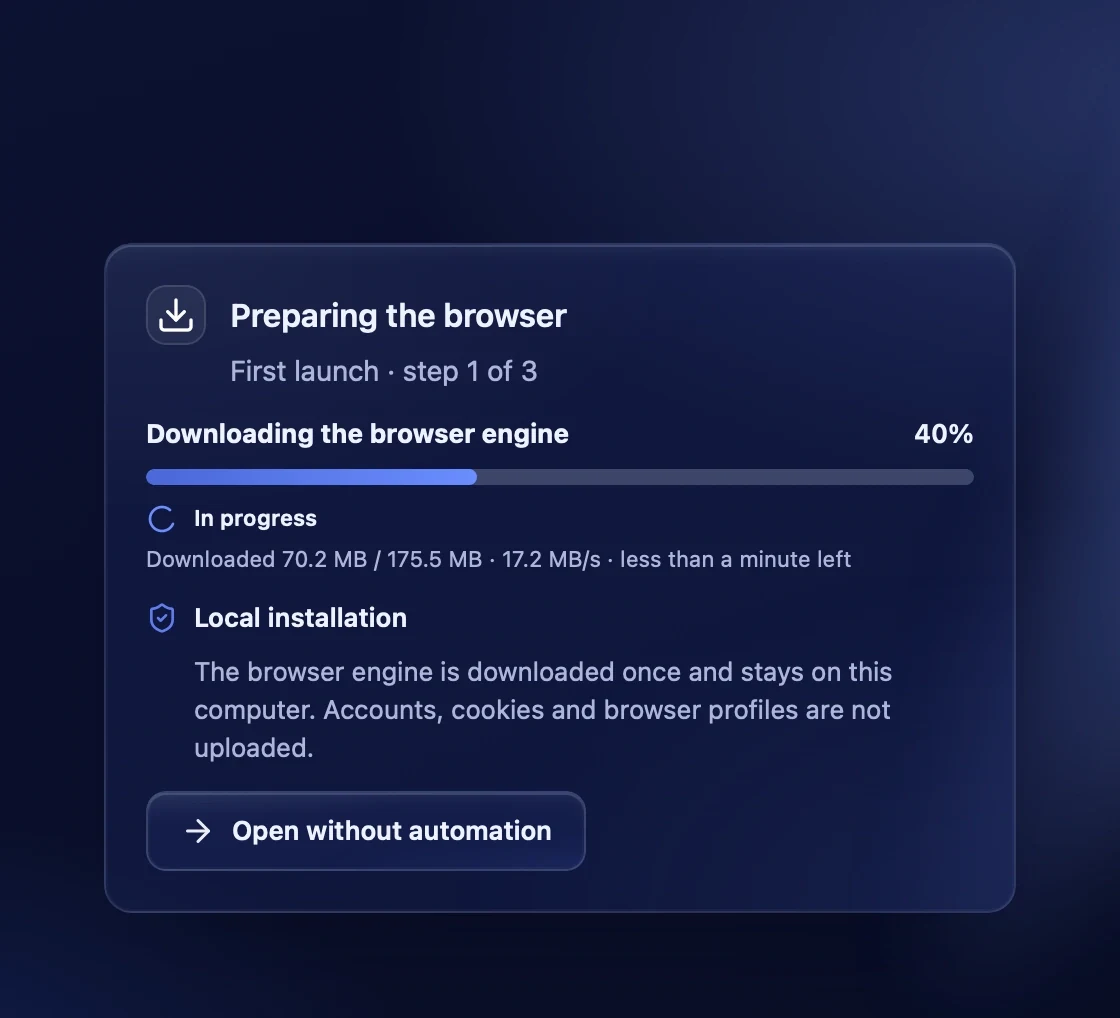
The app needs its own browser to work with Threads. On the first launch it is prepared in three steps: downloading the browser engine, installing and checking components, checking that it is ready. The engine is downloaded once and stays on the computer. Accounts, cookies and browser profiles are not uploaded.
If the download is interrupted, "Retry" resumes it from where it stopped. "Open without automation" opens the app at once: settings and accounts are available, and tasks start once the browser is ready.
What next
- Add proxies — the "Proxies" section.
- Add accounts and sign in to them — the "Accounts" section.
- Warm up the new accounts — the "Warmup" section.
- Run posting, AI commenting and profile design.