Posting
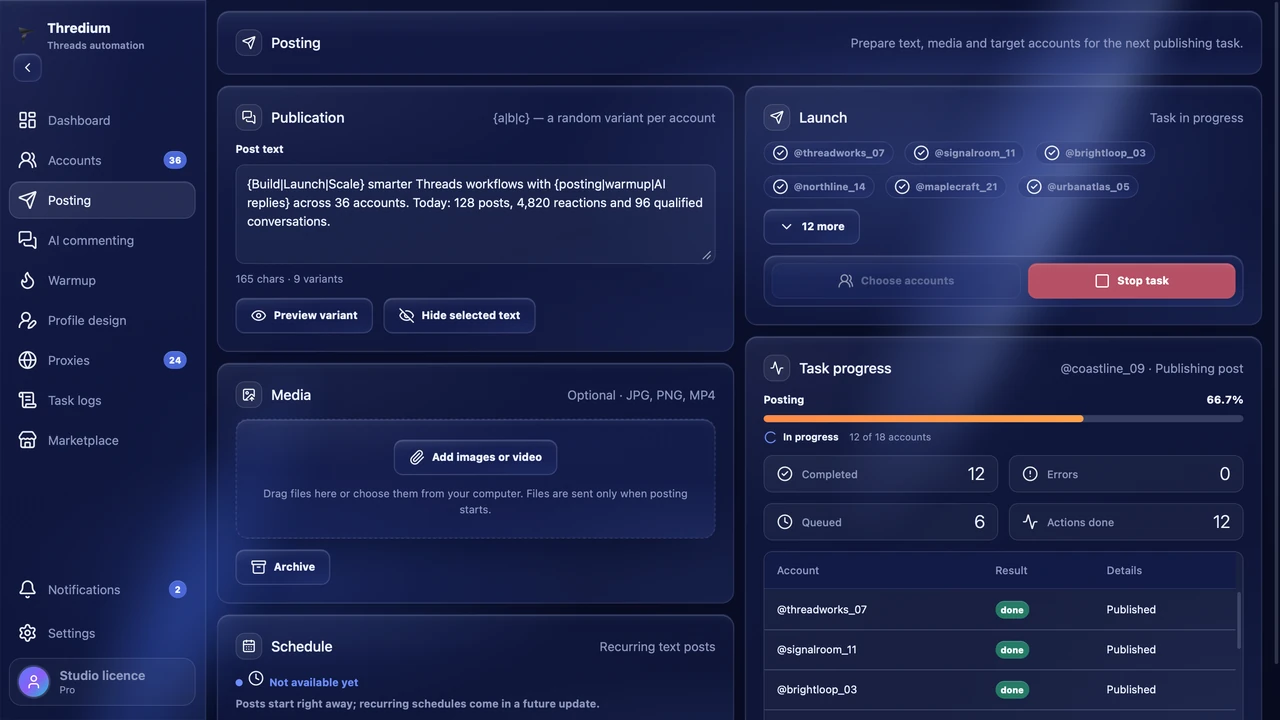
Prepare text and media once and pick the accounts. Thredium publishes in each account separately, with natural pauses.
- Spintax
- Photos and video
- Account selection
Posting, warm-up and AI commenting start on their own at the right time: once or on chosen weekdays, with the accounts and settings you picked.
A schedule starts a task without you — just as if you pressed the start button yourself. It follows your computer's clock while the computer is on and Thredium is open.
Pick a date and time — «Next run» shows under the fields. A time that has already passed cannot be saved.
Date · timeTick the days and the time — the task starts at that time on every ticked day. All seven days read «Every day».
Weekdays · weekends · every dayThe schedule is on the «Posting», «Warm-up» and «AI commenting» pages. A run uses the text, accounts and settings as they were when you created it.
Posting · warm-up · AI commentingWhen, what and status: «Active», «Paused», «Done», «Missed». Every row has a new time, pause and delete.
New time · pause · deleteIf the computer was asleep or the app was closed, a «A scheduled run was missed» notice comes with a «Set a new time» button — and to Telegram if those notices are on.
Notices · TelegramIf a scheduled task for the same accounts is due within 15 minutes, the app warns you and offers to move that run by 15 minutes.
Warning · shiftRead also: Bulk posting to Threads: how to publish one post from dozens of accounts · Threads automation: what you can hand over to an app
An account goes the whole way in one app: proxy, warm-up, profile design, posting and AI commenting. The scheduler runs warm-up, posting and commenting at the right time.
Prepare text and media once and pick the accounts. Thredium publishes in each account separately, with natural pauses.
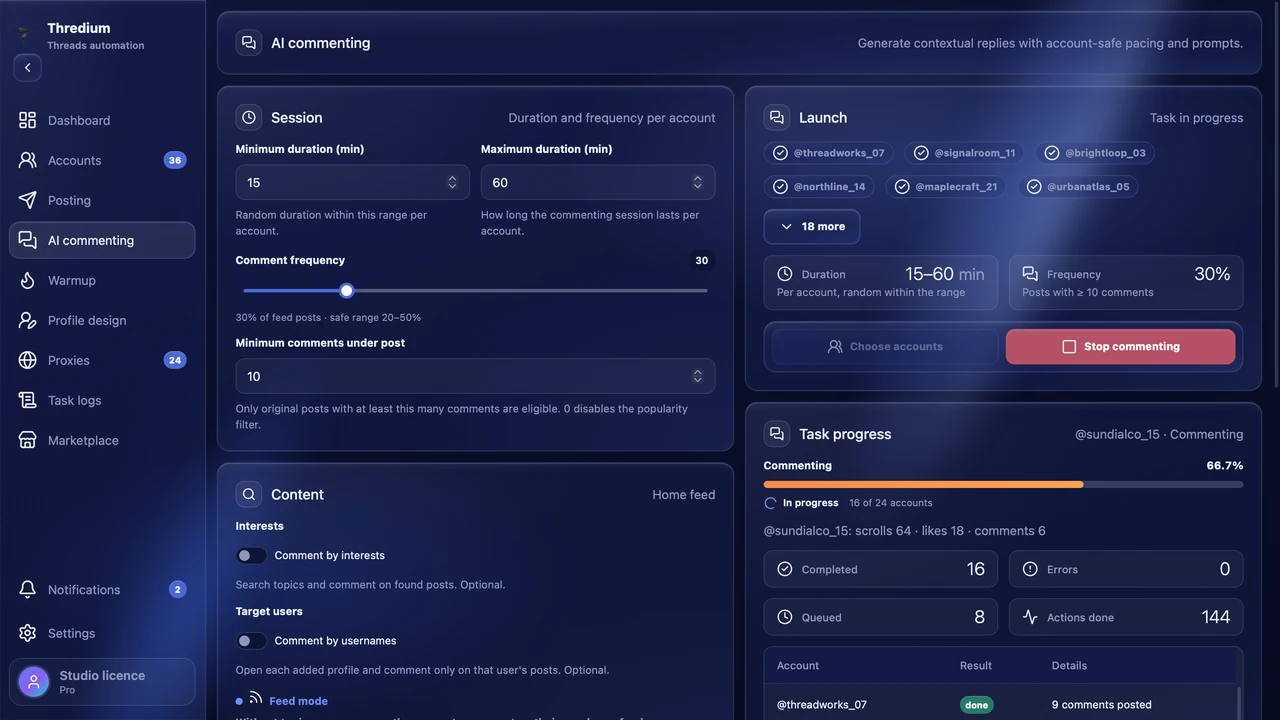
Thredium reads the post and writes a reply that follows it, in the language of the post. Your prompt sets the tone. It works with your own AI provider API key. Available in Pro.
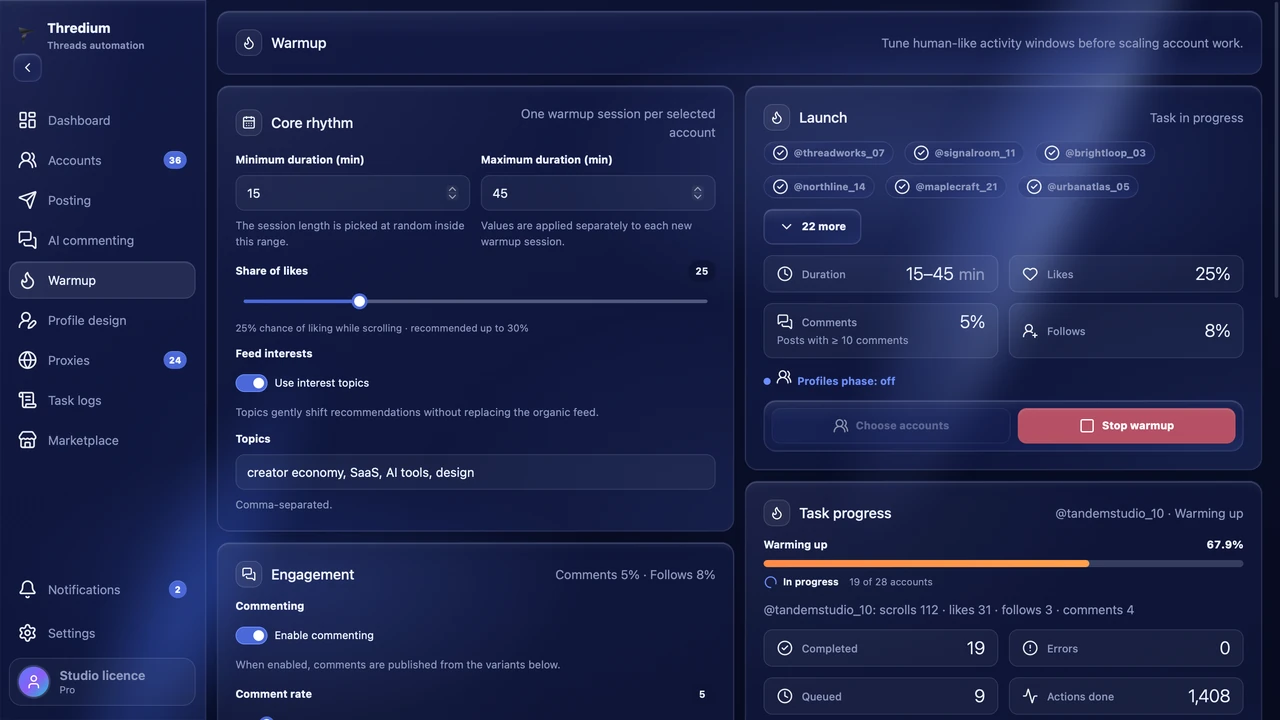
Accounts gain activity step by step: likes, views, follows and pauses. Limits and the order of actions follow the warm-up mode.
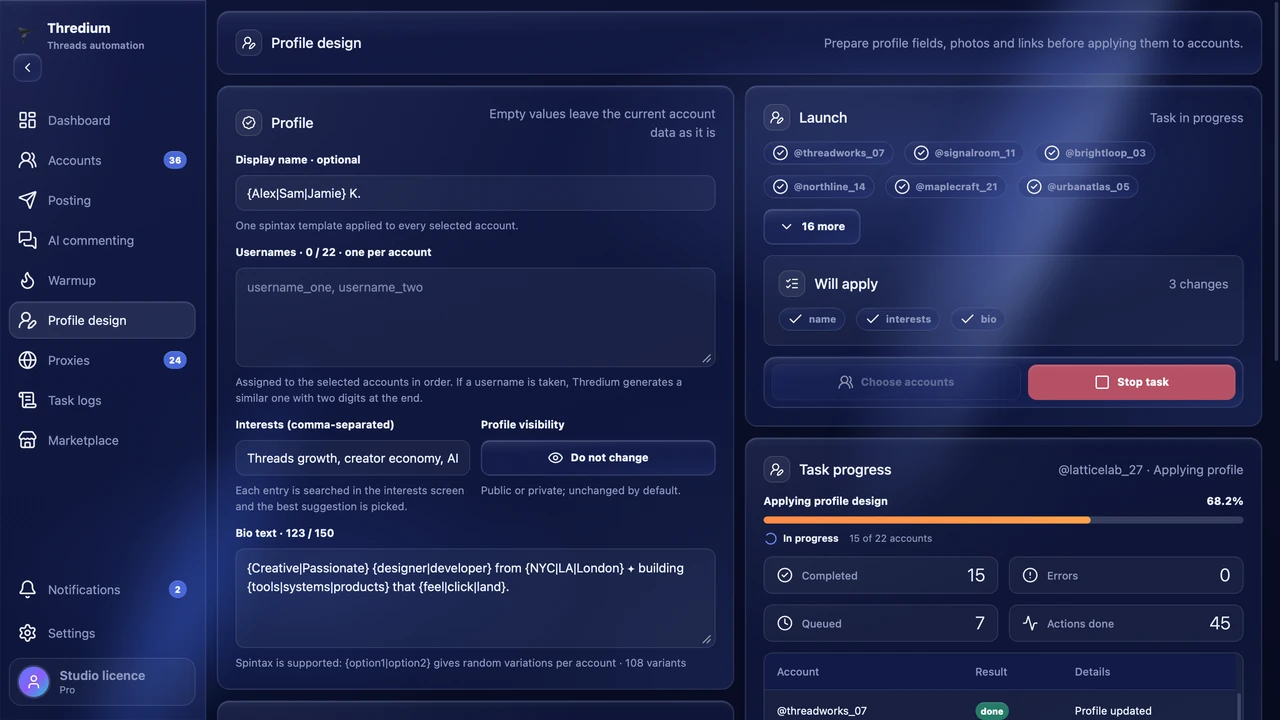
Name, bio, avatar, links and privacy change in one go. Thredium shows which changes were actually saved.
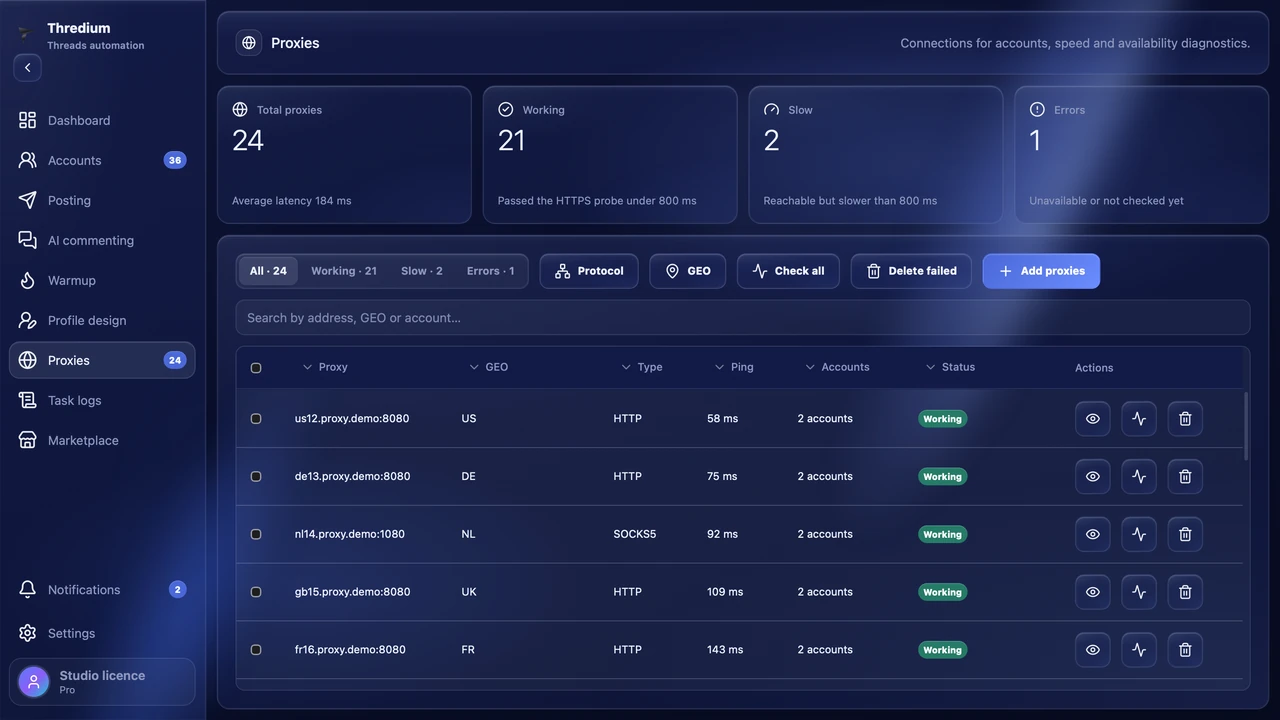
You can give each account its own proxy and check the connection. If most accounts on one proxy get restricted, Thredium flags it as unstable and tells you.
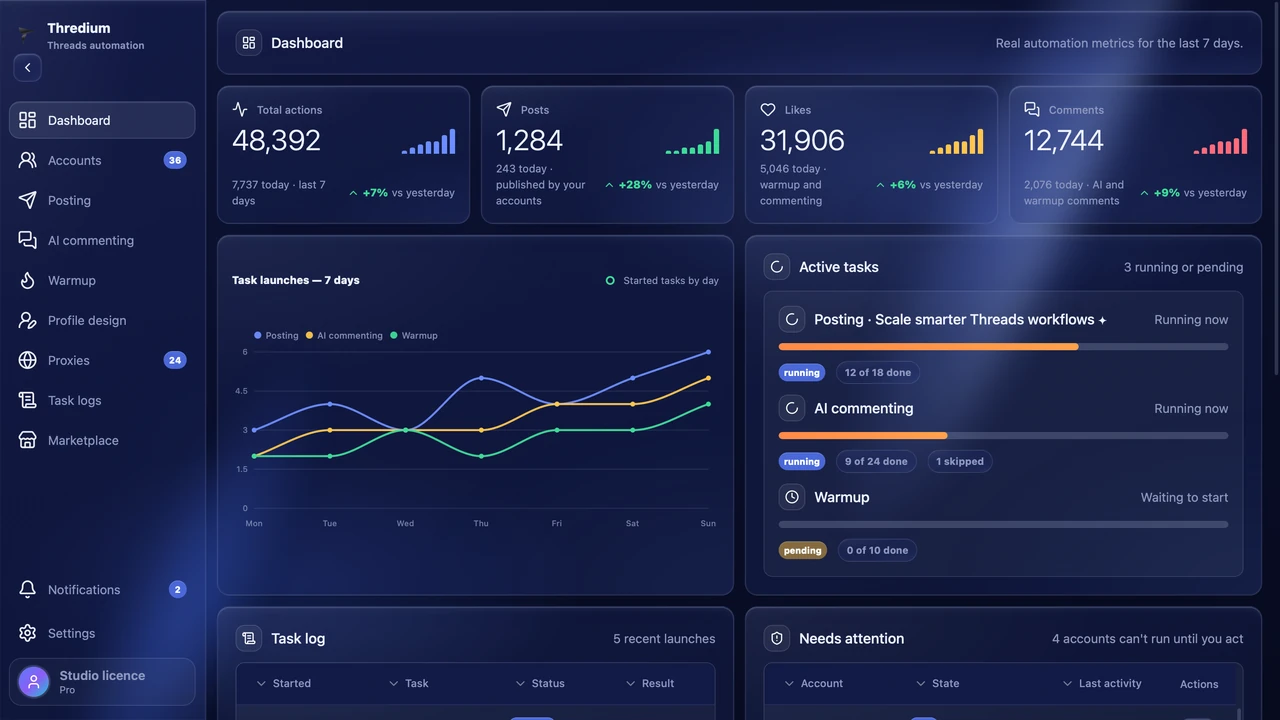
See what is running, what finished and which accounts need attention without opening every browser session.
The post text, the warm-up or commenting settings and the accounts — exactly as the task should start.
Once or on chosen weekdays. The next run shows under the fields.
A «Started on schedule» notice comes at the start; progress and the outcome for every account are in the task logs.
Posting, warm-up and profile design are in every paid plan. AI commenting is in Pro.
1 day from the first launch · 1 account · 1 proxy · posting and profile design. The key comes right after you sign up in your account.
Free access for 1 day: 1 account, 1 proxy, posting and profile design.
Did not find the answer? Check the documentation or write to us using the form below.
Open the documentationPosting, warm-up and AI commenting: each of these pages has a «Schedule» block. A run uses the settings and accounts that were on the page when you created the schedule.
Yes. The schedule follows your computer's clock: at that time it must be on and Thredium open. Up to 10 minutes late is allowed, for example if the app has just opened.
It is not run after the fact. A «A scheduled run was missed» notice comes with a «Set a new time» button, and a recurring schedule carries on from the next ticked day.
No: changes on the page after you create it don't affect the schedule. For another text or other accounts, create a new schedule. The time can be changed with «New time».
The scheduled run waits until they are free, but no longer than 2 hours — after that it counts as missed. Don't put different tasks on the same accounts at the same time.
Tell us how many accounts you plan to manage and what you want to automate. We’ll help you choose a plan and answer your product questions.
Prefer email? Write to support@thredium.app